Authors of this AI Presentation template
How to use AI template diagrams as your presentation visuals?
Simply copy one of the diagrams into your presentation, to illustrate your content about AI topics with vivid visuals. You can modify each shape color, add text descriptions or replace symbols.
Why use diagrams as your presentation illustrations?
Using diagrams helps to explain the concepts used in Machine Learning or Artificial Intelligence topics in a clear and eye-catching way.
On the last slides, you have a set of icons you can use to extend your slides. You can also expand this symbols collection by getting additional PPT icons (see Related Diagrams section).
The colors of these diagram shapes and icons are fully editable (all graphics is a vector format). So you can change them to the colors of your template or company brand.
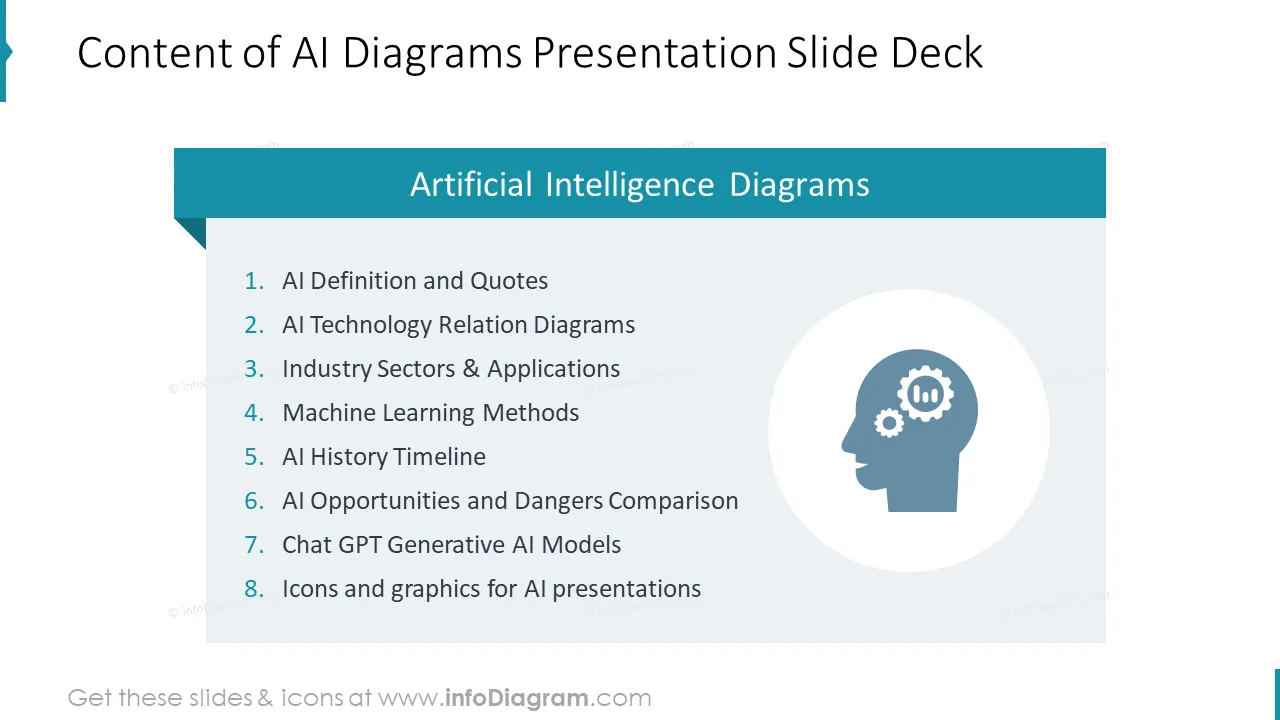
AI presentation diagrams slide deck covers those topics
- AI Definition and Quotes
- AI Technology Relation Diagrams
- Industry Sectors & Applications
- AI & Machine Learning Methods
- AI Development History Timeline
- Machine Learning Algorithm Types
- AI Opportunities and Dangers Comparison
- Icons and graphics for AI presentations
Defining and explaining what is Artificial Intelligence
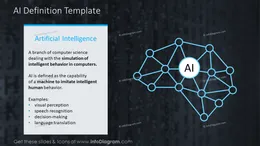
AI is a branch of computer science dealing with the simulation of intelligent behavior in computers. Artificial Intelligence is defined as the capability of a machine to imitate intelligent human behavior.
Machine Learning (ML) is a set of computer algorithms able to learn without being explicitly programmed to do so.
A subset of ML which makes the computation of multi-layer neural networks feasible.
Examples of applied Artificial Intelligence include visual perception e.g. in robotics, speech recognition (apps like Alexa, Siri, Google Assistant), decision-making, or language translation (e.g. Google Translate).
Technologies involved in AI
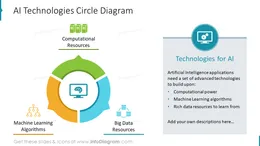
Artificial Intelligence applications need a set of advanced technologies to build upon such as infrastructure ensuring enough computational power, advanced Machine Learning algorithms, and rich data resources to learn from
Industries Using AI
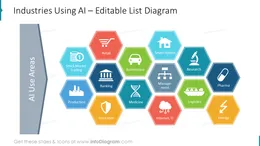
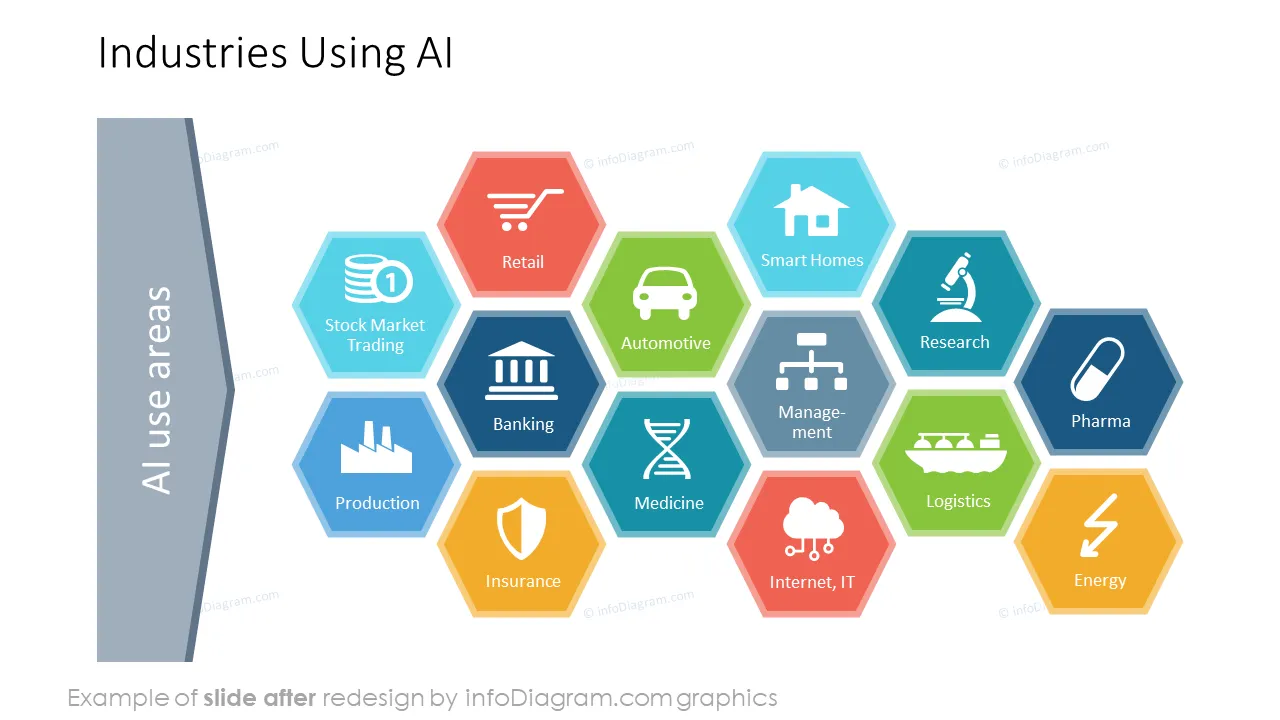
Business areas that use AI include retail (market basket analysis, cross and up-selling automated propositions, dynamic pricing, for example), banking (e.g. credit scoring), production and manufacturing (e.g. processes optimization), insurance (risk scoring), automotive industry (automated vehicles and various driving support systems), medicine (image recognition, medical expert systems), smart homes and cities (smart devices), logistics (delivery path optimization by TSP, for example), energy and utility companies (e.g. consumption forecasting)
AI & Machine Learning Methods
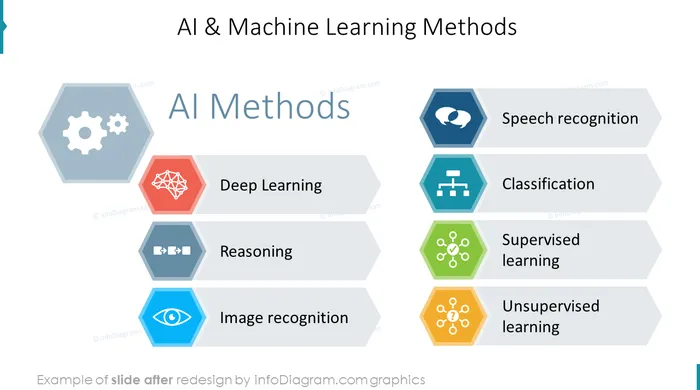
Computational techniques used in Artificial Intelligence include Deep Learning, Reasoning, Image and Speech Recognition algorithms, Classification and Supervised Learning as well as Unsupervised learning e.g. clustering.
AI Applications Examples
Examples, where AI is applied, are NLP - Natural Language Processing, Machine Learning, Computer Vision, speech recognition, machine translation, robotics, decision support systems, predictive analytics, expert systems, autonomous cars, intelligent chatbots, and automated scheduling.
Symbols for AI infographics
AI concept icons to illustrate topics such as deep learning, machine learning, clustering, clutter, a hierarchy system, decision tree, expert system, supervised, unsupervised, and reinforcement learning.
We added also general IT symbols for server, data center, cloud computing, network, database, smartphone, digital processing, data protection, security, and unknown data.
The icon set has also general business symbols you can use: survey form, danger warning sign, time schedule calendar, analytics chart, data growth, protection shield, vision, monitoring, or reasoning process sequence.
AI Template Content description
AI and machine learning presentation contain ready-to-use slides:
- Content of AI diagrams slide deck with a modern flat icon and text placeholder with filling can be used as an agenda slide.
- Artificial intelligence definition slide on a dark background with a brain scheme icon.
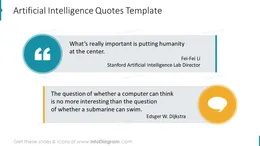
- AI quotes are illustrated with quotation marks icons in flat style.
- Artificial technologies circle diagram: computational resources, big data resources, machine learning algorithms.
- AI technologies honeycomb colorful graphics with outline icons.
- AI application examples presented with a visual list chart with outline graphics.
- Artificial intelligence machine learning methods list with modern outline icons for visual explaining each item.
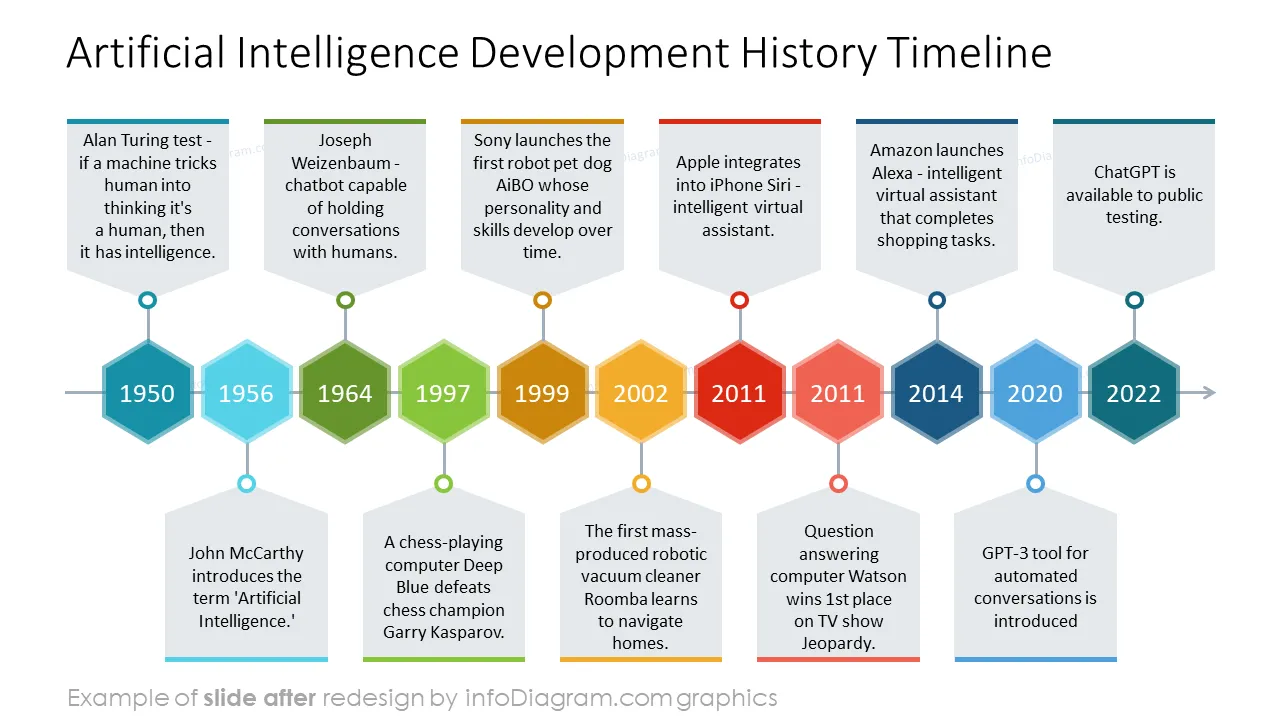
- Development history colorful timeline with striped text placeholders.
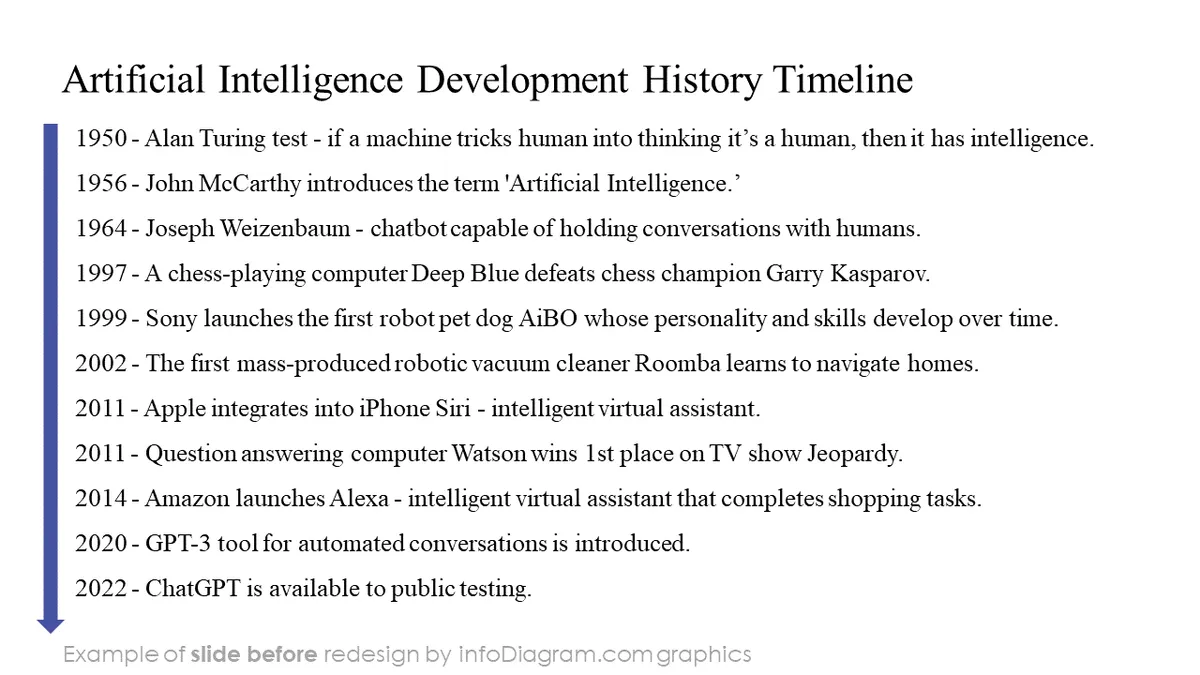
- History timeline of Artificial Intelligence, machine learning, and deep learning.
- Embedding of artificial intelligence technologies illustrated with circles diagram and a place for text description.
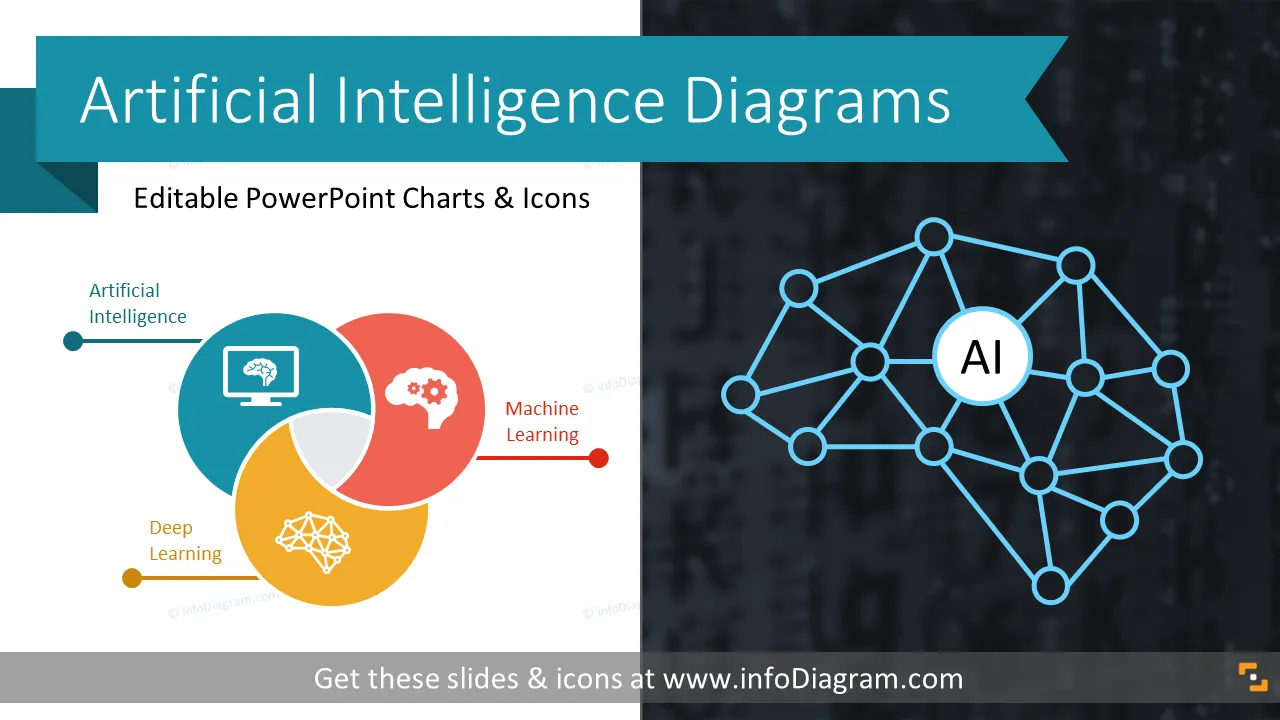
- Interlinking of AI technologies presented with three items Venn chart with outline icons.
- Machine learning algorithm types shown with a process chart with placeholders for a short description.
- Artificial intelligence opportunities and dangers comparison slide with outline icons and text placeholders with filling.
- Flat icons collection for illustrating AI and Machine learning concepts:
- deep learning, computer brain, machine learning, clustering, clutter, a hierarchy system, decision tree, expert system, supervised, unsupervised, reinforcement learning;
- server, data center, cloud computing, network, database, smartphone, computer monitor, digital processing, data protection, security, unknown data;
- pharma, medicine, DNA, research, microscope, retail shopping cart, car, finance, home real estate, logistics transport, production factory, robotics automation, engineering gears;
- communication quote sign, message bubble, dialog, chatbot, information sharing, unknown data, questioning, mobile communication, texting, contact center, question mark;
- approved checked document, survey form, danger, electricity warning sign, novelty opportunity stars, time schedule calendar, analytics chart, data growth, gears, protection shield, vision, monitoring, idea bulb, reasoning process sequence.
Editability of this AI & ML diagrams PowerPoint Template
Fully editable in PowerPoint set of vector shapes fully editable by using built-in PowerPoint tools, including
- changing color of the icon filling and its outline
- changing shape and size, rotating, flipping the object
- relocating and resizing diagrams, putting shapes behind or on top of text
See editing demonstration in our HowTo Videos.
Further resources on AI