

Your graphics add a nice touch to my presentations and I recently used them for one of my all-hands meetings. Your toolbox adds professionalism to my slides. Instead of using standard clipart.
Claude Jones, Director of Engineer, @Walmartlabs, USA

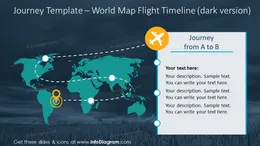
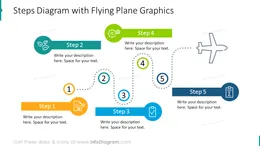
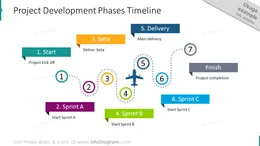
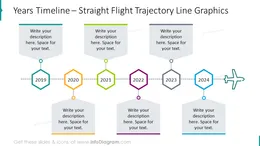
Before and after
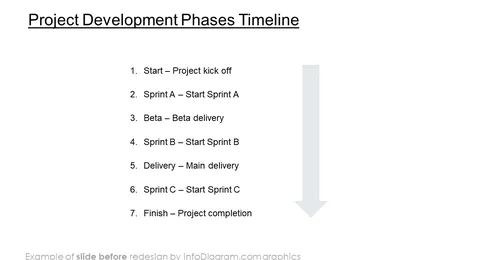
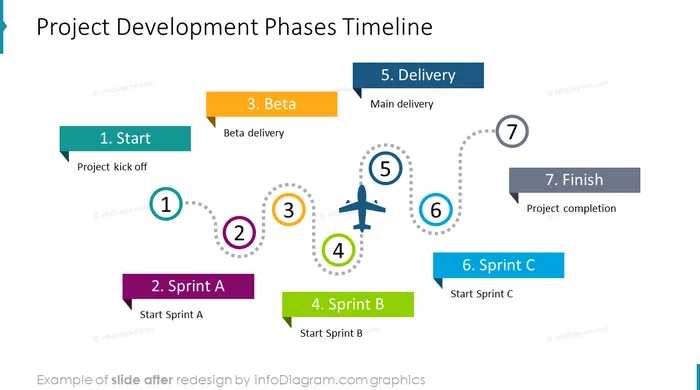
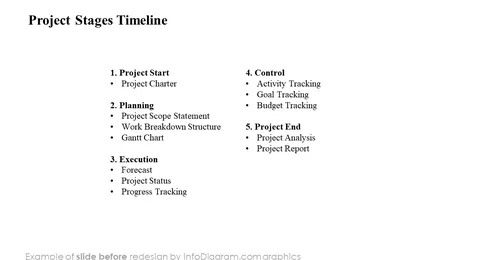
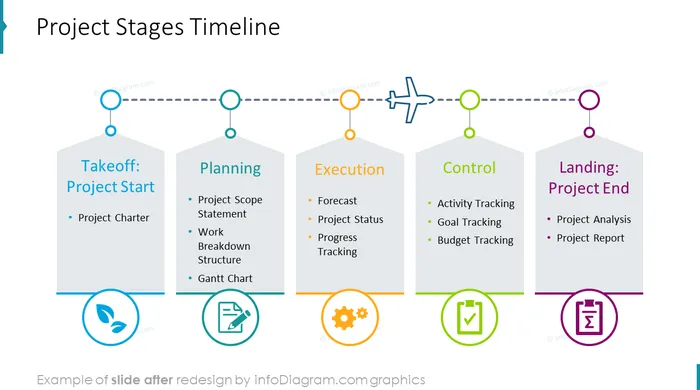
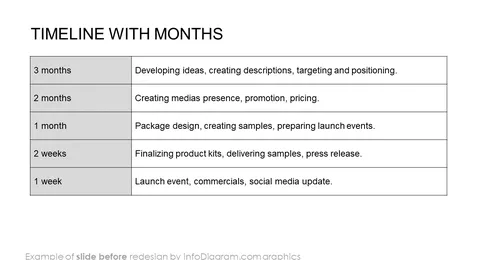
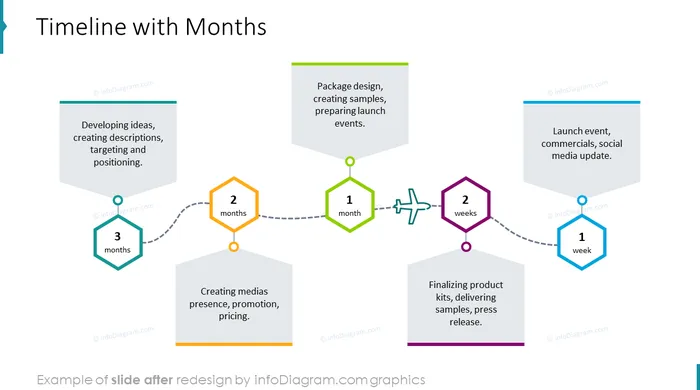
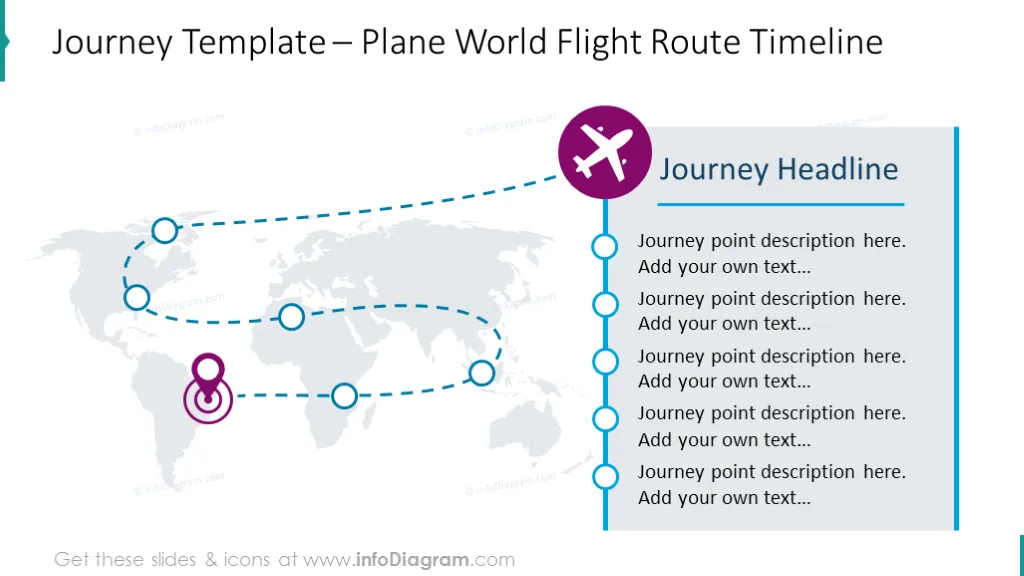
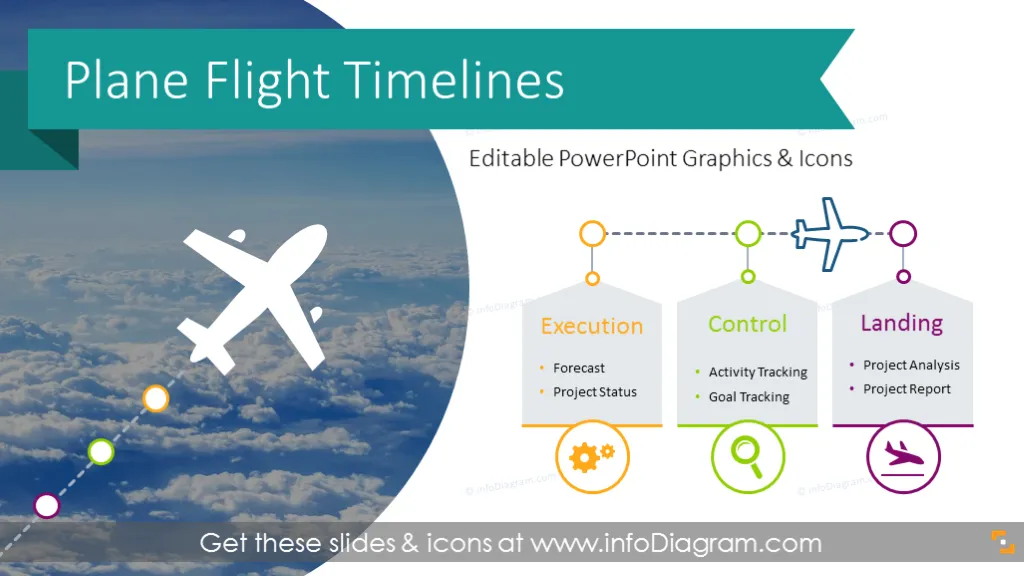
New set of creative timelines graphics using metaphor of airplane flight trajectory. You can use those plane illustrations to present project development phases or product launch schedule. Those colorful flat design timelines are a vivid visual additions to a presentation, making it more attractive to look at.
The flying planes graphics deck contains examples of list diagrams you can edit, modify text, add or remove waypoints.
It’s 100% editable PowerPoint template that includes:
The metaphor of plane take-off, flight and landing is a handy representation of any project or process start, development and reaching end. The flight trajectory with points presents set of milestones we need to pass to reach the desired destination
Usage examples:
Using those visual infographics to replace text bullets will make your slides eye-catching and remembered.
You can add a subtle animations and icons representing flight stages, make them appear one after another.
Feel free to modify the timelines, replace symbols, change number of points. Use the icon collection at the end of the presentation slide deck. Optionally you can also extend the collection by more PPT symbols (see Related Diagrams section).
You can edit text descriptions, colors of all illustrations and replace icons (all graphics is a vector format). Photographs are included in the template. You can easily replace them as well by pictures of your own.
Plane Flight Timeline Diagrams contains ready-to-use slides:
Fully editable in PowerPoint set of vector shapes fully editable by using built-in PowerPoint tools, including
See editing demonstration in our HowTo Videos.
Your graphics add a nice touch to my presentations and I recently used them for one of my all-hands meetings. Your toolbox adds professionalism to my slides. Instead of using standard clipart.
Claude Jones, Director of Engineer, @Walmartlabs, USA
I needed a fresh look at some of my slides. I've tried to find a way to create a paintbrush effect, to underline, accentuate, add some color and the handwritten markers were just the things. Very easy to use, easy to size, change the color. It was an affordable, perfect solution and I'm happy to recommend it.
Anonymous, US
The crisp, clean look of the graphics, and the fact that it allowed me to easily edit and change the colors to match the template was my main reason for purchasing them.
Brandie Jenkins, E-learning Developer, USA



You may also need