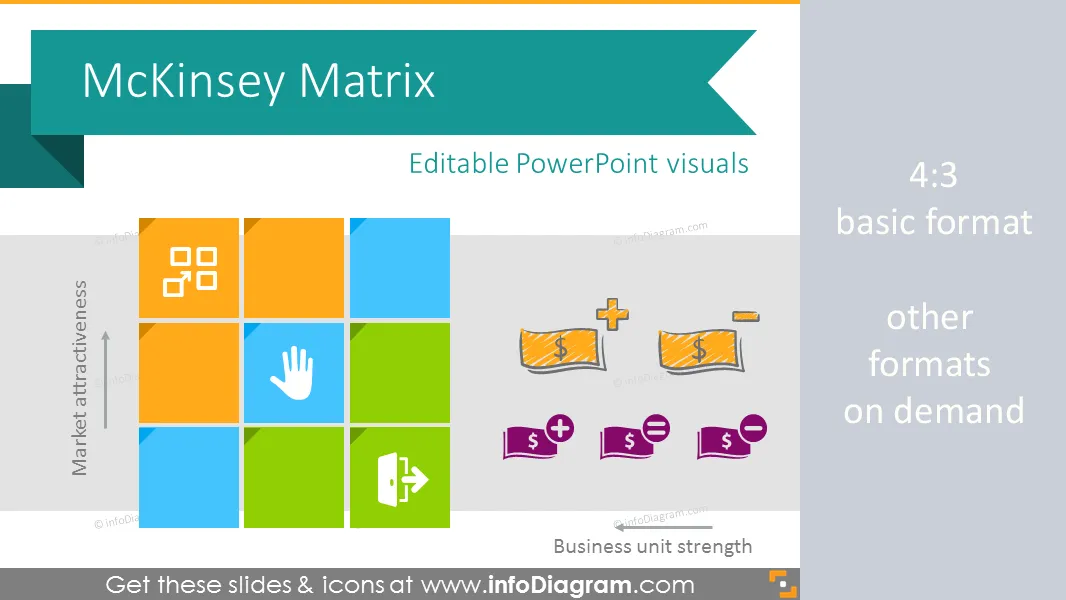
Cover and narrative setup
Usage example
Deck preview
What the deck looks like in practice
This template does not have a dedicated before/after case study, so we show the strongest slides from the actual deck instead.
Cover and narrative setup

Core structure and talking points
Polished visual slide from the deck
Description
Content of McKinsey Matrix presentation template graphics:
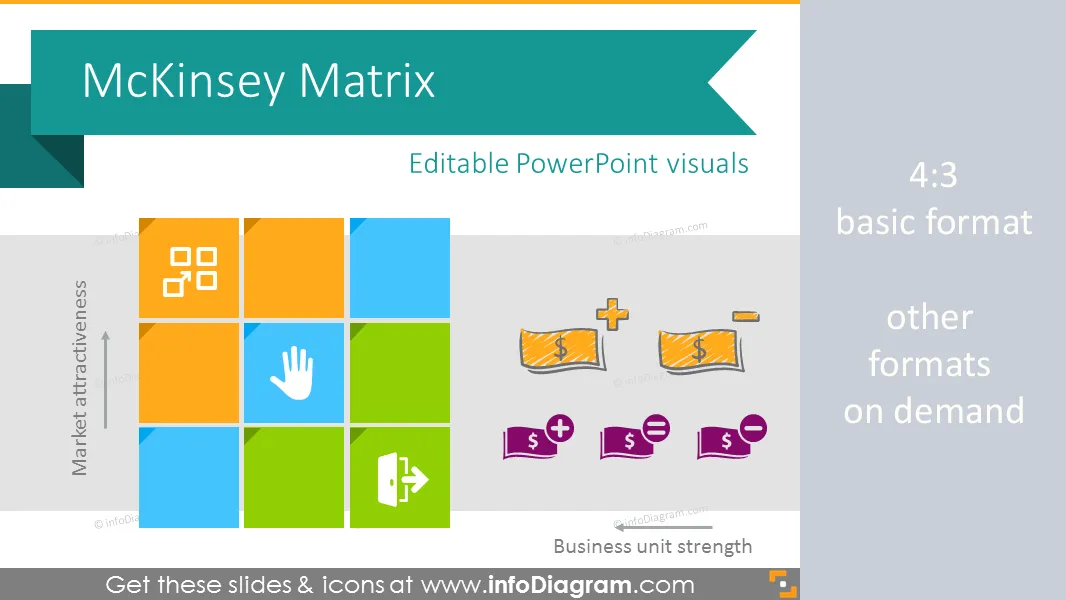
Collection of McKinsey matrix (so-called GE Matrix) visual layouts as pre-designed PowerPoint slides. Use this presentation to educate about investment strategies. Slide deck contains
- 20 diagrams representing investment 9 cell risk matrix.
- extendable pictogram symbols of investment strategies Invest, Select, Grow icons in 2 graphical styles: flat icons and unique hand-drawn scribble graphics
- exemplary explanation of recommended investment actions.
- Fully editable style. Size and colors are easy to adjust using PowerPoint editor
Slide set content details:
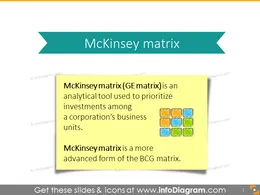
- Definition slide of GE / McKinsey matrix, its aims.
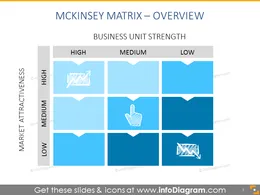
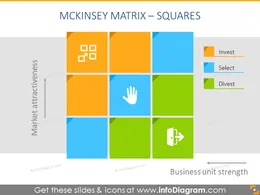
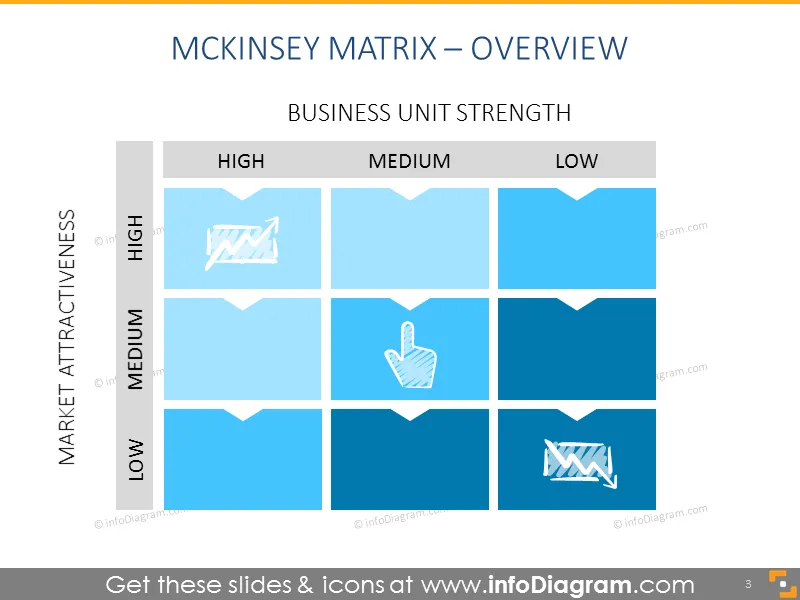
- Overview of the McKinsey Matrix: industry attractiveness and competitive strength of units nine-cells matrix
- Nine-cell matrix template with colorful and mono-color squares
- Separate slides with place for investment strategies description
- Elements of GE matrix, illustrated by scribbled icons
- GE business screen template with place for analysis aside
- Scribbled icons and square ribbon, representing 3 investment strategies: Invest, Select, Divest
- Index of flat and scribbled icons representing McKinsey matrix categories.
Advantages of using GE matrix template:
- GE–McKinsey's nine-box matrix offers a systematic approach for the multibusiness corporation to prioritize its investments among its business units.
- Helps to prioritize the limited resources in order to achieve the best returns.
- Managers become more aware of how their products or business units perform.
- More sophisticated business portfolio framework than the BCG matrix.
- Identifies the strategic steps the company needs to take to improve the performance of its business portfolio.
Further Resources about McKinsey matrix
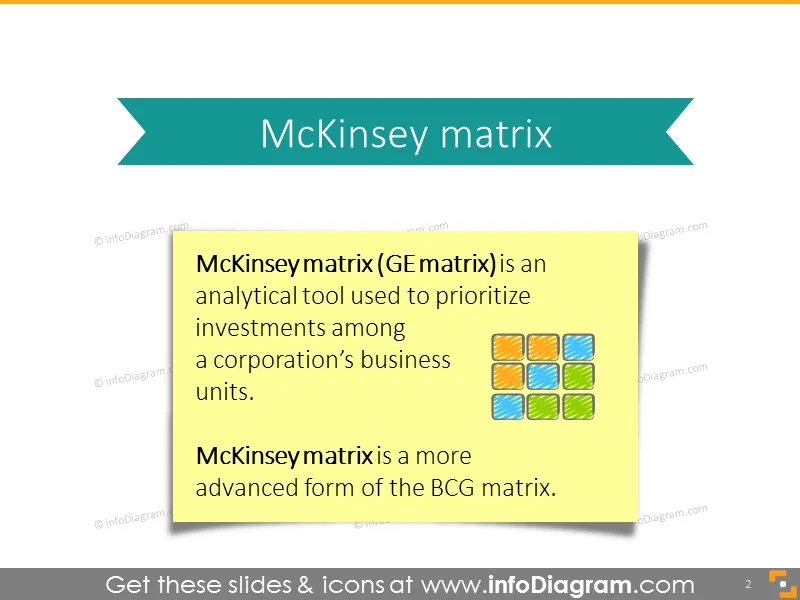
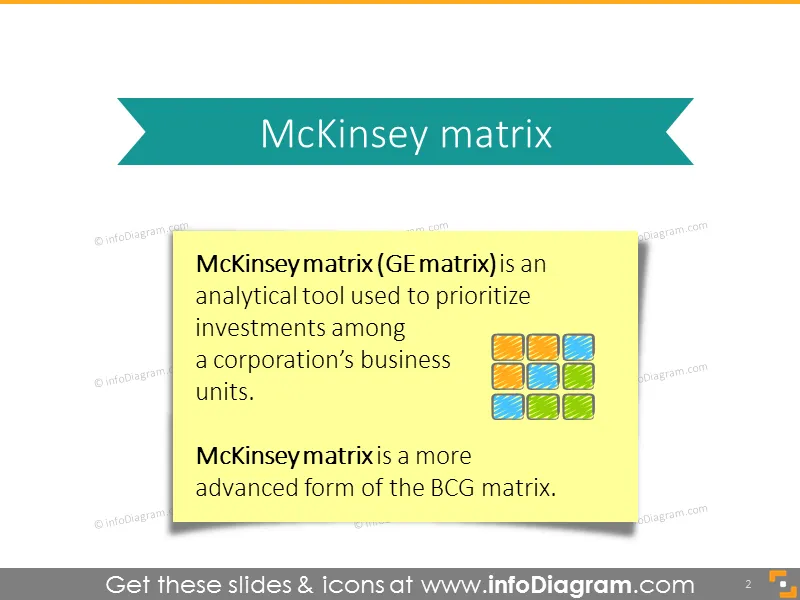
Definition: McKinsey matrix (GE matrix) is an analytical tool used to prioritize investments among a corporation’s business units. McKinsey matrix is a more advanced form of the BCG matrix.
- Enduring Idea: The GE-McKinsey nine-box matrix (article by McKinsey company)
- GE McKinsey Matrix: Which One To Invest In? (article link)
- Summary on the MKM Matrix (article link)
Presentation format
Fully editable vector shapes by using built-in PowerPoint tools (vector format), including
- changing the contour color of the icon
- changing the color of the scribble filling
- adding shadows
- changing shape and size, rotating, flipping the object
- putting shapes behind or on top of text
See the editing demonstration in our HowTo Videos.
Author
Content and design: infodiagram designers
Slides included in this PowerPoint Presentation:
- GE McKinsey Matrix Definition PPT Slide
- GE McKinsey Matrix Overview PPT Slide
- McKinsey Nine Cell Matrix Template
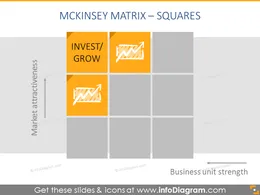
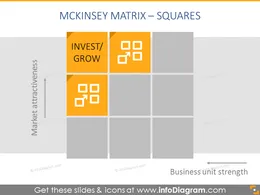
- McKinsey Matrix Invest/Grow Cells PPT Slide
- Invest/Grow box - describing attractiveness and strenght of business units
- McKinsey Matrix Select/Hold Cell PPT Slide
- Selectivity/Earnings box - analyze uncertain businesses
- McKinsey Matrix Divest/Harvest PPT Slide
- Harvest/Divest boxes as a part of ge mckinsey matrix example
- McKinsey Matrix Invest Element PPT Template
- Mckinsey Matrix Select Element PPT Slide
- Divest Cell on ribbon with description
- Three elements of ge mckinsey matrix in circles
- Outlined circle shape for invest summary
- Describing investment project, that are in select cells
- Harvest results of ge mckinsey analysis
- Actions to take for selected investment businesses
- Ideas for dealing with projects, situated in the middle of GE matrix
- McKinsey Matrix Divest Element PPT Slide
- McKinsey Matrix Analysis PPT Template
- Scribble icons index for mckinsey matrix
- Flat symbols collection
Reviews
Vos graphiques ajoutent une belle touche à mes présentations et je les ai récemment utilisés pour l'une de mes réunions générales. Votre boîte à outils ajoute du professionnalisme à mes diapositives. Au lieu d'utiliser des cliparts standards.
Claude Jones, Directeur de l'ingénierie, @Walmartlabs, USA
J'avais besoin d'un nouveau regard sur certaines de mes diapositives. J'ai essayé de trouver un moyen de créer un effet de pinceau, de souligner, d'accentuer, d'ajouter de la couleur et les marqueurs manuscrits étaient exactement ce qu'il fallait. Très facile à utiliser, facile à ajuster la taille, à changer la couleur. C'était une solution abordable et parfaite et je suis heureux de la recommander.
Anonymous, US
L'aspect net et épuré des graphiques, et le fait qu'il m'ait permis d'éditer et de changer facilement les couleurs pour les adapter au modèle, ont été les principales raisons de mon achat.
Brandie Jenkins, Développeur E-learning, USA
How to Edit
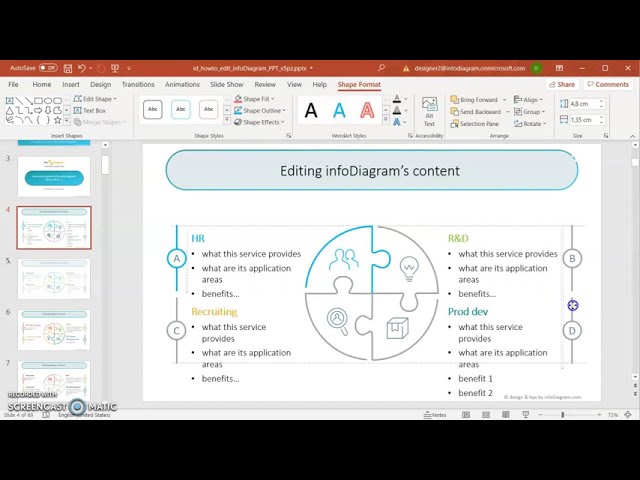
How to edit text & colors

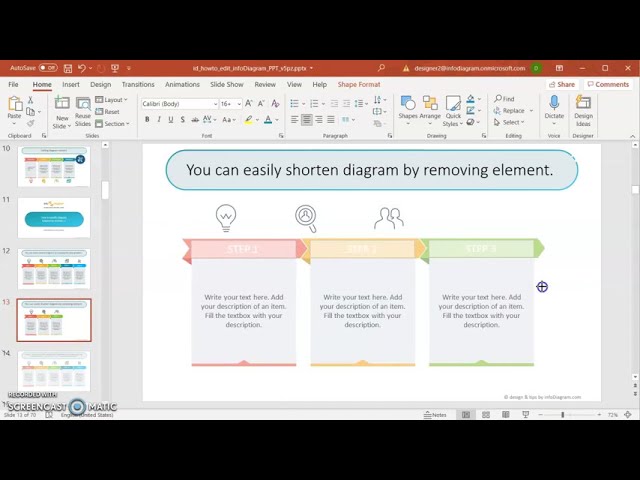
How to expand / shorten diagram

How to Replace Icons in infoDiagram PPT

You may also need