Presentation visuals toolbox for explaining DevOps methodology. We designed this PowerPoint template to give you tools to present DevOps concepts and processes using diagrams and icons. Use these PPT graphics to make DevOps tutorials and training materials, showing DevOps concepts, roles, cycles and levels by clear engaging infographics. All DevOps Toolbox visuals are PowerPoint editable.
This DevOps Know-How PowerPoint slide set includes:
- 15 flowchart and concept diagrams of DevOps Benefits, Principles, Roles, Levels illustrated by outline icons.
- DevOps Definition template note card
- DevOps Cycle template loop infographics with explanation text boxes
- modern flat loop design and creative hand drawn loop diagram with scribble icons and handwritten font
- 31 vector icons representing DevOps artifacts e.g. Software Development Team, Developer, Release Manager, Integration, Delivery, Verification, Configuring and Monitoring phase
- Format: fully editable vector shapes (modify colors of diagrams and icons, resize without quality loss
DevOps Know-how collection is a diagram set for explaining DevOps methodology in an easy and visually appealing way. Presented shapes will serve you for creating engaging presentation, meeting or webinar.
What is a DevOps methodology?
DevOps is a set of practices that help automates the processes between software development and IT teams. DevOps methodology will help you to faster delivery of features, improve communication and collaboration, create more stable operating environments, get more time for innovation, unite people and organizations around unique goals.
Why use DevOps Knowhow diagrams as your presentation visuals?
DevOps diagram will help you explain this methodology to your team. You can use these shapes for visualizing DevOps analysis without clutter on a slide in a creative eye-catchy way. DevOps knowhow diagram will help to create software development review and minimize downtime and resolve issues faster.
How to use DevOps Know-How in your presentation?
Copy the DevOps template that fit you the best and modify it (resize, change colors). A few ideas where you can apply those illustrations:
- Create DevOps training with visual explanation of the methodology.
- Illustrate software development review and planning meetings.
- Make publications on DevOps topics with creative visuals.
- Illustrate a software development and information technology operations.
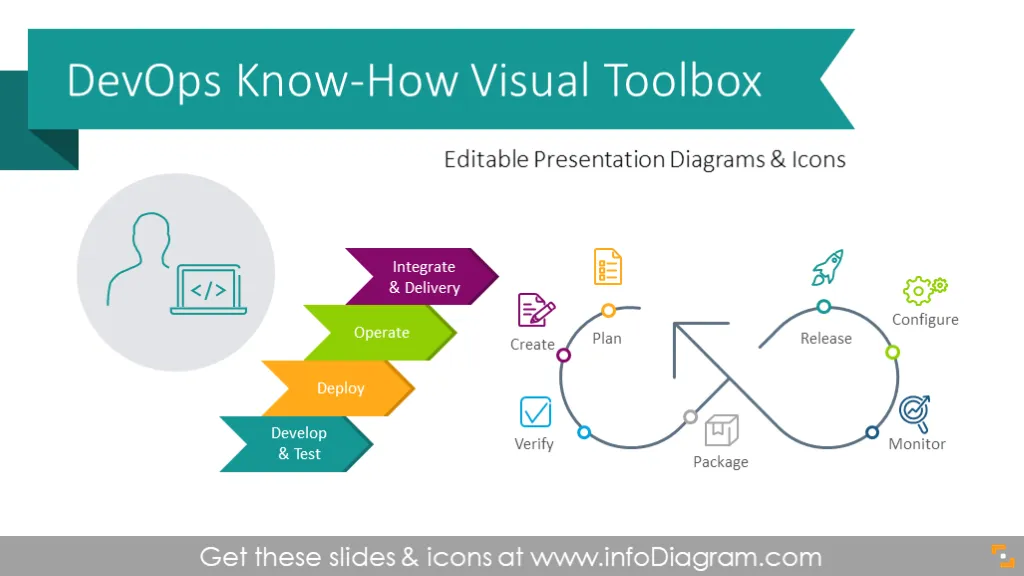
- Present specific DevOps stages: Plan, Create, Verify, Package, Release, Configure, and Monitor.
- Show interconnection of DevOps methodology elements.
- Manage an agile software development process.
- Illustrate concept in a visually appealing way to break down the barrier between Dev and Ops.
Content description
DevOps Know-How Presentation Toolbox contains ready-to-use slides:
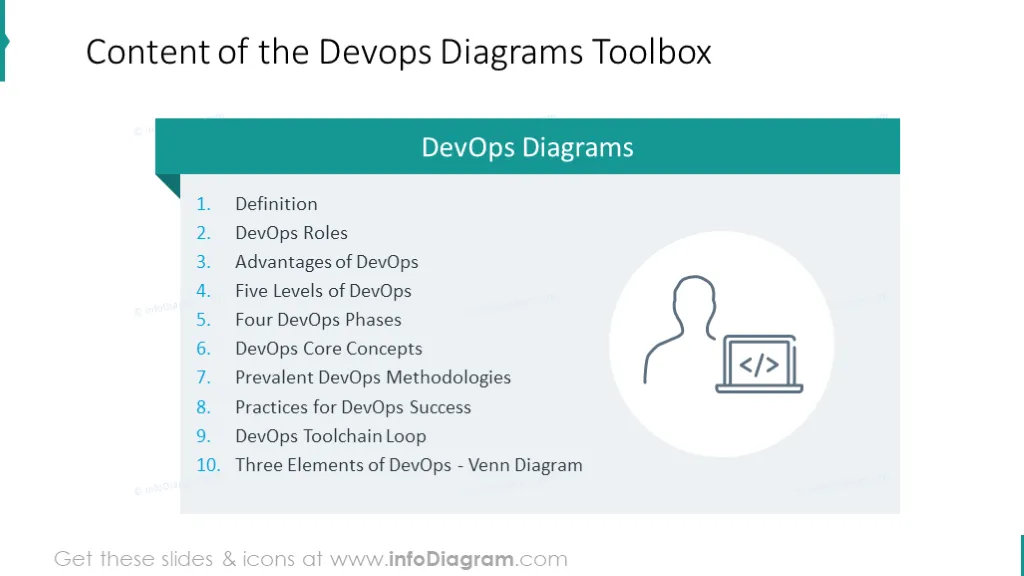
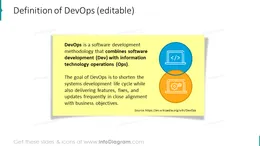
- DevOps definition slide (presented with sticky note and text description).
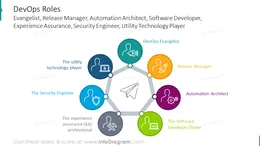
- Diagram listing DevOps main roles: evangelist, release manager, automation architect, software developer, experience assurance, security engineer, utility technology player.
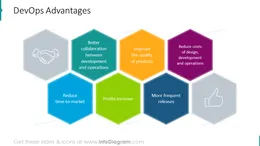
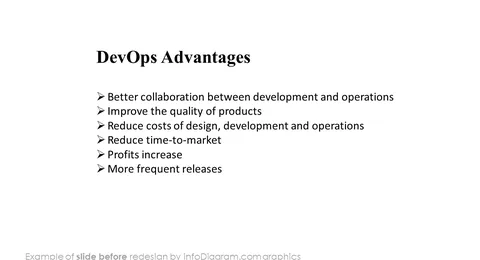
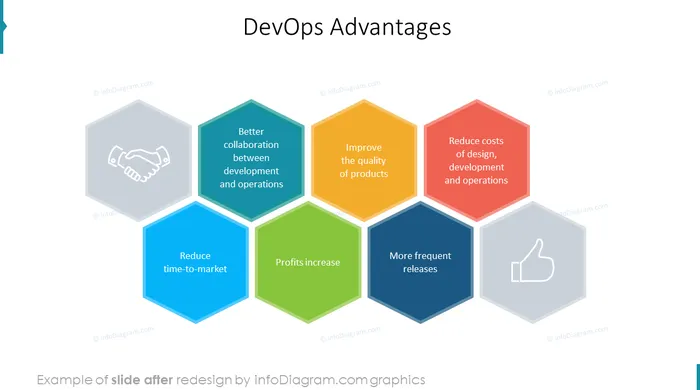
- Advantages of DevOps (presented with multicolor honeycomb chart).
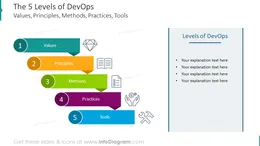
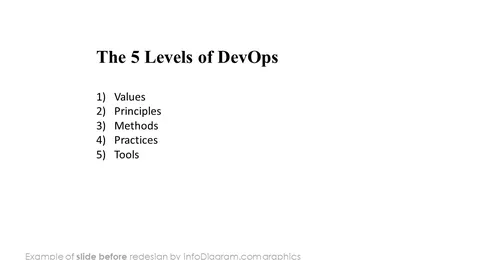
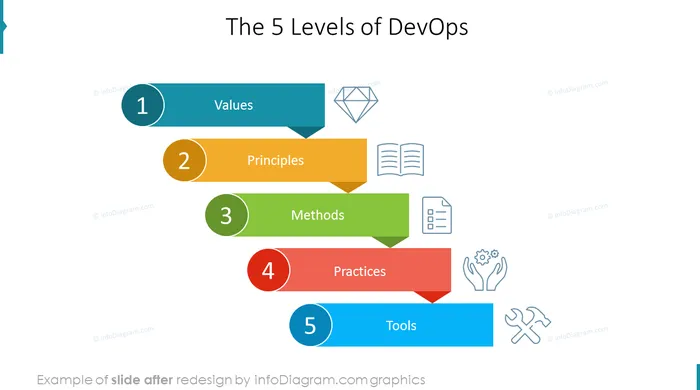
- 5 levels of DevOps (colorful list with icons intended to show the main DevOps stages: values, principles, methods, practices, tools).
- 4 phases of DevOps: integrate and delivery, operate, deploy, develop and test (illustrated with colorful list diagram with outline symbols).
- DevOps core concept slide presented with flat Venn diagram with a place for text description.
- DevOps methodologies list illustrated with teardrops list with a place for a short description.
- Practices for DevOps success: the Chaos Monkey, blue/green deployment, dependency injection, Andon Cords, the cloud, embedded teams, blameless postmortems, status pages, developers on call, incident command system.
- DevOps toolchain cycle loop presented with cycle diagram and icons in three versions: flat, lighter and outline.
- DevOps Elements slide illustrated with 3 parts Venn chart in flat and outline style.
Fully editable in PowerPoint set of vector shapes fully editable by using built-in PowerPoint tools, including
- changing color of the icon filling and its outline
- adding shadows
- changing shape and size, rotating, flipping the object
- putting shapes behind or on top of text
See editing demonstration in our HowTo Videos.
Authors
- infoDiagram's designer
- Contact: here
Slides included in this PowerPoint Presentation:
- Content of the Devops Diagrams Toolbox
- DevOps Definition PowerPoint Slide
- Example of the DevOps Roles Diagram Illustration
- DevOps Advantages Honeycomb Chart
- 5 Levels of DevOps Waterfall Diagram PPT
- DevOps Phases PPT Slide
- DevOps Core Concepts Venn Chart Slide
- Prevalent DevOps Methodology Slide
- Example of the diagram intended to show practices for DevOps success
- DevOps Toolchain Loop Infographic Slide
- Example of the lighter toolchain cycle diagram
- Example of the outline DevOps toolchain cycle chart
- Example of 3 elements DevOps diagram illustrated with Venn chart
- Example of 3 elements DevOps diagram showed in outline style
- Outline icons for DevOps chart: Team Roles, Developer, Release, Delivery
- Icons for DevOps concept: Computers, Processes, Documents, Principles
- DevOps icons set: Tools, Loop, Release, Value, Integration
- Outline icons set