

Your graphics add a nice touch to my presentations and I recently used them for one of my all-hands meetings. Your toolbox adds professionalism to my slides. Instead of using standard clipart.
Claude Jones, Director of Engineer, @Walmartlabs, USA

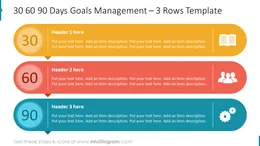

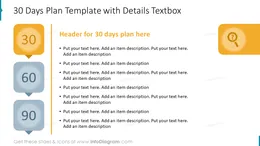
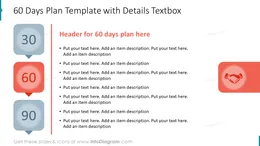
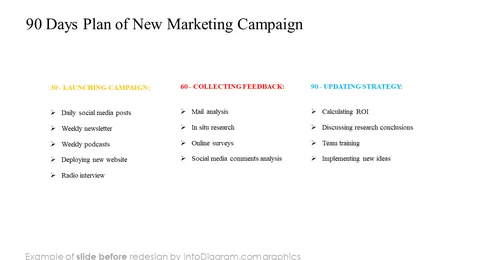
Before and after
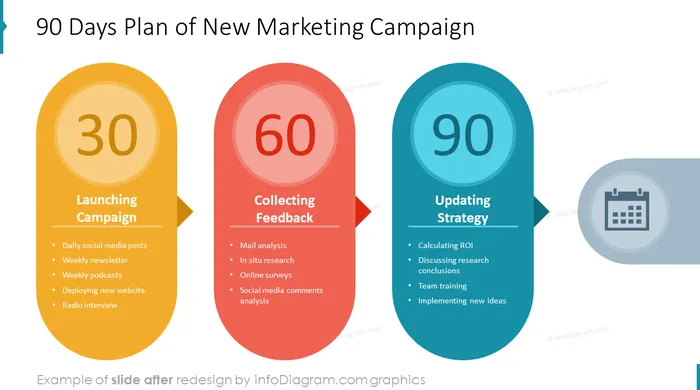
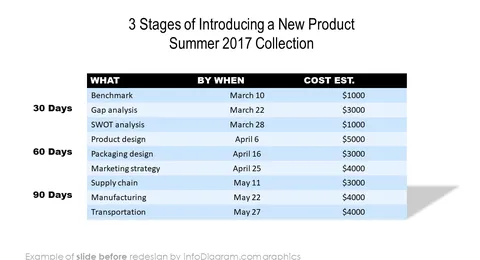
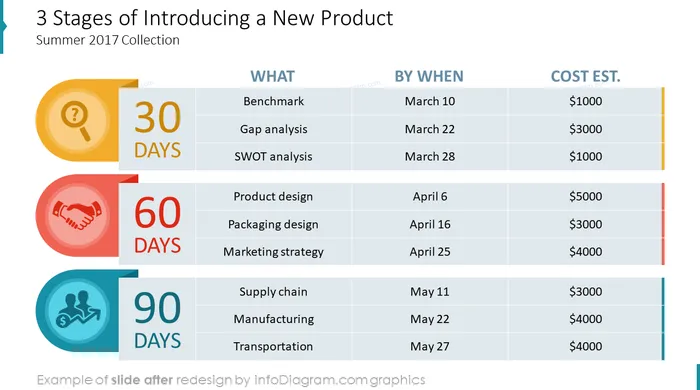
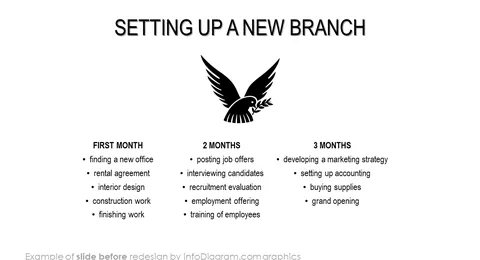
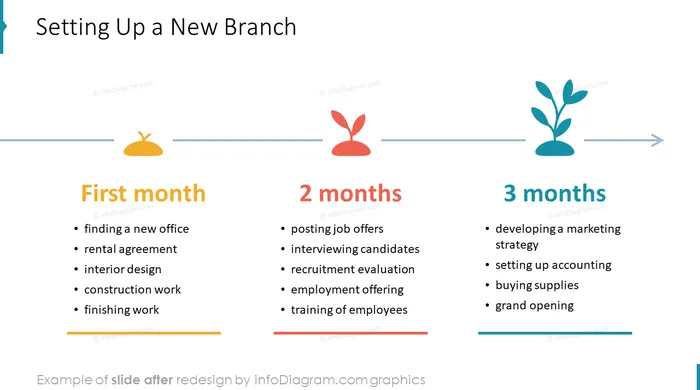
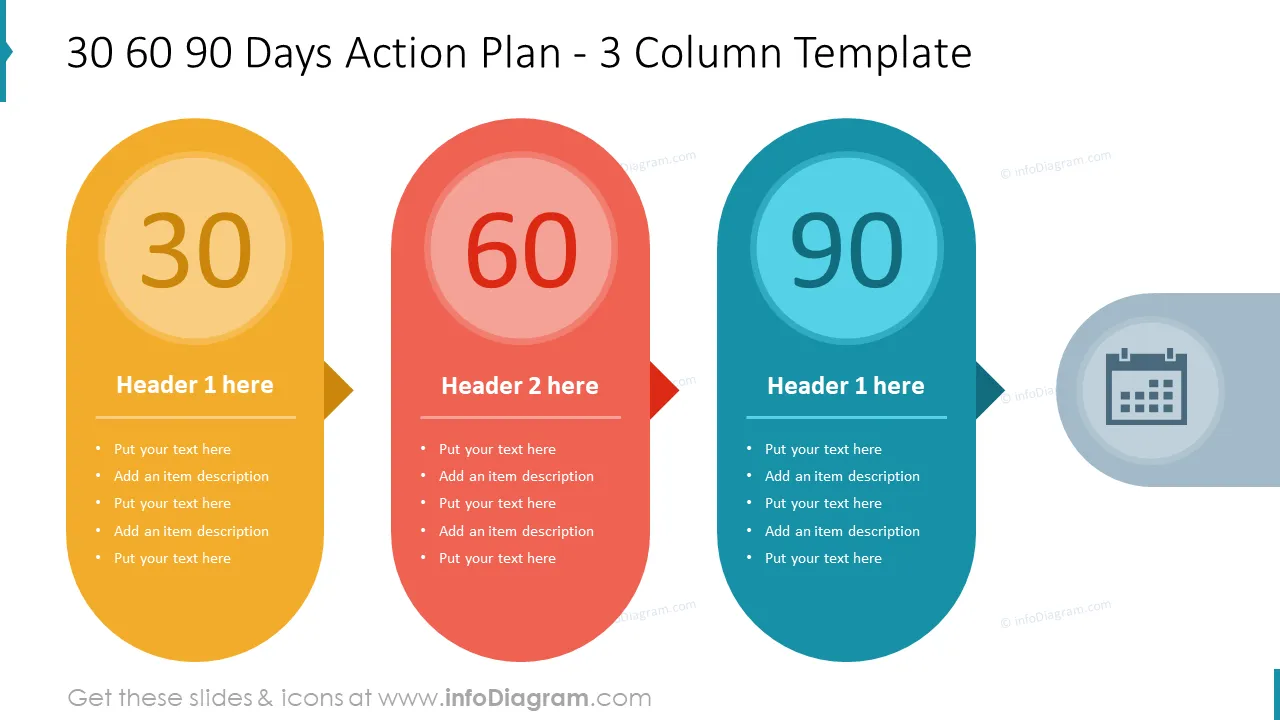
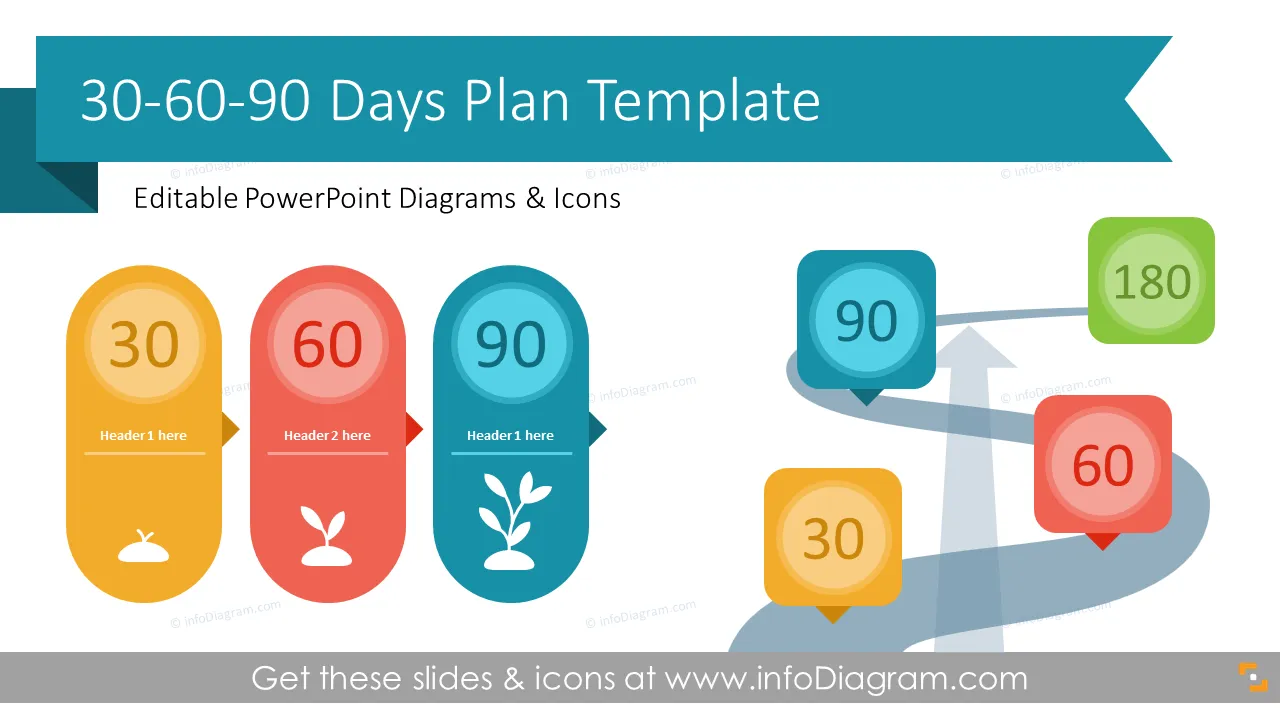
Starting a new job and looking for visuals to illustrate your 30-60-90 action plan? Onboarding new employees and wanting them to map out their personal goals? The job description requires you to present your work objectives. If you want your slides to look professional and interesting while focusing people's attention on important things at the same time, the graphics in this plan can help you visualize your ideas. To help you out we've designed a PowerPoint template containing diagrams and timelines so you can use a 30-60-90 plan in different versions: on one slide altogether or broken down into 3 slides.
A 30-60-90 plan is a presentation of work objectives for the first 90 days in a new role or new team. It is usually used by hiring managers for new hires, such as in the induction process of a new manager's job role. Having such a plan for the first 90 days helps you to define a clear course of action by showing specific work goals and plans to achieve them.
You can also use these graphics while creating an actionable project template to divide big goals into manageable tasks or show end goals during the performance review.
If you need to present such a plan when applying for a new job, using visual diagrams will help you show the informative part in a catchy way and will make you stand out.
These diagrams will help you create appealing graphics to illustrate your thoughts and avoid wordy slides.
Try using these illustrations to present your content visually in an elegant way.
All graphics are editable, so you can modify the colors and text. We also added a general icon collection at the end of the presentation deck. Optionally, you can also extend the collection with more PPT symbols (see Related Diagrams section).
Fully Editable Templates - The set of vector shapes is fully editable using built-in PowerPoint tools, you can:
See editing demonstration in our HowTo Videos.
To deepen your understanding and skills, we suggest exploring additional materials such as our blog and YouTube video, which are trusted sources dedicated to refining presentation decks:
Your graphics add a nice touch to my presentations and I recently used them for one of my all-hands meetings. Your toolbox adds professionalism to my slides. Instead of using standard clipart.
Claude Jones, Director of Engineer, @Walmartlabs, USA
I needed a fresh look at some of my slides. I've tried to find a way to create a paintbrush effect, to underline, accentuate, add some color and the handwritten markers were just the things. Very easy to use, easy to size, change the color. It was an affordable, perfect solution and I'm happy to recommend it.
Anonymous, US
The crisp, clean look of the graphics, and the fact that it allowed me to easily edit and change the colors to match the template was my main reason for purchasing them.
Brandie Jenkins, E-learning Developer, USA



You may also need