
Cover and narrative setup

Deck preview
This template does not have a dedicated before/after case study, so we show the strongest slides from the actual deck instead.
Cover and narrative setup
Core structure and talking points
Polished visual slide from the deck
Are you presenting instructional design models? Preparing an educational course? Support your presentation by visual way of explaining essential learning theories for instructional training, including ADDIE, SAM or Kirkpatrick frameworks. We’ve prepared an Instructional Design PowerPoint template of those learning models that you can use to explain various instructional systems development.
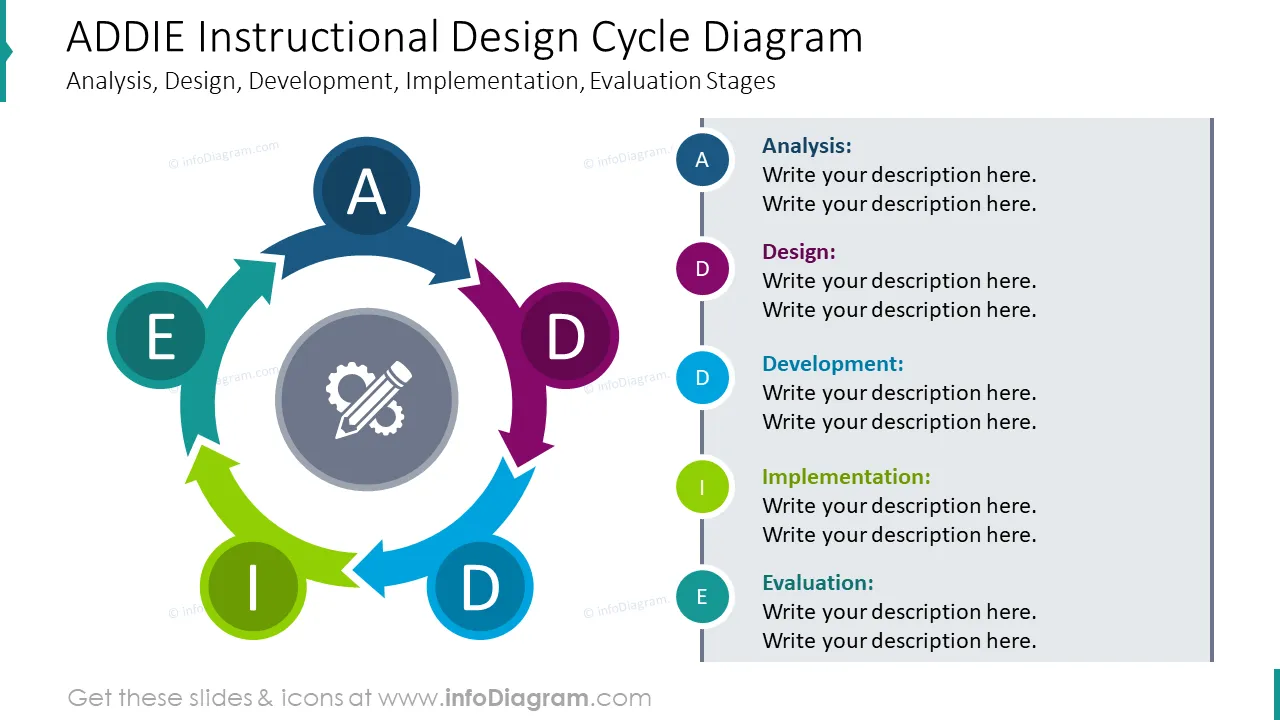
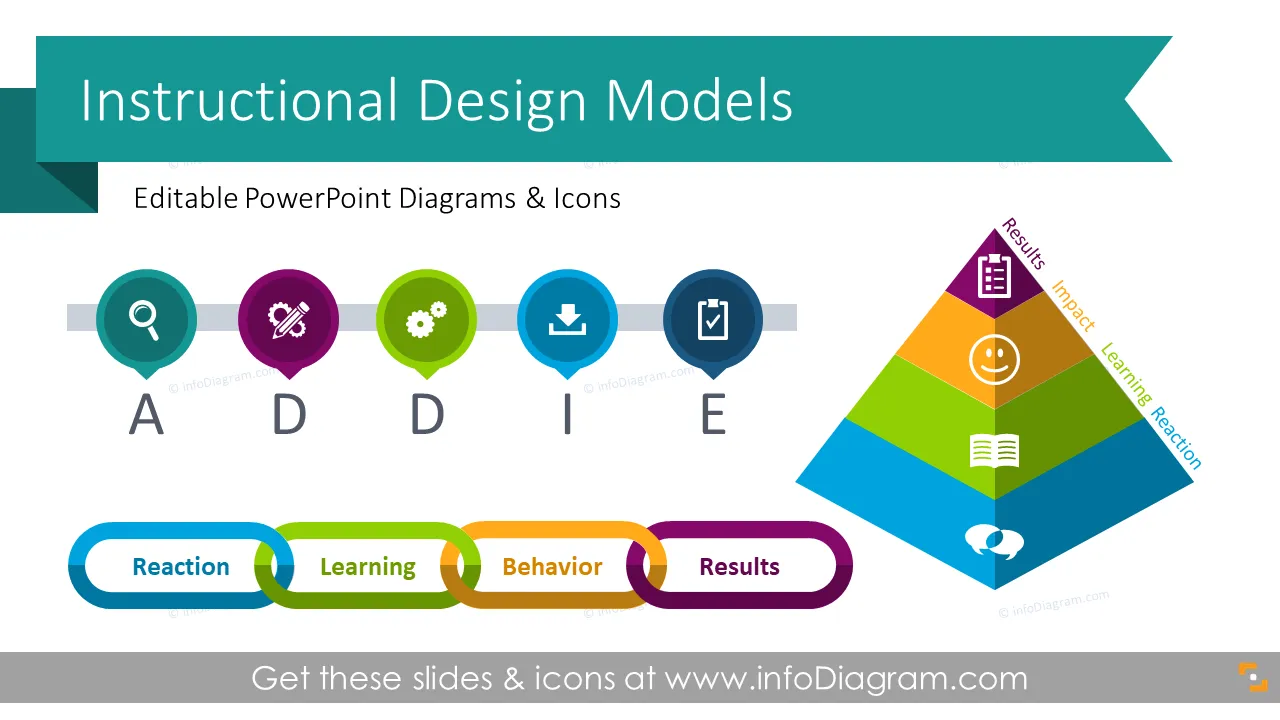
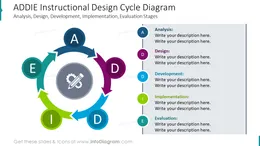
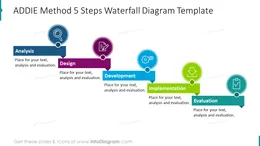
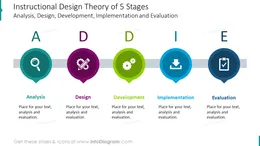
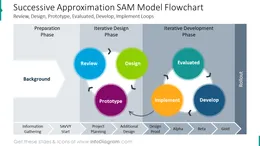
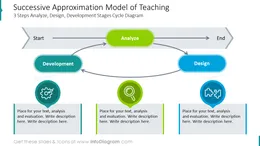
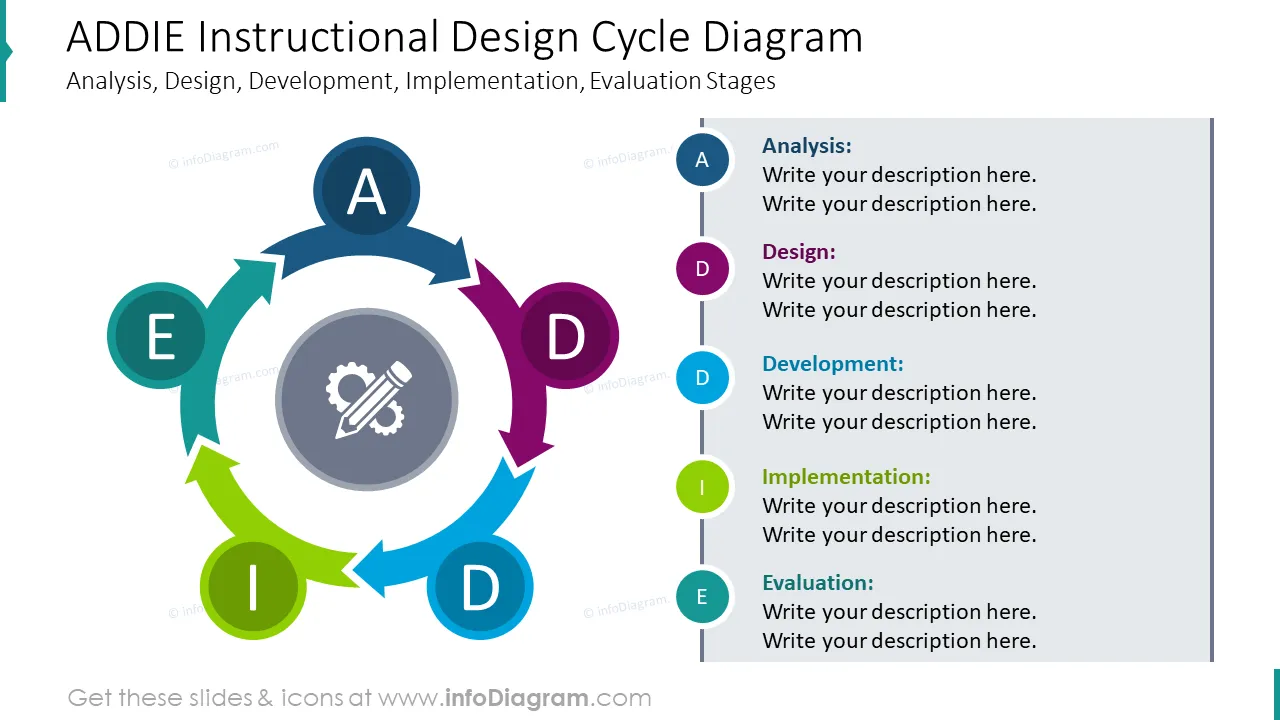
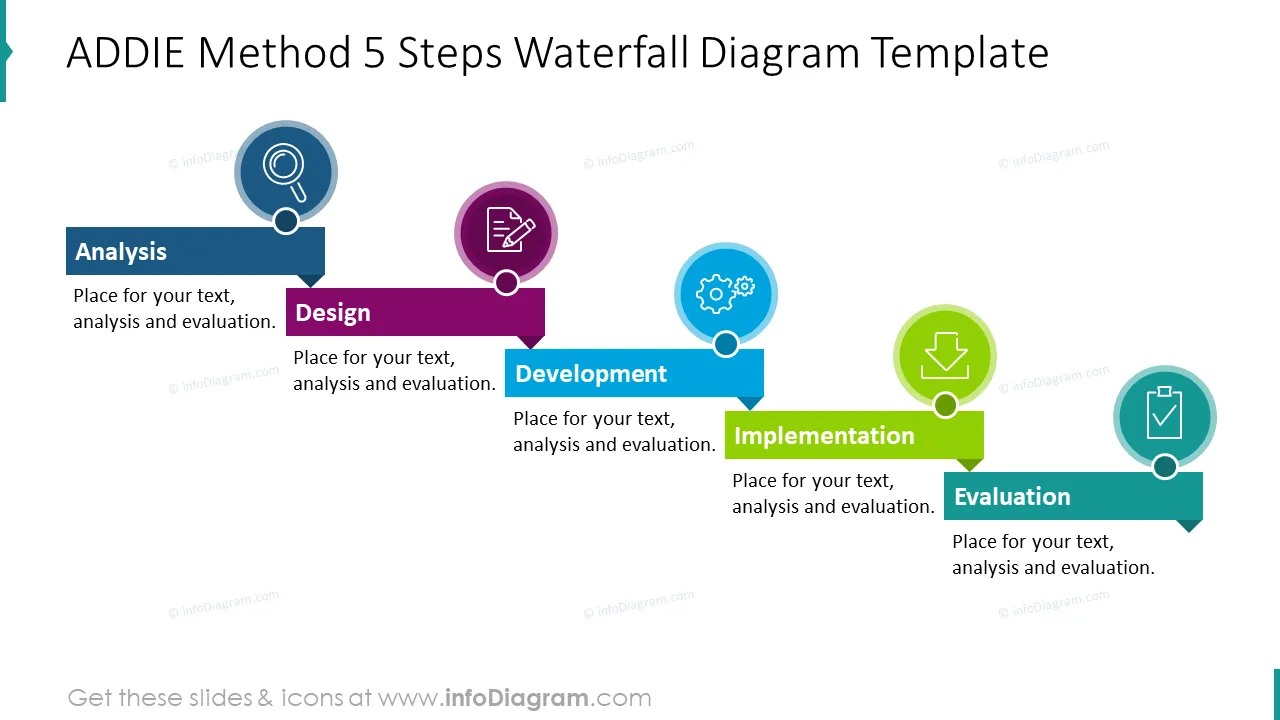
11 flowcharts and illustrations to present SAM (Successive Approximation Model), ADDIE Instructional Design Cycle with Analysis, Design, Development, Implementation, Evaluation Stages and Kirkpatrick Levels of Training with Reaction, Learning, Behavior, Results stages.
Universal style diagrams in a modern flat-filling style that fits any visual identity style (feel free to adapt colors to your brand ones).
24 outline symbols and simple flat icons to illustrate instructional design concepts such as Iterative Designing Process, Evaluation Checkmark, Analysis Results, Knowledge or Learning.
Instruction on how to modify those diagrams using standard PowerPoint editing tools.
Format: fully editable vector shapes (modify colors of diagrams and icons, resize without quality loss).
Instructional design models are frameworks that help to organize a training course to ensure an effective education process. Such an approach can be applied to various forms of teaching - eLearning, soft-skills or hard-skills training or school education, as well.
The most famous models include ADDIE, Successive Approximation Model (SAM), and Kirkpatrick or Merrill’s Principles of Instruction (MPI).
Fully editable in PowerPoint set of vector shapes fully editable by using built-in PowerPoint tools, including
See the editing demonstration in our HowTo Videos.

Sus gráficos añaden un toque agradable a mis presentaciones y recientemente los usé para una de mis reuniones generales. Su conjunto de herramientas añade profesionalismo a mis diapositivas. En lugar de usar imágenes prediseñadas estándar.
Claude Jones, Director of Engineer, @Walmartlabs, USA
Necesitaba un aspecto fresco para algunas de mis diapositivas. Había intentado encontrar una forma de crear un efecto de pincel, de subrayar, acentuar, añadir algo de color y los marcadores escritos a mano fueron justo lo que necesitaba. Muy fácil de usar, fácil de ajustar el tamaño, cambiar el color. Fue una solución asequible y perfecta, y estoy feliz de recomendarla.
Anonymous, US
El aspecto nítido y limpio de los gráficos, y el hecho de que me permitiera editar y cambiar fácilmente los colores para que coincidieran con la plantilla fue mi principal razón para comprarlos.
Brandie Jenkins, Desarrollador de e-learning, USA



You may also need