

Your graphics add a nice touch to my presentations and I recently used them for one of my all-hands meetings. Your toolbox adds professionalism to my slides. Instead of using standard clipart.
Claude Jones, Director of Engineer, @Walmartlabs, USA

Your graphics add a nice touch to my presentations and I recently used them for one of my all-hands meetings. Your toolbox adds professionalism to my slides. Instead of using standard clipart.
Claude Jones, Director of Engineer, @Walmartlabs, USA
I needed a fresh look at some of my slides. I've tried to find a way to create a paintbrush effect, to underline, accentuate, add some color and the handwritten markers were just the things. Very easy to use, easy to size, change the color. It was an affordable, perfect solution and I'm happy to recommend it.
Anonymous, US
The crisp, clean look of the graphics, and the fact that it allowed me to easily edit and change the colors to match the template was my main reason for purchasing them.
Brandie Jenkins, E-learning Developer, USA
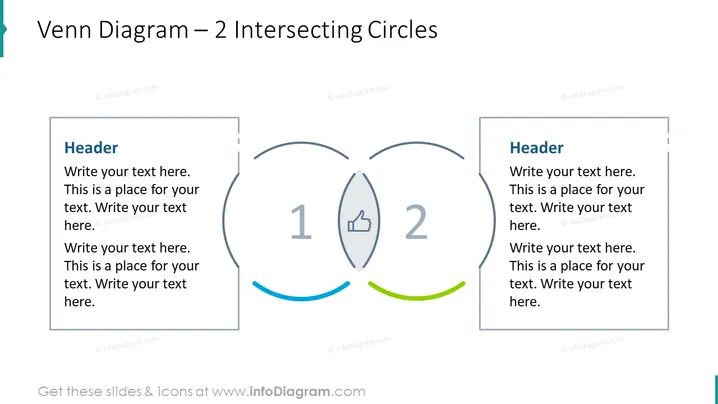
This PowerPoint slide presents a Venn Diagram with 2 Intersecting Circles, often used to illustrate relationships and interactions between two different groups or sets of information. Each circle includes a placeholder "Header" and multiple lines of text where users can insert descriptions or characteristics specific to each group. The overlap of the circles contains a "1" and a "2" to list commonalities or interactions, complemented with icons, such as a thumbs up, denoting positive associations or shared attributes.
The overall look of the slide is professional and minimalist, with an emphasis on clarity. The use of icons and contrasting colors adds visual interest without distracting from the informational content.



