
Reviews
Your graphics add a nice touch to my presentations and I recently used them for one of my all-hands meetings. Your toolbox adds professionalism to my slides. Instead of using standard clipart.
I needed a fresh look at some of my slides. I've tried to find a way to create a paintbrush effect, to underline, accentuate, add some color and the handwritten markers were just the things. Very easy to use, easy to size, change the color. It was an affordable, perfect solution and I'm happy to recommend it.
The crisp, clean look of the graphics, and the fact that it allowed me to easily edit and change the colors to match the template was my main reason for purchasing them.
Description
Editing Outline Icons in PowerPoint
Slide Content
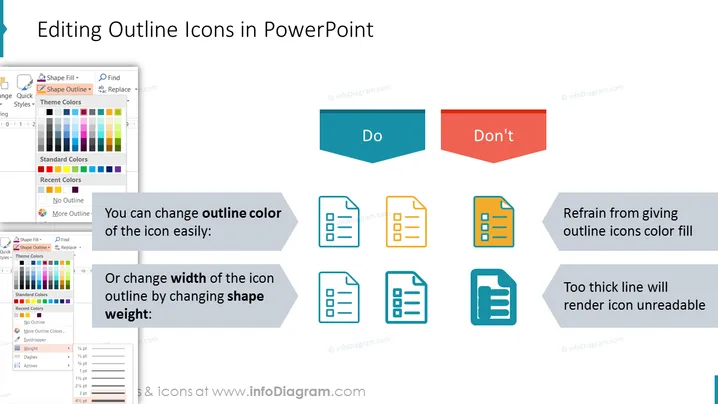
The slide is titled "Editing Outline Icons in PowerPoint" and is likely a tutorial on icon customization within the presentation software. It illustrates the best practices with a "Do" and "Don't" approach. The "Do" side suggests that you can easily change the color of an icon's outline or adjust the icon's outline width by modifying the shape weight. These actions maintain icon clarity. In contrast, the "Don't" side advises against filling outline icons with color and against using excessively thick lines, as these can make icons less readable.
Graphical Look
- The slide uses a plain white background as the canvas.
- At the top, a large blue ribbon serves as the header for the title, employing a white, bold, sans-serif font.
- Two parallelogram shapes form the "Do" and "Don't" labels, with the "Do" label in blue and the "Don't" label in a contrasting red.
- Below each label, there are examples of icons illustrating the correct and incorrect methods.
- The examples showing correct practices are accompanied by grey arrows and text describing the action.
- The icons are simple and outlined, featuring a clipboard and list design.
- For incorrect practices, there is also descriptive text but with icons that are incorrectly colored or have overly thick outlines.
- Each instructional point has a small screenshot of the PowerPoint interface, showing the specific tool or menu option to use.
The overall look of the slide is clean and professional, with a clear distinction between recommended and discouraged practices. The use of blue for positive actions and red for negative ones provides an intuitive visual cue for viewers.
Use Cases
- For training presentations on effective PowerPoint design techniques.
- In workshops or tutorials focused on graphic design within PowerPoint.
- To guide employees in creating visually appealing and clear business presentations.
- As part of internal company documentation or online tutorials for brand standard presentation guidelines.
How to Edit
How to edit text & colors

How to expand / shorten diagram

How to Replace Icons in infoDiagram PPT


