
Reviews
Ihre Grafiken verleihen meinen Präsentationen eine nette Note, und ich habe sie kürzlich für eines meiner All-Hands-Meetings verwendet. Ihre Toolbox verleiht meinen Folien Professionalität, anstatt Standard-Clipart zu verwenden.
Ich brauchte einen neuen Blick auf einige meiner Folien. Ich habe versucht, einen Weg zu finden, einen Pinselschlag-Effekt zu erzielen, um zu unterstreichen, hervorzuheben, Farbe hinzuzufügen, und die handgeschriebenen Markierungen waren genau das Richtige. Sehr einfach zu bedienen, leicht in der Größe zu ändern, die Farbe zu ändern. Es war eine erschwingliche, perfekte Lösung und ich empfehle sie gerne weiter.
Die klare, saubere Optik der Grafiken und die Tatsache, dass ich die Farben leicht bearbeiten und an die Vorlage anpassen konnte, war mein Hauptgrund für den Kauf.
Description
YTD Costs Overview
Slide Content
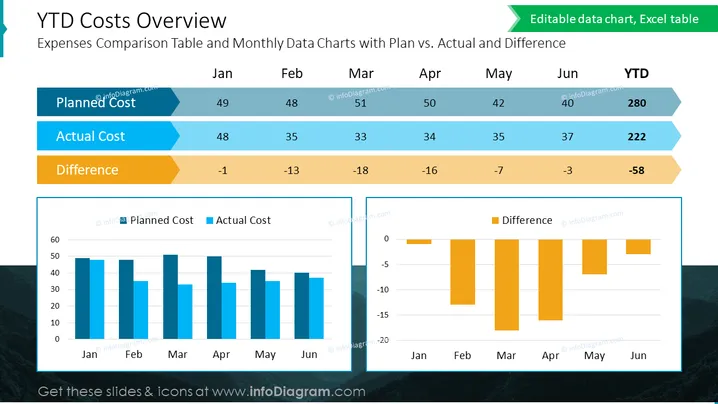
The slide showcases a financial comparison titled "YTD Costs Overview," indicating a year-to-date analysis of expenses with emphasis on the comparison between planned and actual costs, and the respective differences. There are columns for each month from January to June, followed by a YTD column. For each month, the Planned Cost, Actual Cost, and the Difference between them are listed numerically. The difference is calculated by subtracting the actual cost from the planned cost. This provides viewers with a clear monthly and cumulative financial performance assessment over half the year.
Graphical Look
- The title “YTD Costs Overview” is prominently displayed at the top of the slide in large, bold font.
- Below the title, a subtitle reads "Expenses Comparison Table and Monthly Data Charts with Plan vs. Actual and Difference."
- A table with three rows labeled "Planned Cost," "Actual Cost," and "Difference" spans across the slide with column headers from "Jan" to "Jun" and a concluding column "YTD."
- Each row presents data for the respective cost categories, with Planned and Actual Costs highlighted in shades of blue, and the Difference in orange.
- Two bar charts below the table visualize the data: the left chart compares Planned and Actual Costs for each month in two shades of blue, while the right chart illustrates the Difference for each month in orange bars.
- The background of the slide is white, with a subtle light blue overlay on the lower half.
The slide is professionally designed with a clean and informative layout, utilizing color-coding to delineate different types of financial data for ease of understanding.
Use Cases
- During a financial review meeting to analyze and discuss budget performance over a specified period.
- In a business presentation for shareholders or investors to report fiscal accountability and transparency.
- As part of a monthly or quarterly business performance report, providing visual emphasis on key financial metrics.
- To aid in strategic planning sessions where financial decisions are informed by comparing projections against actual financial outcomes.
How to Edit
How to edit text & colors

How to expand / shorten diagram

How to Replace Icons in infoDiagram PPT


