
Reviews
Your graphics add a nice touch to my presentations and I recently used them for one of my all-hands meetings. Your toolbox adds professionalism to my slides. Instead of using standard clipart.
I needed a fresh look at some of my slides. I've tried to find a way to create a paintbrush effect, to underline, accentuate, add some color and the handwritten markers were just the things. Very easy to use, easy to size, change the color. It was an affordable, perfect solution and I'm happy to recommend it.
The crisp, clean look of the graphics, and the fact that it allowed me to easily edit and change the colors to match the template was my main reason for purchasing them.
Description
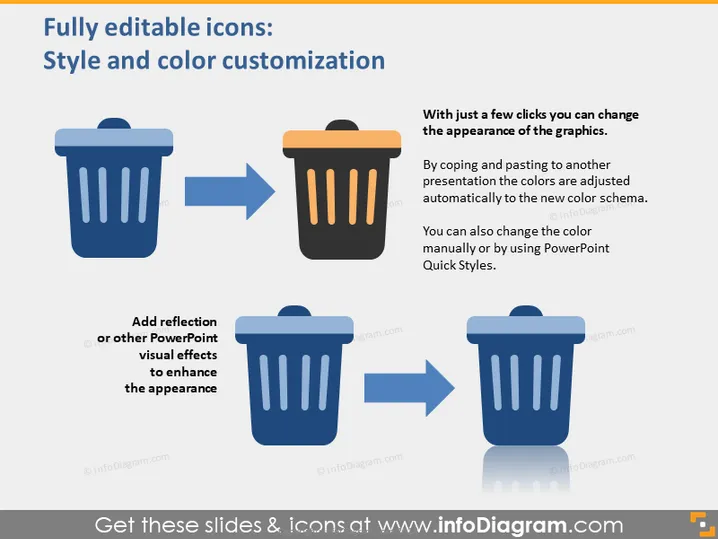
Fully editable icons: Style and color customization
Slide Content
This PowerPoint slide presents the concept of flexibility and ease of customizing icons, specifically focusing on style and color alterations. The slide shows two examples: The first demonstrates changing the icon's color scheme to match a new presentation by simply copying and pasting, which results in automatic color adjustment. The second example shows how adding a reflection or other PowerPoint visual effects can enhance the appearance of icons to make them more visually appealing for presentations.
Graphical Look
- Two pairs of trash bin icons where one in each pair has undergone a style or color change.
- Arrows pointing from the original icon to its altered version, illustrating the process of customization.
- Text boxes accompanying each pair of icons to explain the transformation—one discussing color change and the other discussing the addition of visual effects such as reflection.
- The slide uses a bold, sans-serif font for the text, ensuring readability and a modern appearance.
- The background is a solid color, likely to not distract from the content.
The overall look of the slide is simple and professional with a central focus on visual transformation. It uses a minimalistic design with ample white space to avoid clutter and highlight the change in the icons effectively.
Use Cases
- Demonstrating icon customization options during a presentation to a design team or at a training session for new software users.
- Showcasing the flexibility of branding elements within a marketing presentation, emphasizing the ease of aligning visuals with brand colors and styles.
- Enhancing a pitch to potential investors or stakeholders by highlighting the adaptability of the product's user interface design elements.
- Using as an instructional slide in a tutorial or workshop on how to create visually cohesive presentations.
How to Edit
How to edit text & colors

How to expand / shorten diagram

How to Replace Icons in infoDiagram PPT


