
Reviews
Your graphics add a nice touch to my presentations and I recently used them for one of my all-hands meetings. Your toolbox adds professionalism to my slides. Instead of using standard clipart.
I needed a fresh look at some of my slides. I've tried to find a way to create a paintbrush effect, to underline, accentuate, add some color and the handwritten markers were just the things. Very easy to use, easy to size, change the color. It was an affordable, perfect solution and I'm happy to recommend it.
The crisp, clean look of the graphics, and the fact that it allowed me to easily edit and change the colors to match the template was my main reason for purchasing them.
Description
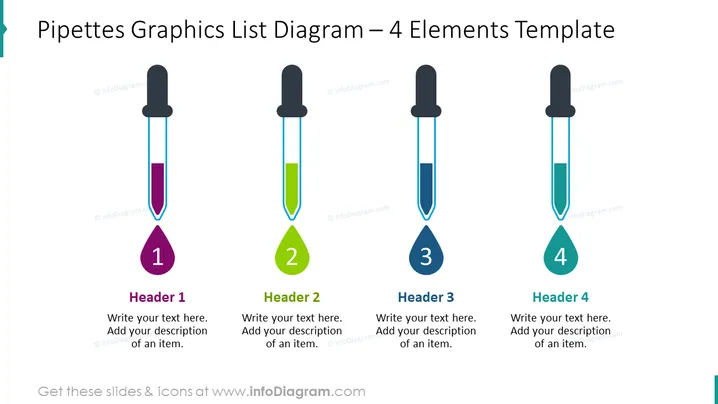
Pipettes Graphics List Diagram – 4 Elements Template
Slide Content
The slide shows a "Pipettes Graphics List Diagram" with 4 elements, each represented by a pipette with a different colored liquid drop. The numbers 1 to 4 are highlighted on the colored drops, indicating sequence or priority. Accompanying each graphic is space for a header and an editable text box meant for a detailed description, which can be used to explain individual components of a process, features of a product, or certain key points in a presentation. These elements bridge the gap between visual appeal and informative content.
Graphical Look
- Four vertical pipette illustrations are evenly spaced across the slide, symbolizing different components of a list.
- Each pipette has a drop of liquid at the bottom, with colors varying in purple, green, blue, and teal.
- Beside each drop is a white number from 1 to 4, which corresponds to the sequence of elements.
- Below each pipette and colored liquid drop is a designated area for a text title ("Header") and additional description.
- The slide background is white, providing high contrast for the colorful pipette illustrations.
- The use of clean lines and minimalistic design gives the slide a modern and professional appearance.
The overall design is sleek and visually pleasing, with a good use of color contrast and space that allows for each element to be easily distinguished. The simple icons combined with the text areas offer a clear and organized way to present information.
Use Cases
- To showcase sequential steps in a lab experiment or research process where pipettes are a relevant tool.
- For visual metaphor in business presentations, correlating the idea of 'measuring' or 'delivering precise quantities' with financial or project management concepts.
- To display a list of services or features of a product where the pipette imagery suggests customization or precision.
- In an educational or training setting to outline a step-by-step tutorial or guidelines with clear numbered milestones.
How to Edit
How to edit text & colors

How to expand / shorten diagram

How to Replace Icons in infoDiagram PPT


