
Reviews
Your graphics add a nice touch to my presentations and I recently used them for one of my all-hands meetings. Your toolbox adds professionalism to my slides. Instead of using standard clipart.
I needed a fresh look at some of my slides. I've tried to find a way to create a paintbrush effect, to underline, accentuate, add some color and the handwritten markers were just the things. Very easy to use, easy to size, change the color. It was an affordable, perfect solution and I'm happy to recommend it.
The crisp, clean look of the graphics, and the fact that it allowed me to easily edit and change the colors to match the template was my main reason for purchasing them.
Description
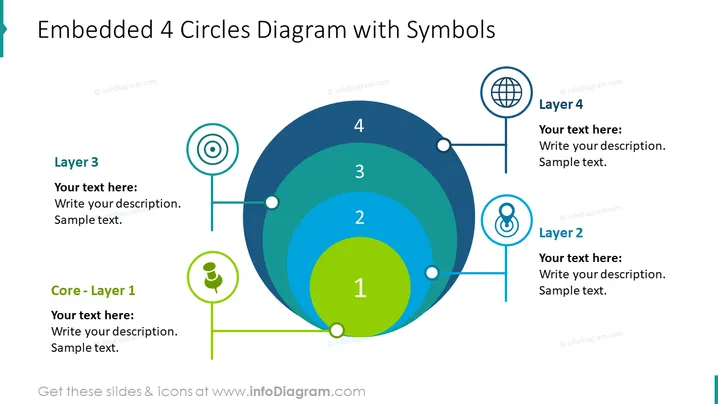
Embedded 4 Circles Diagram with Symbols
Slide Content
The slide depicts a multi-layered approach to a concept, system, or process, starting from a core element (Layer 1) and expanding outward to Layer 4. Core - Layer 1 is the central point, hinting at the fundamental part of the topic. Layer 2 suggests a direct extension or consequence of the core idea. Layer 3 represents a further reach from the central concept, potentially an expanded impact or application area. Layer 4 is the outermost layer, possibly indicating the broadest implications or the final outcome of the progression from the core.
Graphical Look
- Four concentric circles of increasing size represent layers or levels, numbered 1 to 4.
- Each layer is connected by a line to a corresponding textual box with a sample text placeholder.
- A distinct icon accompanies each textual box, visually representing each layer's theme.
- The circles are shaded in gradient shades of blue and green, creating a sense of depth.
- Lines connecting the layers are thin and terminate in circles that align with the edge of each layer.
- The slide's background is plain white, contrasting with the vibrant colors of the circles.
- Fonts are sans-serif, modern, and easily readable.
The slide's overall look is clean and professional, with a structured layout that visually guides the viewer through the layers. The use of gradients and icons adds a dynamic quality to the otherwise simple graphical elements.
Use Cases
- To explain the structure of an organization, starting from the central core values to the outer operational layers.
- For visualizing product development stages, from the core idea to the final product features.
- To outline a marketing strategy, detailing the core message and expanding it to various channels and outreach levels.
- In project management, to present a project's core objectives and the layers of tasks or phases needed to achieve them.
How to Edit
How to edit text & colors

How to expand / shorten diagram

How to Replace Icons in infoDiagram PPT


