
Reviews
Your graphics add a nice touch to my presentations and I recently used them for one of my all-hands meetings. Your toolbox adds professionalism to my slides. Instead of using standard clipart.
I needed a fresh look at some of my slides. I've tried to find a way to create a paintbrush effect, to underline, accentuate, add some color and the handwritten markers were just the things. Very easy to use, easy to size, change the color. It was an affordable, perfect solution and I'm happy to recommend it.
The crisp, clean look of the graphics, and the fact that it allowed me to easily edit and change the colors to match the template was my main reason for purchasing them.
Description
Setting Objectives – Defining Desired Outcome
Slide Content:
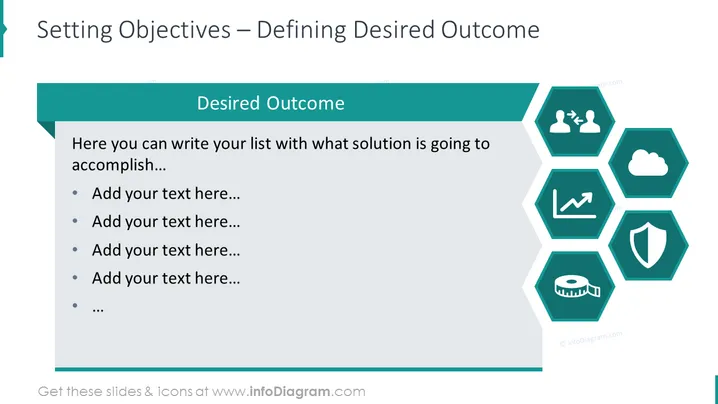
The PowerPoint slide is focused on the theme of 'Setting Objectives' and defining the desired outcomes of a project or plan. It features a placeholder text area where specifics can be added, such as goals or steps toward reaching an objective. The bullet points are left blank for custom entries, but suggest adding detailed descriptions of solutions or plans to accomplish the outlined objectives.
Graphical Look:
- Hexagonal icons in a teal color scheme.
- A large, bold title at the top.
- A teal ribbon behind the section labeled "Desired Outcome" for emphasis.
- A light grey background on the slide body providing contrast for the text and icons.
- A bullet list with placeholder text for adding specific objectives or steps.
The slide design is modern and business-like, with a structured layout that uses shapes and icons to convey different business concepts and strategies. It's a professional and visually appealing slide that uses color and design to draw attention to key areas.
Use Cases:
- In strategic business meetings to outline goals and objectives.
- During project kickoff meetings to establish clear outcomes.
- In workshops for setting personal or team targets.
- As part of a business plan or proposal presentation to stakeholders.
How to Edit
How to edit text & colors

How to expand / shorten diagram

How to Replace Icons in infoDiagram PPT


