
Reviews
Your graphics add a nice touch to my presentations and I recently used them for one of my all-hands meetings. Your toolbox adds professionalism to my slides. Instead of using standard clipart.
I needed a fresh look at some of my slides. I've tried to find a way to create a paintbrush effect, to underline, accentuate, add some color and the handwritten markers were just the things. Very easy to use, easy to size, change the color. It was an affordable, perfect solution and I'm happy to recommend it.
The crisp, clean look of the graphics, and the fact that it allowed me to easily edit and change the colors to match the template was my main reason for purchasing them.
Description
Comparing Multiple Alternatives
Slide Content:
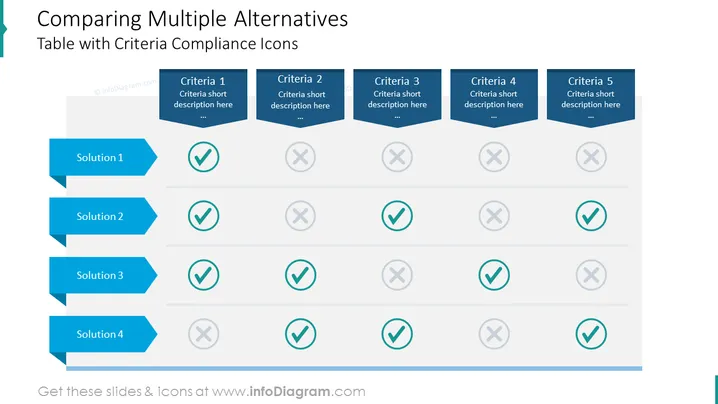
The PowerPoint slide is structured as a comparison matrix to evaluate multiple alternatives against a set of predefined criteria. It lists four solutions in a vertical column on the left, each accompanied by a corresponding arrow-shaped tag. Across the top, five criteria are laid out. Each solution's compliance with the criteria is indicated by checkmarks (for compliance) or crosses (for non-compliance). This setup allows for an at-a-glance assessment of how each solution measures up against the important decision-making factors.
Graphical Look:
- Arrow-shaped tags in a dark blue color indicating each of the four solutions.
- A row of dark blue headers across the top, each stating a criterion for comparison.
- Checkmark and cross icons in teal and grey, indicating compliance or non-compliance with each criterion.
- A simple and clean grid layout that forms the comparison matrix.
The slide employs a professional color scheme of blue and teal, creating a clear visual distinction between different elements.
Use Cases:
- In business strategy meetings for selecting the best solution from multiple options.
- During project management discussions to evaluate different methods or processes.
- For product feature comparisons in development or marketing presentations.
- In procurement to assess vendor proposals against selection criteria.
How to Edit
How to edit text & colors

How to expand / shorten diagram

How to Replace Icons in infoDiagram PPT


