
Reviews
Your graphics add a nice touch to my presentations and I recently used them for one of my all-hands meetings. Your toolbox adds professionalism to my slides. Instead of using standard clipart.
I needed a fresh look at some of my slides. I've tried to find a way to create a paintbrush effect, to underline, accentuate, add some color and the handwritten markers were just the things. Very easy to use, easy to size, change the color. It was an affordable, perfect solution and I'm happy to recommend it.
The crisp, clean look of the graphics, and the fact that it allowed me to easily edit and change the colors to match the template was my main reason for purchasing them.
Description
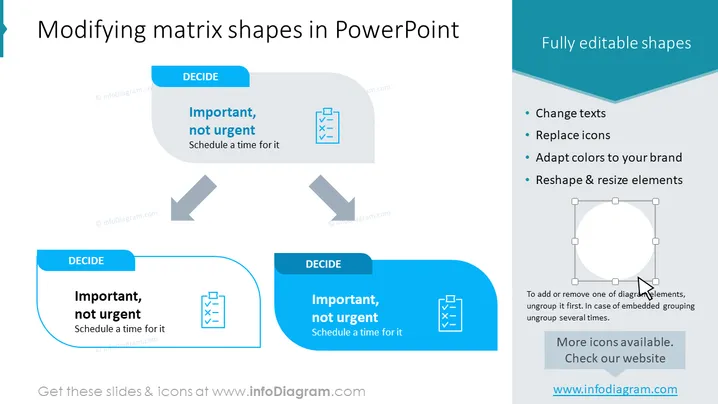
Modifying matrix shapes in PowerPoint
Slide Content
The slide is about how to modify matrix shapes in PowerPoint, highlighting that the shapes are fully editable. It shows two examples of a decision-making box labeled "DECIDE" with text inside explaining "Important, not urgent - Schedule a time for it". The editing features include changing texts, replacing icons, adapting colors to your brand, and reshaping & resizing elements. Each feature expands on the customizable nature of PowerPoint shapes, from altering content and visual appeal to fitting specific brand guidelines and layout requirements.
Graphical Look
- The slide background is white, creating a clean and simple look.
- The title "Modifying matrix shapes in PowerPoint" is in large, bold text, set against the white background at the top-centre of the slide.
- There is a large wave-like, dynamic shape that divides the slide into two sections, visually distinguishing the title area from the content.
- Two matrix examples are shown, each contained within a rounded rectangle with a blue header labeled "DECIDE".
- Gray arrows connect the two matrix examples, suggesting a flow or sequence.
- On the right side, a vertical list of features includes bullet points with each feature benefit described in a brief phrase.
- A graphical representation of a circular shape with anchor points is displayed to illustrate the concept of reshaping and resizing.
- Text formatting and iconography are consistent throughout, using blues and grays for color accents.
The overall appearance of the slide is modern and professional with a clear distinction between headings, explanatory text, and graphic elements. The use of blue tones and dynamic shapes gives the slide an engaging, instructive vibe.
Use Cases
- In a training session teaching how to edit and customize PowerPoint presentations.
- During a marketing presentation to demonstrate the adaptability of branded content.
- To provide a visual guide for employees or team members learning how to create consistent corporate presentations.
- As a tutorial slide in a webinar focused on advanced PowerPoint techniques and visual communication.
How to Edit
How to edit text & colors

How to expand / shorten diagram

How to Replace Icons in infoDiagram PPT


