
Reviews
Sus gráficos añaden un toque agradable a mis presentaciones y recientemente los usé para una de mis reuniones generales. Su conjunto de herramientas añade profesionalismo a mis diapositivas. En lugar de usar imágenes prediseñadas estándar.
Necesitaba un aspecto fresco para algunas de mis diapositivas. Había intentado encontrar una forma de crear un efecto de pincel, de subrayar, acentuar, añadir algo de color y los marcadores escritos a mano fueron justo lo que necesitaba. Muy fácil de usar, fácil de ajustar el tamaño, cambiar el color. Fue una solución asequible y perfecta, y estoy feliz de recomendarla.
El aspecto nítido y limpio de los gráficos, y el hecho de que me permitiera editar y cambiar fácilmente los colores para que coincidieran con la plantilla fue mi principal razón para comprarlos.
Description
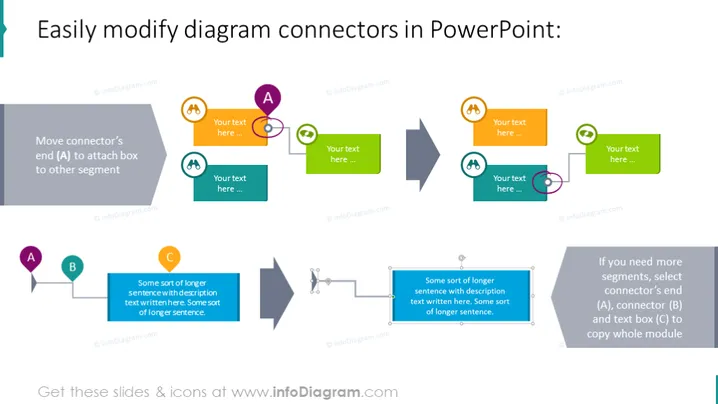
Easily modify diagram connectors in PowerPoint:
Slide Content
This slide is a tutorial visual demonstrating how to modify diagram connectors in PowerPoint. It provides a step-by-step visual guide: First, you can move the connector's end (A) to attach the box to another segment, allowing for customization of the flow or hierarchy within a diagram. Additional tips for managing more complex diagrams are provided, advising the selection of connector's end (A), connector (B), and text box (C) to copy entire modules, thus streamlining the editing process.
Graphical Look
- The slide title is prominent, set in large text at the top of the slide.
- There are four paired sets of colorful icons and text boxes, each demonstrating a step or part of the process.
- Each step is distinguished by a letter ('A', 'B', 'C'), aiding in following the instructional sequence.
- Directional arrows between steps indicate the flow of the instruction.
- The color palette is bright and varies between icons and text boxes to attract attention.
- Icons within text boxes (such as people and gear symbols) are utilized to represent customizable elements in PowerPoint diagrams.
The overall look of the slide is clean and professional with a straightforward design that emphasizes instructional content. The use of contrasting colors and clear visual flow aids in understanding the process being explained.
Use Cases
- For training sessions on PowerPoint skills, to teach participants how to edit and manage diagrams.
- In a presentation about effective communication, emphasizing the importance of clear visual aids.
- During a workshop for project managers, as part of a larger segment on project planning and visualization tools.
- As an online tutorial resource made available to team members who need to self-learn diagram customization in PowerPoint presentations.
How to Edit
How to edit text & colors

How to expand / shorten diagram

How to Replace Icons in infoDiagram PPT


