

Your graphics add a nice touch to my presentations and I recently used them for one of my all-hands meetings. Your toolbox adds professionalism to my slides. Instead of using standard clipart.
Claude Jones, Director of Engineer, @Walmartlabs, USA

Your graphics add a nice touch to my presentations and I recently used them for one of my all-hands meetings. Your toolbox adds professionalism to my slides. Instead of using standard clipart.
Claude Jones, Director of Engineer, @Walmartlabs, USA
I needed a fresh look at some of my slides. I've tried to find a way to create a paintbrush effect, to underline, accentuate, add some color and the handwritten markers were just the things. Very easy to use, easy to size, change the color. It was an affordable, perfect solution and I'm happy to recommend it.
Anonymous, US
The crisp, clean look of the graphics, and the fact that it allowed me to easily edit and change the colors to match the template was my main reason for purchasing them.
Brandie Jenkins, E-learning Developer, USA
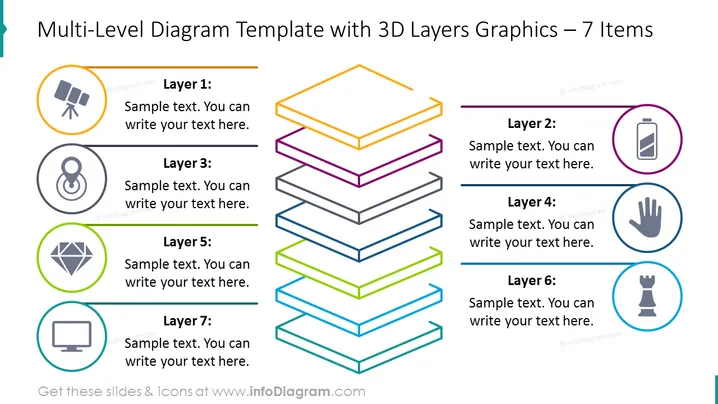
The PowerPoint slide presents a 3D layered diagram which is used to illustrate a hierarchy or various levels in a system. Each layer is accompanied by an icon and text placeholder to describe the specific item or stage: Layer 1 shows a telescope icon symbolizing vision or exploration; Layer 2 has a battery icon denoting energy or power; Layer 3 features an icon indicating connectivity; Layer 4 with a hand icon may represent support or guidance; Layer 5 displays a diamond, which may suggest value or quality; Layer 6 has a chess piece icon, perhaps illustrating strategy; and Layer 7 shows a computer screen, likely to mean technology or information.
The overall look of the slide is clean and modern, employing a colorful, 3D-style graphical representation to delineate various levels or stages. The layout is balanced, with icons and text neatly aligned to maintain a structured and professional appearance.



