
Reviews
Your graphics add a nice touch to my presentations and I recently used them for one of my all-hands meetings. Your toolbox adds professionalism to my slides. Instead of using standard clipart.
I needed a fresh look at some of my slides. I've tried to find a way to create a paintbrush effect, to underline, accentuate, add some color and the handwritten markers were just the things. Very easy to use, easy to size, change the color. It was an affordable, perfect solution and I'm happy to recommend it.
The crisp, clean look of the graphics, and the fact that it allowed me to easily edit and change the colors to match the template was my main reason for purchasing them.
Description
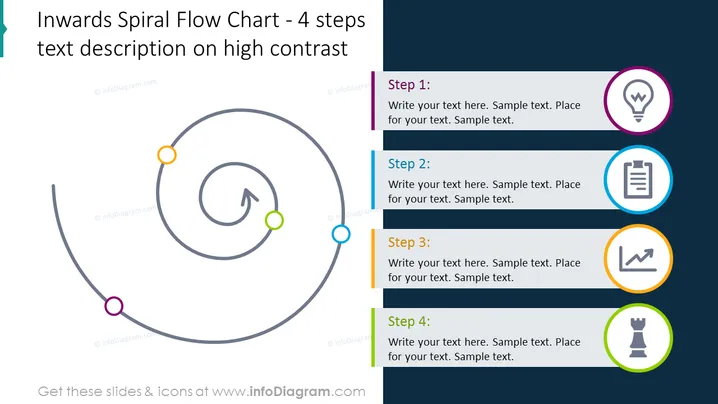
Inwards Spiral Flow Chart - 4 steps text description on high contrast
Slide Content
The PowerPoint slide presents a process using an "Inwards Spiral Flow Chart - 4 steps text description on high contrast." It describes a four-step circular process that spirals towards the center. Each step is indicated by an annotated circle with a unique color and an icon next to it, implying a progression or development process where details or complexity might be increasing as one moves inward.
Graphical Look
- The slide background is split diagonally between light gray on the left and dark blue on the right.
- A semi-transparent white overlay is present above the blue background on the right side, providing better contrast for the text.
- Four circular shapes with differently colored outlines are positioned clockwise along a gray spiral line moving inward, each with a directional arrow pointing to the next.
- Each circle is associated with a rectangular block containing text in bold, indicating the step number, followed by a placeholder for descriptive text.
- Corresponding to each step, there are circular icons with colors matching the outlined circles, providing visual representation for that step.
- The icons include a lightbulb, document, chart, and chess piece, conveying the idea of ideation, documentation, analysis, and strategy, respectively.
The overall look of the slide is polished and professional, with a clean and clear visual hierarchy that guides the viewer's eyes along with the process. The contrasting background colors and use of icons help in distinguishing different sections and emphasizing content.
Use Cases
- To showcase a business process development or refinement stages.
- For illustrating a workflow, showing movement toward a critical central goal or outcome.
- To demonstrate a marketing strategy, from initial concept to implementation.
- In project management presentations, to represent the phases of project planning and execution.
How to Edit
How to edit text & colors

How to expand / shorten diagram

How to Replace Icons in infoDiagram PPT


