

Your graphics add a nice touch to my presentations and I recently used them for one of my all-hands meetings. Your toolbox adds professionalism to my slides. Instead of using standard clipart.
Claude Jones, Director of Engineer, @Walmartlabs, USA

Your graphics add a nice touch to my presentations and I recently used them for one of my all-hands meetings. Your toolbox adds professionalism to my slides. Instead of using standard clipart.
Claude Jones, Director of Engineer, @Walmartlabs, USA
I needed a fresh look at some of my slides. I've tried to find a way to create a paintbrush effect, to underline, accentuate, add some color and the handwritten markers were just the things. Very easy to use, easy to size, change the color. It was an affordable, perfect solution and I'm happy to recommend it.
Anonymous, US
The crisp, clean look of the graphics, and the fact that it allowed me to easily edit and change the colors to match the template was my main reason for purchasing them.
Brandie Jenkins, E-learning Developer, USA
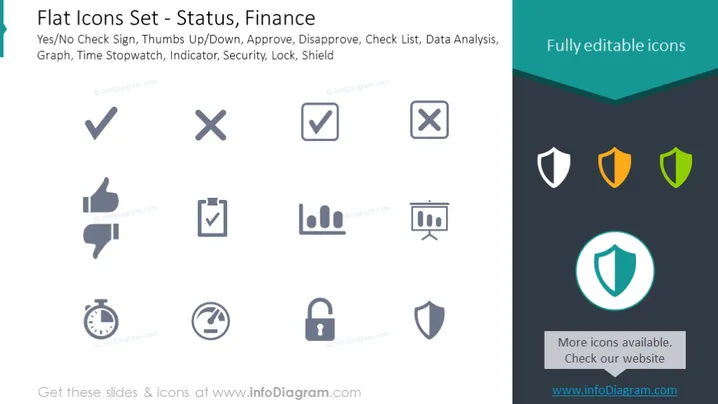
The PowerPoint slide offers a variety of icons related to status and finance. These include symbols for confirmation and denial (yes/no, check, and cross signs), social approval (thumbs up/down), procedural steps (approve, disapprove), workflow organization (checklist), performance and progress evaluation (data analysis, graph), time management (stopwatch), metrics and monitoring (indicator), as well as security elements (security, lock, shield). Each icon provides a quick visual representation of the respective concept, like the thumbs up/down signifies approval or disapproval, and the shield symbolizes protection or security.
The overall look of the slide is modern and professional, with an emphasis on clarity and easy-to-interpret visuals. Colors are used strategically to direct focus and create a visual hierarchy.



