Reviews
Sus gráficos añaden un toque agradable a mis presentaciones y recientemente los usé para una de mis reuniones generales. Su conjunto de herramientas añade profesionalismo a mis diapositivas. En lugar de usar imágenes prediseñadas estándar.
Necesitaba un aspecto fresco para algunas de mis diapositivas. Había intentado encontrar una forma de crear un efecto de pincel, de subrayar, acentuar, añadir algo de color y los marcadores escritos a mano fueron justo lo que necesitaba. Muy fácil de usar, fácil de ajustar el tamaño, cambiar el color. Fue una solución asequible y perfecta, y estoy feliz de recomendarla.
El aspecto nítido y limpio de los gráficos, y el hecho de que me permitiera editar y cambiar fácilmente los colores para que coincidieran con la plantilla fue mi principal razón para comprarlos.
Description
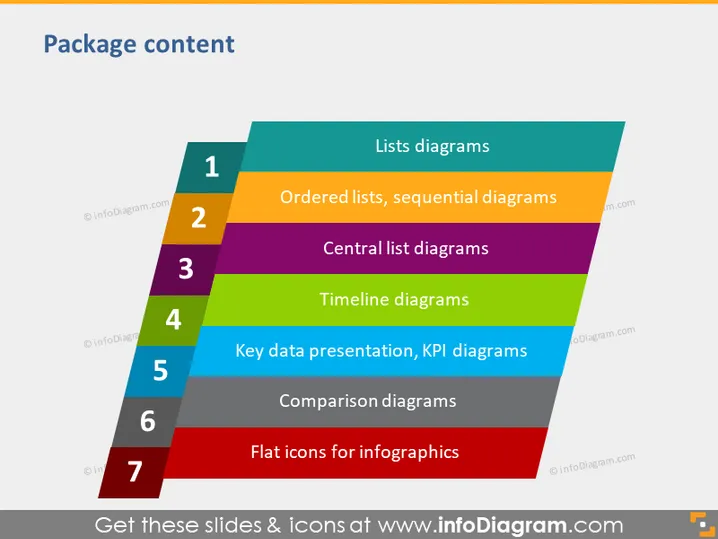
Package content
Slide Content
This slide titled "Package content" lists different types of diagrams and presentation visuals that are likely included in a PowerPoint package. These are:
- Lists diagrams - visuals for displaying simple lists or itemized information.
- Ordered lists, sequential diagrams - used for showing steps or processes in order.
- Central list diagrams - feature a central idea or item with associated elements.
- Timeline diagrams - represent events or milestones over time.
- Key data presentation, KPI diagrams - emphasize important figures or performance indicators.
- Comparison diagrams - enable comparisons of different data sets or items.
- Flat icons for infographics - provide simple, clean icons suitable for a variety of infographic elements.
Graphical Look
- The slide features a colorful chevron or arrow-shaped diagram along the left-hand side, with each segment uniquely colored and labeled with a number from 1 to 7.
- Each colored segment is paired with corresponding text that describes a type of diagram or content.
- The numbers are in bold white font, making them stand out against the colored backgrounds.
- The text labels are in a black font and are aligned adjacent to their respective numbered segments.
- There is a prominent title in large, bold font at the top of the slide which provides context to the content.
- The background is a solid blue color, providing a contrast to the multicolored chevron diagram.
The slide has a modern and simple design that is easy to read and visually engaging. The contrast between the colorful chevron diagram and the blue background helps to draw attention to the content of the presentation.

Use Cases
- To introduce the types of tools or diagrams included in a presentation software package during a sales or informational webinar.
- Within training materials for teaching users how to utilize different diagramming tools within presentation software.
- As a contents page in a template pack, guiding users on the diagrams available for creating their presentations.
- To promote features of a diagramming or graphic design plugin within a business meeting, showcasing its versatility and utility for visual communication.
How to Edit
How to edit text & colors

How to expand / shorten diagram

How to Replace Icons in infoDiagram PPT


