
Reviews
Your graphics add a nice touch to my presentations and I recently used them for one of my all-hands meetings. Your toolbox adds professionalism to my slides. Instead of using standard clipart.
I needed a fresh look at some of my slides. I've tried to find a way to create a paintbrush effect, to underline, accentuate, add some color and the handwritten markers were just the things. Very easy to use, easy to size, change the color. It was an affordable, perfect solution and I'm happy to recommend it.
The crisp, clean look of the graphics, and the fact that it allowed me to easily edit and change the colors to match the template was my main reason for purchasing them.
Description
Editing Flat Icons & Shapes in PowerPoint
Slide Content
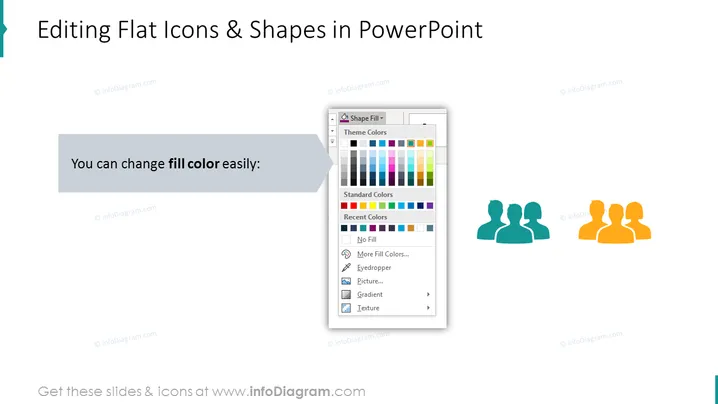
The slide is aimed at teaching users how to edit flat icons and shapes in PowerPoint. Emphasizing ease of customization, it specifically instructs on changing the fill color of icons. Accompanied by an illustrative image of the color selection panel, the slide visually suggests that an extensive palette is available to users, enabling them to tailor the look of icons as needed.
Graphical Look
- The slide background is predominantly white providing a clean space for the contents.
- The title is at the top in large, bold text and is the first element that catches the eye.
- A text box with rounded corners and a grey background sits in the lower left, containing the instruction text in a smaller, white font.
- To the right of the text box, an enlarged illustration of the PowerPoint 'Shape Fill' dropdown menu displays a range of colors under 'Theme Colors,' 'Standard Colors,' and 'Recent Colors.'
- An arrow shape points from the text box to the illustration, indicating a connection between the instruction text and the depicted color options.
- Three flat icon silhouettes representing user profiles are shown to the right; two in a before state in blue-gray, and one in an after state in orange, demonstrating the fill color change.
The slide has a minimalistic design focused on instruction clarity. The use of icons and a screenshot of the PowerPoint menu creates a visual guide that complements the textual instruction.
Use Cases
- Demonstrating editing techniques during a PowerPoint training session.
- Introducing new team members to standard company presentation formatting.
- Providing a quick reference for best practices in visual design during a workshop.
- Enhancing communication efficiency by teaching visual customization in team meetings or a corporate guidebook.
How to Edit
How to edit text & colors

How to expand / shorten diagram

How to Replace Icons in infoDiagram PPT


