

Your graphics add a nice touch to my presentations and I recently used them for one of my all-hands meetings. Your toolbox adds professionalism to my slides. Instead of using standard clipart.
Claude Jones, Director of Engineer, @Walmartlabs, USA

Your graphics add a nice touch to my presentations and I recently used them for one of my all-hands meetings. Your toolbox adds professionalism to my slides. Instead of using standard clipart.
Claude Jones, Director of Engineer, @Walmartlabs, USA
I needed a fresh look at some of my slides. I've tried to find a way to create a paintbrush effect, to underline, accentuate, add some color and the handwritten markers were just the things. Very easy to use, easy to size, change the color. It was an affordable, perfect solution and I'm happy to recommend it.
Anonymous, US
The crisp, clean look of the graphics, and the fact that it allowed me to easily edit and change the colors to match the template was my main reason for purchasing them.
Brandie Jenkins, E-learning Developer, USA
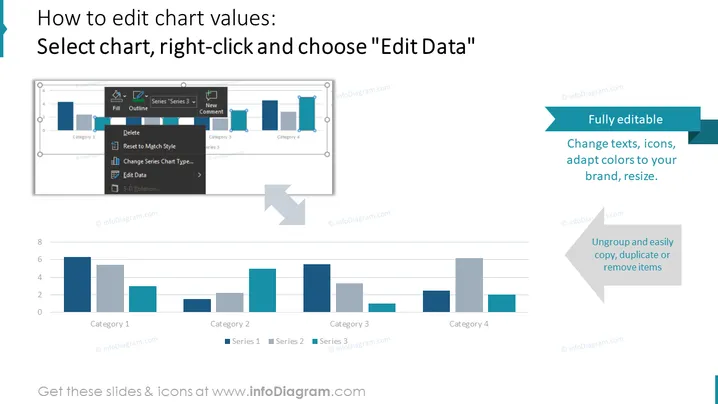
The PowerPoint slide explains how to edit chart values in three distinct steps: selecting the chart, right-clicking, and then opting for "Edit Data." Additionally, it promotes the versatility of the slide elements, stating they are "Fully editable," emphasizing the capacity to change texts, icons, adapt colors to a specific brand, and resize. It also points to the ease of rearranging the elements through the ability to ungroup and effortlessly copy, duplicate, or remove items, making it user-friendly for customization.
The slide has a professional and clean aesthetic, with a clear visual flow that directs the viewer from the process steps to the capabilities of the editable elements, emphasizing the educational and versatile aspects of the slide design.



