
Reviews
Your graphics add a nice touch to my presentations and I recently used them for one of my all-hands meetings. Your toolbox adds professionalism to my slides. Instead of using standard clipart.
I needed a fresh look at some of my slides. I've tried to find a way to create a paintbrush effect, to underline, accentuate, add some color and the handwritten markers were just the things. Very easy to use, easy to size, change the color. It was an affordable, perfect solution and I'm happy to recommend it.
The crisp, clean look of the graphics, and the fact that it allowed me to easily edit and change the colors to match the template was my main reason for purchasing them.
Description
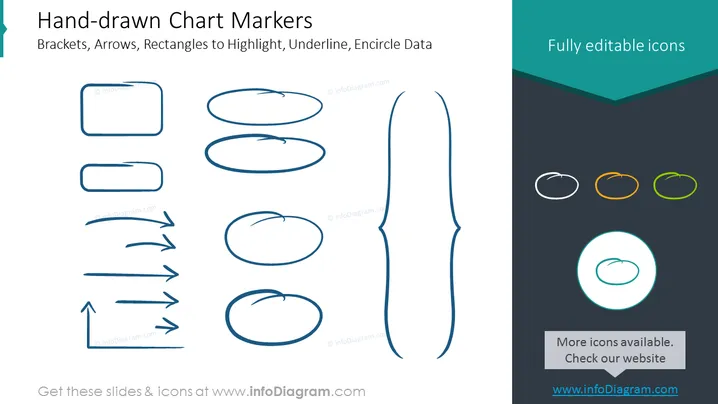
Hand-drawn Chart Markers
Slide Content
The slide titled "Hand-drawn Chart Markers" showcases a variety of sketch-like shapes designed to highlight, underline, or encircle data in presentations. It includes hand-drawn brackets, arrows, and rectangles with a stylistic emphasis on a sketchy, informal look. Each sketch element is meant to bring attention to specific areas in a slide: brackets to enclose items, arrows to indicate direction or connection, and rectangles to highlight information.
Graphical Look
- The slide background is split diagonally with light blue on the top left and dark blue on the bottom right.
- On the left side, there's a collection of sketch-style graphics including:
- Two rectangles, one with rounded corners.
- A set of ovals with varying orientations.
- A series of arrows pointing in different directions, some curved and some straight.
- One larger highlighter marker shape.
- On the right side, three small, colored ovals appear, each enclosed by a circle.
- A single larger circle highlights one of the ovals.
- Text blocks indicating "Fully editable icons" and "More icons available. Check our website" reside on the right side.
The overall look is minimalist and modern, with a creative flair given by the hand-drawn effect of the graphics. The color scheme is simple and professional with a playful touch provided by the colorful, encircled ovals.
Use Cases
- To add a personal, creative touch to a formal business presentation.
- When highlighting important data points or statistics in a slide to draw the audience's attention.
- In educational or workshop presentations to mark sections of content for discussion or focus.
- For making interactive slides where participants can visually connect different elements during a presentation.
How to Edit
How to edit text & colors

How to expand / shorten diagram

How to Replace Icons in infoDiagram PPT


