
Reviews
Your graphics add a nice touch to my presentations and I recently used them for one of my all-hands meetings. Your toolbox adds professionalism to my slides. Instead of using standard clipart.
I needed a fresh look at some of my slides. I've tried to find a way to create a paintbrush effect, to underline, accentuate, add some color and the handwritten markers were just the things. Very easy to use, easy to size, change the color. It was an affordable, perfect solution and I'm happy to recommend it.
The crisp, clean look of the graphics, and the fact that it allowed me to easily edit and change the colors to match the template was my main reason for purchasing them.
Description
Hand-drawn Chart Markers
Slide Content
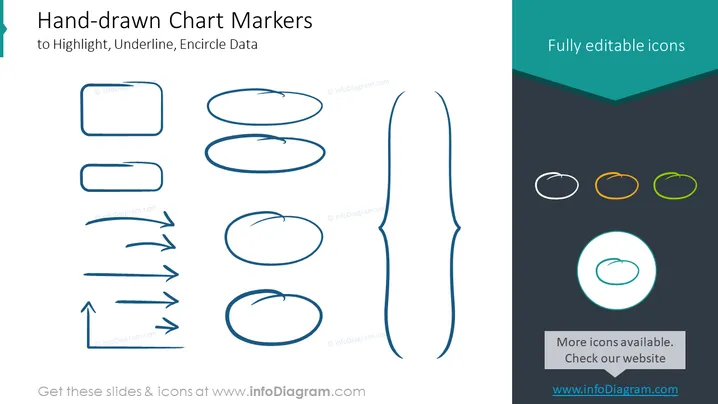
The PowerPoint slide is titled "Hand-drawn Chart Markers" and focuses on various sketched markers that can be used to highlight, underline, or encircle data in presentations. Highlighers are depicted as rectangles and ovals, underlines are simple and arrow-ended lines, and encircling markers are represented as different loops and circles designed to draw attention or emphasize information within a presentation slide.
Graphical Look
- The slide background is white, providing a clean workspace for the objects.
- The title is in a larger, bold font at the top of the slide, in dark text.
- To the left and center, there are various hand-drawn shapes and arrows in blue.
- Shapes include rectangles, ovals, and circles.
- Arrows vary in style with both straight and curved designs, some with arrowheads.
- On the right, there's a dark teal panel with "Fully editable icons" written in light text.
- Within this panel, there are four circle markers with different colors (white, orange, green, highlighted in teal).
- There’s a large brush stroke or pen underline marker in the center right, accentuating the division between the main content and the side panel.
The overall look of the slide is minimalist and modern with a creative touch due to the hand-drawn elements. The contrasting color palette is visually striking, with blue hand-drawn elements drawing attention against the white background and the teal side panel.
Use Cases
- To enhance visual communication within a business presentation by emphasizing key data points.
- For creative touch in educational teaching materials, enabling instructors to highlight important areas.
- In marketing pitches, to underscore unique selling points or captivating statistics.
- During workshops or seminars, to manually annotate slides in real-time for emphasis or audience interaction.
How to Edit
How to edit text & colors

How to expand / shorten diagram

How to Replace Icons in infoDiagram PPT


