

Your graphics add a nice touch to my presentations and I recently used them for one of my all-hands meetings. Your toolbox adds professionalism to my slides. Instead of using standard clipart.
Claude Jones, Director of Engineer, @Walmartlabs, USA

Your graphics add a nice touch to my presentations and I recently used them for one of my all-hands meetings. Your toolbox adds professionalism to my slides. Instead of using standard clipart.
Claude Jones, Director of Engineer, @Walmartlabs, USA
I needed a fresh look at some of my slides. I've tried to find a way to create a paintbrush effect, to underline, accentuate, add some color and the handwritten markers were just the things. Very easy to use, easy to size, change the color. It was an affordable, perfect solution and I'm happy to recommend it.
Anonymous, US
The crisp, clean look of the graphics, and the fact that it allowed me to easily edit and change the colors to match the template was my main reason for purchasing them.
Brandie Jenkins, E-learning Developer, USA
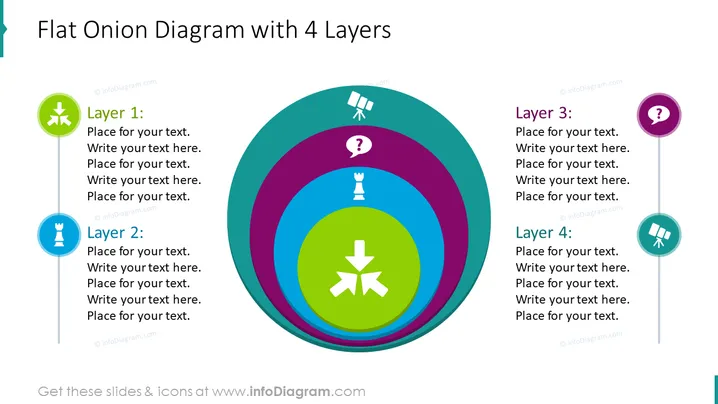
The slide presents a "Flat Onion Diagram with 4 Layers," suitable for illustrating layered concepts or dependencies. Layer 1 is represented with a light green color and a star icon, indicating foundational or initial considerations. Layer 2 follows with a darker green and a chess rook icon, possibly showing strategic or defensive measures. Layer 3 is shown in dark blue, accompanied by a question mark, perhaps for uncertainties or inquiries. Layer 4 wraps the diagram in purple with a satellite icon, suggesting expansive or final elements.
The diagram incorporates a modern flat design, and the circular flow creates a focal point in the center of the slide. The use of icons and contrasting colors makes it visually engaging and easily understandable.



