
Reviews
Ihre Grafiken verleihen meinen Präsentationen eine nette Note, und ich habe sie kürzlich für eines meiner All-Hands-Meetings verwendet. Ihre Toolbox verleiht meinen Folien Professionalität, anstatt Standard-Clipart zu verwenden.
Ich brauchte einen neuen Blick auf einige meiner Folien. Ich habe versucht, einen Weg zu finden, einen Pinselschlag-Effekt zu erzielen, um zu unterstreichen, hervorzuheben, Farbe hinzuzufügen, und die handgeschriebenen Markierungen waren genau das Richtige. Sehr einfach zu bedienen, leicht in der Größe zu ändern, die Farbe zu ändern. Es war eine erschwingliche, perfekte Lösung und ich empfehle sie gerne weiter.
Die klare, saubere Optik der Grafiken und die Tatsache, dass ich die Farben leicht bearbeiten und an die Vorlage anpassen konnte, war mein Hauptgrund für den Kauf.
Description
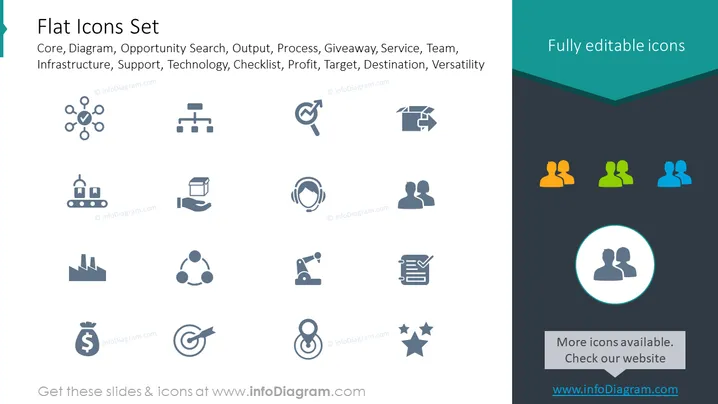
Flat Icons Set
Slide Content
The PowerPoint slide is titled "Flat Icons Set" and lists a variety of icon descriptions such as Core, Diagram, Opportunity Search, Output, Process, Giveaway, Service, Team, Infrastructure, Support, Technology, Checklist, Profit, Target, Destination, and Versatility. These icons presumably represent various concepts and operations within a business or organizational context. Each term corresponds to a specific symbolic representation, aiming to visually communicate the idea efficiently in various applications like presentations, documents, or user interfaces.
Graphical Look
- The slide has a dark teal header with the title text "Flat Icons Set" in large, white font.
- Below the title, a list of keywords is aligned to the left in a lighter grey font color, categorizing the icons' representations.
- The right side of the slide states "Fully editable icons" with a contrasting dark teal arrow shape pointing towards the icons.
- There is a collection of 12 monochrome icons evenly distributed in a grid format in the center of the slide.
- Each icon visually represents the concepts mentioned on the left list: human connections, factory, shipping, magnifying glass with target, broken box, headsets, user groups, and more.
- Towards the bottom-right corner, there's a group of three pairs of user icons in different color shades.
- A single colorful user group icon is spotlighted within a circle near the bottom-right corner.
- A rectangular dialog box at the bottom center of the slide encourages viewers to check the website for more icons.
The slide uses flat design principles with simple, two-dimensional iconography and minimalistic style. The color palette is composed of soft grey icons on a white background, with highlights in teal and a triad of user group icons in muted shades of orange, green, and blue for contrast.
Use Cases
- To enhance visual engagement in business presentations by illustrating different concepts with icons.
- In marketing materials to quickly convey key ideas or services to potential clients without relying heavily on text.
- To represent different sections or topics within an educational or training slideshow in a more interactive manner.
- For organizational tools such as project dashboards, infographics, or workflow diagrams to provide an intuitive and user-friendly design.
How to Edit
How to edit text & colors

How to expand / shorten diagram

How to Replace Icons in infoDiagram PPT


