
Reviews
Ihre Grafiken verleihen meinen Präsentationen eine nette Note, und ich habe sie kürzlich für eines meiner All-Hands-Meetings verwendet. Ihre Toolbox verleiht meinen Folien Professionalität, anstatt Standard-Clipart zu verwenden.
Ich brauchte einen neuen Blick auf einige meiner Folien. Ich habe versucht, einen Weg zu finden, einen Pinselschlag-Effekt zu erzielen, um zu unterstreichen, hervorzuheben, Farbe hinzuzufügen, und die handgeschriebenen Markierungen waren genau das Richtige. Sehr einfach zu bedienen, leicht in der Größe zu ändern, die Farbe zu ändern. Es war eine erschwingliche, perfekte Lösung und ich empfehle sie gerne weiter.
Die klare, saubere Optik der Grafiken und die Tatsache, dass ich die Farben leicht bearbeiten und an die Vorlage anpassen konnte, war mein Hauptgrund für den Kauf.
Description
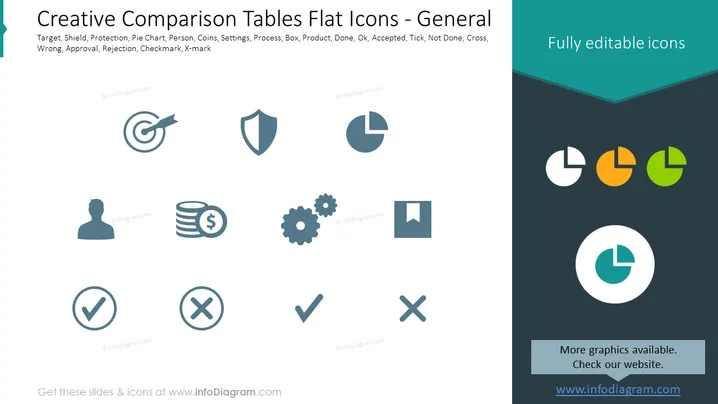
Creative Comparison Tables Flat Icons - General
Slide Content
The PowerPoint slide is titled "Creative Comparison Tables Flat Icons - General" and features a set of icons related to various concepts such as Target, Shield, Protection, Pie Chart, Person, Coins, Settings, Process, Box, Product, Done, Ok, Accepted, Tick, Not Done, Cross, Wrong, Approval, Rejection, Checkmark, and X-mark. These icons are likely used to visually represent these concepts in tables or presentations where comparisons or process steps are being discussed, aiding in quick understanding and comparison.
Graphical Look
- A set of flat design icons in a two-tone color scheme predominately featuring blues and grays with a dash of orange.
- Icons depict common business and analytic concepts such as a target, shield, pie chart, user silhouette, coin stacks, gears, a box, checkmarks, and crosses.
- The slide is divided into a large light area where the icons are displayed and a dark teal footer that houses text highlighting that the icons are fully editable.
- The layout is clean and spacious, with icons arranged in a grid pattern, providing a sense of organization and ease of interpretation.
- Each icon is encased in its own circle of white space, promoting visual clarity and focus.
- Typography is modern and sans-serif, contributing to the contemporary and professional aesthetic of the slide.
The slide presents a professional and polished look with a coherent color scheme that enhances readability and visual appeal. The icons are versatile and their simplistic design allows for easy interpretation and application across various content.
Use Cases
- Presenting business strategies or objectives, where each icon represents a specific goal or component of the plan.
- Visualizing process flows or statuses in project management, with icons indicating completion, approval, or rejection stages.
- Comparisons in sales or marketing presentations, where icons serve as a quick reference to assess progress or performance.
- Enhancing educational materials or training presentations, providing visual cues to reinforce learning and improve comprehension of different concepts or steps.
How to Edit
How to edit text & colors

How to expand / shorten diagram

How to Replace Icons in infoDiagram PPT


