

Your graphics add a nice touch to my presentations and I recently used them for one of my all-hands meetings. Your toolbox adds professionalism to my slides. Instead of using standard clipart.
Claude Jones, Director of Engineer, @Walmartlabs, USA

Your graphics add a nice touch to my presentations and I recently used them for one of my all-hands meetings. Your toolbox adds professionalism to my slides. Instead of using standard clipart.
Claude Jones, Director of Engineer, @Walmartlabs, USA
I needed a fresh look at some of my slides. I've tried to find a way to create a paintbrush effect, to underline, accentuate, add some color and the handwritten markers were just the things. Very easy to use, easy to size, change the color. It was an affordable, perfect solution and I'm happy to recommend it.
Anonymous, US
The crisp, clean look of the graphics, and the fact that it allowed me to easily edit and change the colors to match the template was my main reason for purchasing them.
Brandie Jenkins, E-learning Developer, USA
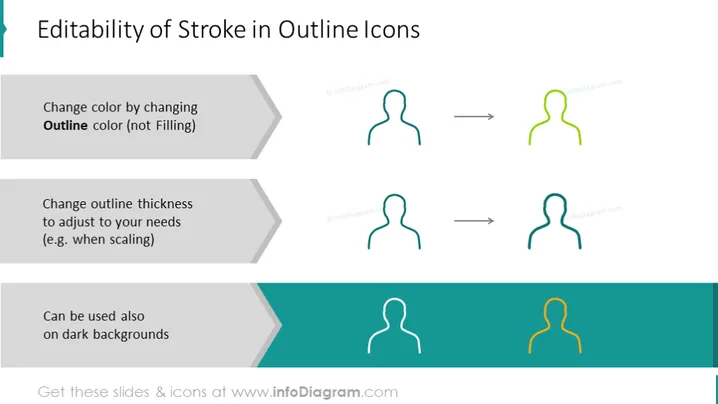
The slide focuses on the flexibility of stroke in outline icons. It provides three separate examples to demonstrate the editability: changing the stroke color, adjusting outline thickness, and ensuring visibility on dark backgrounds. "Change color by changing Outline color (not Filling)" explains how the stroke color of an icon can be altered without affecting the fill color. "Change outline thickness to adjust to your needs (e.g., when scaling)" illustrates that the stroke width can be modified for better visibility or style preference, especially when resizing the icons. "Can be used also on dark backgrounds" suggests that the icons' stroke contrast can be adapted to maintain visibility across different backdrops.
The slide has a clean, professional look with a focus on visual examples to support the textual information. The icons and directional arrows effectively illustrate the concepts described in the text.



