

Your graphics add a nice touch to my presentations and I recently used them for one of my all-hands meetings. Your toolbox adds professionalism to my slides. Instead of using standard clipart.
Claude Jones, Director of Engineer, @Walmartlabs, USA

Your graphics add a nice touch to my presentations and I recently used them for one of my all-hands meetings. Your toolbox adds professionalism to my slides. Instead of using standard clipart.
Claude Jones, Director of Engineer, @Walmartlabs, USA
I needed a fresh look at some of my slides. I've tried to find a way to create a paintbrush effect, to underline, accentuate, add some color and the handwritten markers were just the things. Very easy to use, easy to size, change the color. It was an affordable, perfect solution and I'm happy to recommend it.
Anonymous, US
The crisp, clean look of the graphics, and the fact that it allowed me to easily edit and change the colors to match the template was my main reason for purchasing them.
Brandie Jenkins, E-learning Developer, USA
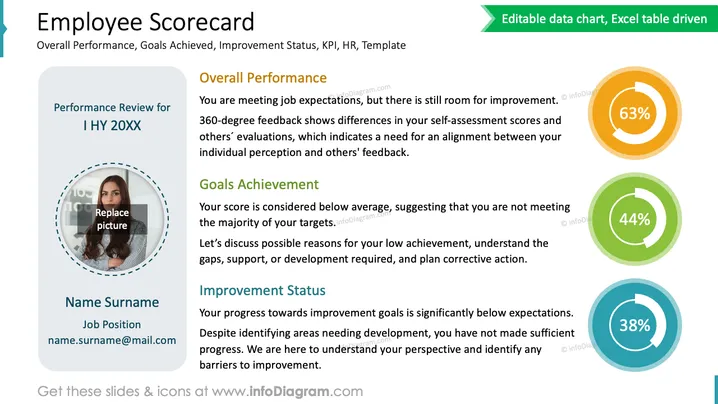
The slide is titled "Employee Scorecard" and relates to an employee's performance appraisal. It discusses "Overall Performance," suggesting the employee meets job expectations with room for improvement and should align self-assessment with others' feedback. "Goals Achievement" indicates a below-average score, implying the employee is not meeting most targets and should investigate the reasons and corrective actions. Finally, "Improvement Status" reveals the employee is significantly behind on improvement goals and requires understanding and addressing barriers to progress.
The slide has a clean and professional design with a well-organized layout that facilitates easy reading and interpretation of performance metrics. The color coding of the circular progress charts provides a quick visual reference to performance levels.



