

Your graphics add a nice touch to my presentations and I recently used them for one of my all-hands meetings. Your toolbox adds professionalism to my slides. Instead of using standard clipart.
Claude Jones, Director of Engineer, @Walmartlabs, USA

Your graphics add a nice touch to my presentations and I recently used them for one of my all-hands meetings. Your toolbox adds professionalism to my slides. Instead of using standard clipart.
Claude Jones, Director of Engineer, @Walmartlabs, USA
I needed a fresh look at some of my slides. I've tried to find a way to create a paintbrush effect, to underline, accentuate, add some color and the handwritten markers were just the things. Very easy to use, easy to size, change the color. It was an affordable, perfect solution and I'm happy to recommend it.
Anonymous, US
The crisp, clean look of the graphics, and the fact that it allowed me to easily edit and change the colors to match the template was my main reason for purchasing them.
Brandie Jenkins, E-learning Developer, USA
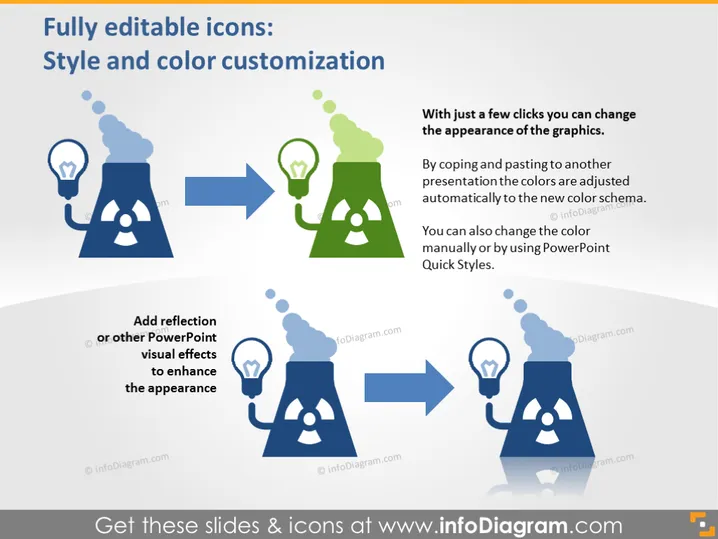
The slide highlights the customizability of icons used in PowerPoint presentations. It details how with just a few clicks, users can alter the graphics’ appearance to match the color scheme of their presentation, either by copying and pasting, which automatically adjusts the colors to the new scheme, or by manually changing the color or using PowerPoint Quick Styles. An additional feature includes adding PowerPoint visual effects like reflection to enhance the visual appeal of the icons.
The slide presents a clean, modern aesthetic with a simple color palette focused on blue and green hues, providing a visual representation of the icon editing process. The design is minimalistic yet informative, emphasizing the ease of customization.



