

Your graphics add a nice touch to my presentations and I recently used them for one of my all-hands meetings. Your toolbox adds professionalism to my slides. Instead of using standard clipart.
Claude Jones, Director of Engineer, @Walmartlabs, USA

Your graphics add a nice touch to my presentations and I recently used them for one of my all-hands meetings. Your toolbox adds professionalism to my slides. Instead of using standard clipart.
Claude Jones, Director of Engineer, @Walmartlabs, USA
I needed a fresh look at some of my slides. I've tried to find a way to create a paintbrush effect, to underline, accentuate, add some color and the handwritten markers were just the things. Very easy to use, easy to size, change the color. It was an affordable, perfect solution and I'm happy to recommend it.
Anonymous, US
The crisp, clean look of the graphics, and the fact that it allowed me to easily edit and change the colors to match the template was my main reason for purchasing them.
Brandie Jenkins, E-learning Developer, USA
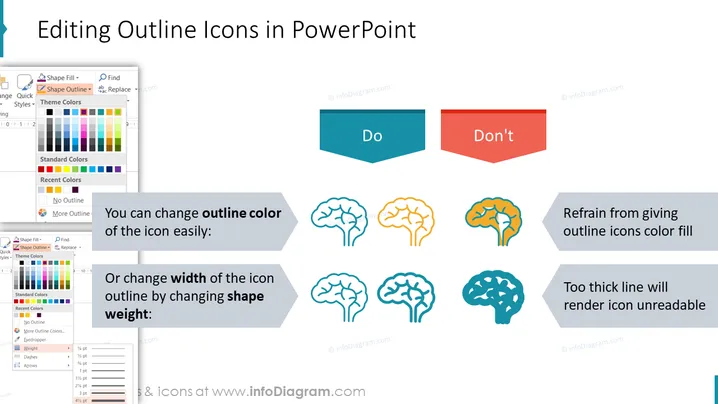
The slide is about how to properly edit outline icons in PowerPoint. It splits the advice into "Do" and "Don't" sections. For the "Do" part, it suggests that you can change the outline color of the icon easily to fit your design needs. Additionally, it recommends adjusting the width of the icon's outline by changing the shape weight to achieve the desired emphasis or subtlety. Conversely, for the "Don't" section, it warns against giving outline icons a color fill, as it can detract from the clarity of the icon, and advises against using too thick a line, which can make the icon unreadable and lose its intended effect.
The slide has a very organized and clean layout, with clear visual distinction between the dos and don'ts of icon editing in PowerPoint through the use of color coding and simple iconography.



