
Reviews
Ihre Grafiken verleihen meinen Präsentationen eine nette Note, und ich habe sie kürzlich für eines meiner All-Hands-Meetings verwendet. Ihre Toolbox verleiht meinen Folien Professionalität, anstatt Standard-Clipart zu verwenden.
Ich brauchte einen neuen Blick auf einige meiner Folien. Ich habe versucht, einen Weg zu finden, einen Pinselschlag-Effekt zu erzielen, um zu unterstreichen, hervorzuheben, Farbe hinzuzufügen, und die handgeschriebenen Markierungen waren genau das Richtige. Sehr einfach zu bedienen, leicht in der Größe zu ändern, die Farbe zu ändern. Es war eine erschwingliche, perfekte Lösung und ich empfehle sie gerne weiter.
Die klare, saubere Optik der Grafiken und die Tatsache, dass ich die Farben leicht bearbeiten und an die Vorlage anpassen konnte, war mein Hauptgrund für den Kauf.
Description
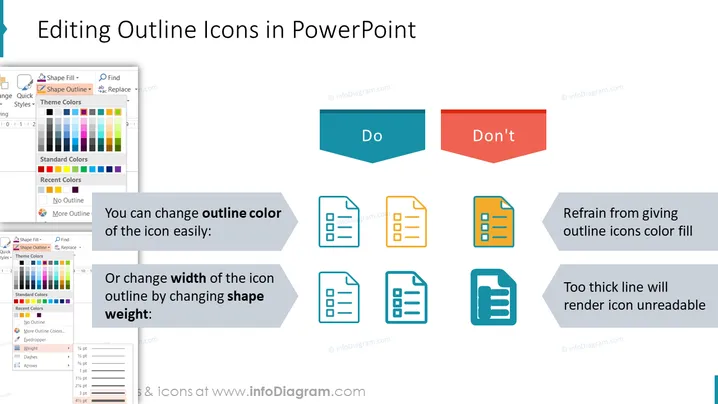
Editing Outline Icons in PowerPoint
Slide Content
The slide is about customizing outline icons in PowerPoint and contains instructions with visual examples for effectively editing them. The "Do" section suggests that you can easily change the outline color of an icon and adjust the width of the icon's outline by changing the shape weight. The "Don't" section advises against giving outline icons a color fill and cautions that using a line that is too thick will make the icon unreadable, which implies a need for balance in icon design.
Graphical Look
- The slide has a light background with a title in a large, bold font at the top.
- Two contrasting text boxes marked "Do" in teal and "Don't" in red are aligned horizontally.
- Below the "Do" box, there are a pair of screenshots depicting PowerPoint interface elements demonstrating how to change the outline color and shape weight.
- A set of three icons with varying outline colors and weights are presented under each section to illustrate the points made.
- The icons are simple and flat, representing a document, with color changes and weight variations for comparison.
- A dark footer spans across the bottom of the slide with the slide's branding.
The overall look of the slide is clean and professional, using color contrasts to differentiate between good and bad practices. Visual examples are used effectively to complement the instructional text.
Use Cases
- Presentations about graphic design principles, specifically tailored for users of PowerPoint looking to improve their skills in icon customization.
- Workshops or training sessions on how to create effective PowerPoint presentations, emphasizing the visual aspects of presentation design.
- Instructional materials for courses teaching basic graphic design or user interface design using PowerPoint as a tool.
- Corporate settings where employees are being trained on branding guidelines, particularly on how to adapt and modify icons to fit company presentations.
How to Edit
How to edit text & colors

How to expand / shorten diagram

How to Replace Icons in infoDiagram PPT


