Your graphics add a nice touch to my presentations and I recently used them for one of my all-hands meetings. Your toolbox adds professionalism to my slides. Instead of using standard clipart.
Claude Jones, Director of Engineer, @Walmartlabs, USA
Your graphics add a nice touch to my presentations and I recently used them for one of my all-hands meetings. Your toolbox adds professionalism to my slides. Instead of using standard clipart.
Claude Jones, Director of Engineer, @Walmartlabs, USA
I needed a fresh look at some of my slides. I've tried to find a way to create a paintbrush effect, to underline, accentuate, add some color and the handwritten markers were just the things. Very easy to use, easy to size, change the color. It was an affordable, perfect solution and I'm happy to recommend it.
Anonymous, US
The crisp, clean look of the graphics, and the fact that it allowed me to easily edit and change the colors to match the template was my main reason for purchasing them.
Brandie Jenkins, E-learning Developer, USA
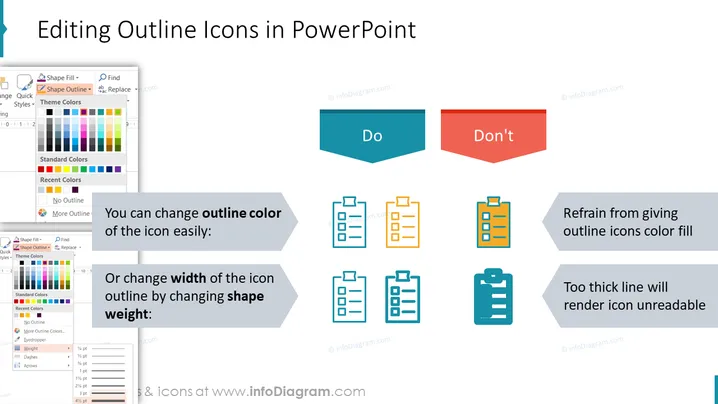
The PowerPoint slide is titled "Editing Outline Icons in PowerPoint" and provides guidance on how to modify outline icons for visual presentations effectively. The slide instructs to "change outline color of the icon easily," implying a straightforward process for altering the appearance of icons, and also advises the viewer to "change width of the icon outline by changing shape weight," which involves adjusting the line thickness for clarity. Conversely, it cautions against two practices: "Refrain from giving outline icons color fill," which could hinder the distinctiveness of the icon, and "Too thick line will render icon unreadable," suggesting that excessively bold lines can reduce legibility.
The slide employs a clean and structured design with instructional graphics and contrasts to highlight the dos and don'ts of editing icons effectively.