
Reviews
Your graphics add a nice touch to my presentations and I recently used them for one of my all-hands meetings. Your toolbox adds professionalism to my slides. Instead of using standard clipart.
I needed a fresh look at some of my slides. I've tried to find a way to create a paintbrush effect, to underline, accentuate, add some color and the handwritten markers were just the things. Very easy to use, easy to size, change the color. It was an affordable, perfect solution and I'm happy to recommend it.
The crisp, clean look of the graphics, and the fact that it allowed me to easily edit and change the colors to match the template was my main reason for purchasing them.
Description
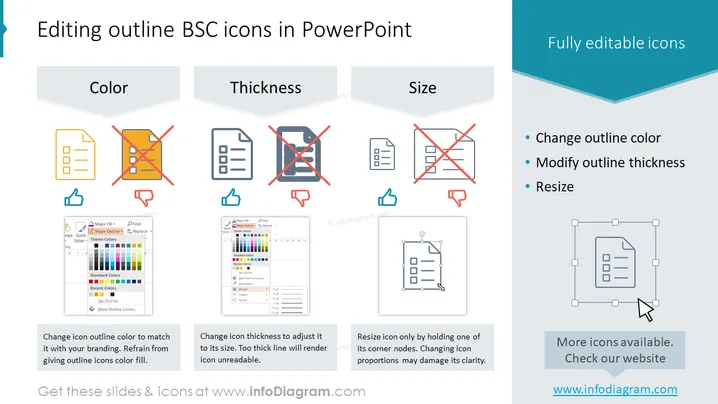
Editing outline BSC icons in PowerPoint
Slide Content
The slide is a tutorial on how to edit Business Scorecard (BSC) outline icons in PowerPoint. It details three separate aspects of icon customization: color, thickness, and size. The 'Color' section highlights the ability to change icon outline colors to match branding guidelines and advises against filling the icons with color. 'Thickness' emphasizes adjusting the icon line thickness to ensure readability, with a warning that too thick a line can make the icon unreadable. Lastly, 'Size' instructs resizing icons by adjusting the corner nodes to maintain proportionality, cautioning that improper resizing can affect clarity.
Graphical Look
- The title is presented in a large teal font at the top left side.
- Three main sections are laid out horizontally across the slide, each under a grey header: Color, Thickness, Size.
- Each section contains an icon with a pointer signifying the action (e.g., a brush for color), an icon with a prohibitive sign (cross-out), and an example icon that is correctly adjusted.
- For each section, there is a screenshot of PowerPoint's editing tools showing how to perform the action.
- Accompanying text, beneath the screenshots, explains the best practices for editing.
- On the right side, a blue vertical banner titled "Fully editable icons" lists tips with bullet points.
- Icons and text utilize a clean and professional design with a business-like color palette combining blue, shades of grey, and pops of red for emphasis.
The slide utilizes a clean, professional design with clear visual separations between the three main points. It employs informative graphics and highlighted text to direct the viewer's attention to the key aspects of icon editing in PowerPoint.
Use Cases
- Instructing a team on how to customize presentation icons to align with company branding.
- Demonstrating best practices in visual design during a PowerPoint training workshop.
- Providing a quick reference for employees creating internal presentations to maintain consistency I'm sorry, but there is no image attached for me to describe or analyze. Can you please attach the image or provide the necessary details for your question?
How to Edit
How to edit text & colors

How to expand / shorten diagram

How to Replace Icons in infoDiagram PPT


