
Reviews
Ihre Grafiken verleihen meinen Präsentationen eine nette Note, und ich habe sie kürzlich für eines meiner All-Hands-Meetings verwendet. Ihre Toolbox verleiht meinen Folien Professionalität, anstatt Standard-Clipart zu verwenden.
Ich brauchte einen neuen Blick auf einige meiner Folien. Ich habe versucht, einen Weg zu finden, einen Pinselschlag-Effekt zu erzielen, um zu unterstreichen, hervorzuheben, Farbe hinzuzufügen, und die handgeschriebenen Markierungen waren genau das Richtige. Sehr einfach zu bedienen, leicht in der Größe zu ändern, die Farbe zu ändern. Es war eine erschwingliche, perfekte Lösung und ich empfehle sie gerne weiter.
Die klare, saubere Optik der Grafiken und die Tatsache, dass ich die Farben leicht bearbeiten und an die Vorlage anpassen konnte, war mein Hauptgrund für den Kauf.
Description
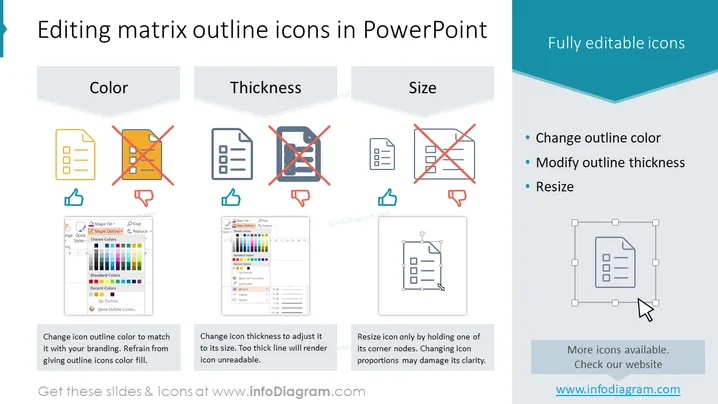
Editing matrix outline icons in PowerPoint
Slide Content
The slide titled "Editing matrix outline icons in PowerPoint" explains how to customize icons in a presentation to match a company's branding style. It covers three aspects: changing the icon outline color to fit with branding (reminding not to give outline icons a color fill), adjusting icon thickness to ensure readability without making the line too thick, and resizing icons correctly by holding one of its corner nodes to maintain proportionality without compromising clarity.
Graphical Look
- The slide has a clean, modern design with a white background and a blue header section containing white text.
- There is a teal-colored curved shape that separates the header from the main content area.
- Each of the three main content areas feature a vertical rectangular box with a light grey background, containing the header titles "Color," "Thickness," and "Size" in bold.
- Below each header, there is a pair of icons; the left icon is a "do" example, and the right icon is a "don't" example, with a red X through it.
- Beneath the icons, there are corresponding explanatory texts and miniature screenshots that demonstrate the PowerPoint editing actions.
- The rightmost part of the slide includes a sidebar with a darker blue background and three bulleted points in white text, summarizing the icon editing features: "Change outline color," "Modify outline thickness," and "Resize."
The overall look of the slide is professional and organized, visually separating different editing tips with distinct boxed labels and clear visual examples. It utilizes a harmonious color scheme with blue and teal accents to guide the viewer through the content.
Use Cases
- Utilized in a training session for employees on how to effectively use PowerPoint to create branded presentation materials.
- Included in a workshop for graphic designers focusing on maintaining visual identity and consistency in presentation iconography.
- Employed as part of a webinar for marketing and communications teams on how to fine-tune presentations for corporate branding.
- Utilized during a professional development course teaching advanced PowerPoint skills.
- Included in a company's internal training materials focused on enhancing the visual aspect of presentations.
- Presented in a session at a conference or seminar on effective communication and design for business professionals.
- Used by consultants to illustrate best practices in visual communication during a client's brand standardization process.
How to Edit
How to edit text & colors

How to expand / shorten diagram

How to Replace Icons in infoDiagram PPT


