
Reviews
Sus gráficos añaden un toque agradable a mis presentaciones y recientemente los usé para una de mis reuniones generales. Su conjunto de herramientas añade profesionalismo a mis diapositivas. En lugar de usar imágenes prediseñadas estándar.
Necesitaba un aspecto fresco para algunas de mis diapositivas. Había intentado encontrar una forma de crear un efecto de pincel, de subrayar, acentuar, añadir algo de color y los marcadores escritos a mano fueron justo lo que necesitaba. Muy fácil de usar, fácil de ajustar el tamaño, cambiar el color. Fue una solución asequible y perfecta, y estoy feliz de recomendarla.
El aspecto nítido y limpio de los gráficos, y el hecho de que me permitiera editar y cambiar fácilmente los colores para que coincidieran con la plantilla fue mi principal razón para comprarlos.
Description
Editing Flat Icons & Shapes in PowerPoint
Slide Content
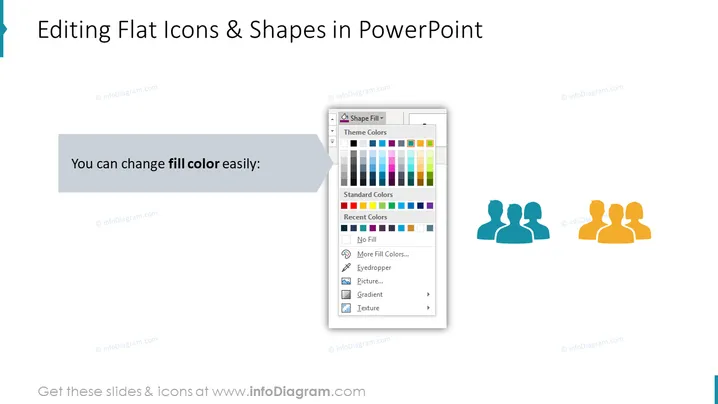
The slide is designed to instruct on how to edit flat icons and shapes within PowerPoint. It specifically indicates that users can easily change the fill color of shapes and icons. Fill color is a feature that allows users to change the interior color of a graphical object to enhance the visual appeal and to match the color scheme of the presentation or branding guidelines.
Graphical Look
- The slide's background is white, providing a clean and uncluttered canvas for the content.
- The title of the slide, "Editing Flat Icons & Shapes in PowerPoint," is prominently displayed at the top in a large, bold, sans-serif font.
- Below the title, a rectangular shape contains text that reads "You can change fill color easily:" using a smaller, sans-serif font.
- To the left of this rectangle, a gray chevron graphic points from the text toward a PowerPoint tooltip that appears to simulate a dropdown menu showing options for changing the fill color of a shape.
- On the right side of the slide, there are two sets of three user icon silhouettes. The set on the left has a blue fill, while the set on the right has a gradient fill changing from blue to orange.
- The slide uses minimalistic flat design icons and exhibits a balanced composition with graphical elements aligned in a visually appealing manner.
The overall look of the slide is professional and straightforward, with a focus on clarity and ease of understanding. The displayed graphics are relevant and represent the editing features of PowerPoint effectively.
Use Cases
- Demonstrating how to customize presentation graphics in a PowerPoint training session.
- Explaining visual design principles in a corporate communications workshop.
- Sharing best practices for brand consistency in company presentations during a marketing meeting.
- Providing quick tips for effective visual communication in a slide deck for new employees.
How to Edit
How to edit text & colors

How to expand / shorten diagram

How to Replace Icons in infoDiagram PPT


