
Reviews
Your graphics add a nice touch to my presentations and I recently used them for one of my all-hands meetings. Your toolbox adds professionalism to my slides. Instead of using standard clipart.
I needed a fresh look at some of my slides. I've tried to find a way to create a paintbrush effect, to underline, accentuate, add some color and the handwritten markers were just the things. Very easy to use, easy to size, change the color. It was an affordable, perfect solution and I'm happy to recommend it.
The crisp, clean look of the graphics, and the fact that it allowed me to easily edit and change the colors to match the template was my main reason for purchasing them.
Description
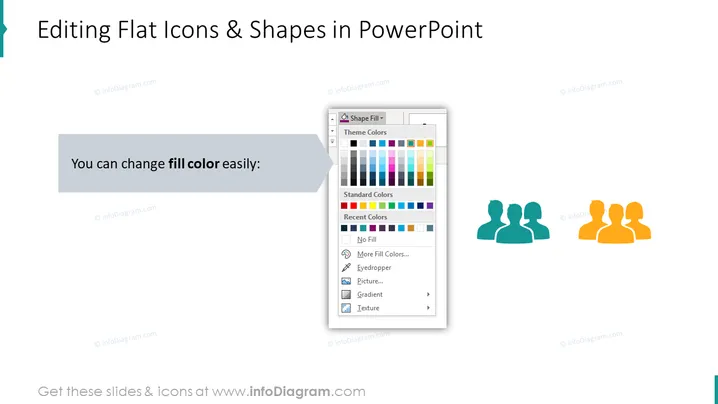
Editing Flat Icons & Shapes in PowerPoint
Slide Content
The slide is geared towards instructing users on how to manipulate the visual aspects of icons and shapes within PowerPoint presentations. It emphasizes specifically the ease of changing the fill color of such elements, with a graphical demonstration showing color customization options. The PowerPoint fill color tool palette is presented, indicating various color selections including theme colors, standard colors, and recent colors with additional options for more customization such as gradients and textures.
Graphical Look
- The slide has a clean, minimalist design with a white background.
- A large, bold title is centered at the top in black text.
- A dark horizontal bar beneath the title provides contrast and a spot for secondary text.
- A large text box to the left contains a sample statement in white text on a grey background.
- A graphical representation of the fill color dialogue box from PowerPoint is shown to the right of the statement.
- Three silhouette icons of people are displayed next to the dialogue box, with two in a muted teal color and one in orange, demonstrating a change in fill color.
The design is modern and utilizes a simple color scheme, prioritizing clarity and instructional focus. The image of the fill color dialogue box is central to the intent of the slide, which is to show how you can change colors of elements within PowerPoint.
Use Cases
- To demonstrate PowerPoint editing features during a tutorial or workshop.
- To explain visual customization options in a training session for new employees.
- To provide a visual aid during a presentation on design best practices.
- In a webinar or online course to enhance the participants' PowerPoint skills.
How to Edit
How to edit text & colors

How to expand / shorten diagram

How to Replace Icons in infoDiagram PPT


