
Reviews
Vos graphiques ajoutent une belle touche à mes présentations et je les ai récemment utilisés pour l'une de mes réunions générales. Votre boîte à outils ajoute du professionnalisme à mes diapositives. Au lieu d'utiliser des cliparts standards.
J'avais besoin d'un nouveau regard sur certaines de mes diapositives. J'ai essayé de trouver un moyen de créer un effet de pinceau, de souligner, d'accentuer, d'ajouter de la couleur et les marqueurs manuscrits étaient exactement ce qu'il fallait. Très facile à utiliser, facile à ajuster la taille, à changer la couleur. C'était une solution abordable et parfaite et je suis heureux de la recommander.
L'aspect net et épuré des graphiques, et le fait qu'il m'ait permis d'éditer et de changer facilement les couleurs pour les adapter au modèle, ont été les principales raisons de mon achat.
Description
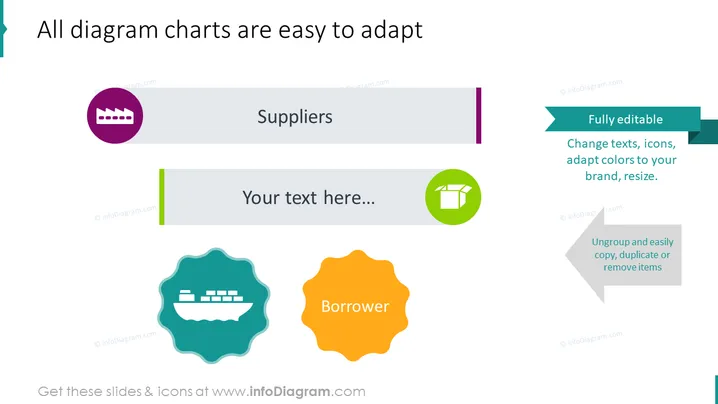
All diagram charts are easy to adapt
Slide Content
The slide seems to illustrate the customizable features of diagram charts, emphasizing ease of adaptation. "Fully editable" notes suggest that the user can change texts, icons, colors, and sizes to suit their brand. The action tips, such as "Ungroup and easily copy, duplicate or remove items," guide efficient editing processes. The central part of the slide invites the addition of custom text, while labeled elements like "Suppliers" and "Borrower" demonstrate potential placeholders for specific categories or roles within a diagram's context.
Graphical Look
- The slide background is plain white, providing a neutral canvas for the content.
- A large teal-colored header with the title text in white spans the top of the slide.
- To the left, there is a round icon with a factory image, labeled "Suppliers," set on a gray rectangular banner.
- In the center, there is a gray text box with "Your text here..." prompting content insertion.
- To the right, there are two overlapping speech bubbles with drop shadows. The top one is teal with white text "Fully editable," and the bottom one is light gray with black text "Ungroup and easily copy, duplicate or remove items."
- Below the central text box, there are two stylized gear-shaped icons: one in teal with a ship image and another in orange with the word "Borrower".
- There is a small academic cap (mortarboard) icon within a green circle, possibly representing an educational concept or a 'smart' category.
The overall look of the slide is modern and professional with a clean design that emphasizes easy customization. The use of color and icons creates a visually engaging experience that directs attention to various aspects of adaptability.
Use Cases
- To explain the flexibility of a presentation software's features in a sales or training setting.
- In workshops or webinars to demonstrate live how to customize presentation templates.
- Unfortunately, it seems that the response was cut off. Let me provide the complete Use Cases section for you.
Use Cases
- During a sales presentation to showcase the customization features of the software to potential customers.
- At a training session, as an instructional tool for teaching attendees how to personalize their own presentation materials.
- In marketing meetings to brainstorm and outline the adaptability of branding elements in company presentations.
- As part of a tutorial or educational content, demonstrating the versatility and editing options available in presentation design.
How to Edit
How to edit text & colors

How to expand / shorten diagram

How to Replace Icons in infoDiagram PPT


