
Reviews
Your graphics add a nice touch to my presentations and I recently used them for one of my all-hands meetings. Your toolbox adds professionalism to my slides. Instead of using standard clipart.
I needed a fresh look at some of my slides. I've tried to find a way to create a paintbrush effect, to underline, accentuate, add some color and the handwritten markers were just the things. Very easy to use, easy to size, change the color. It was an affordable, perfect solution and I'm happy to recommend it.
The crisp, clean look of the graphics, and the fact that it allowed me to easily edit and change the colors to match the template was my main reason for purchasing them.
Description
Document Symbols
Slide Content
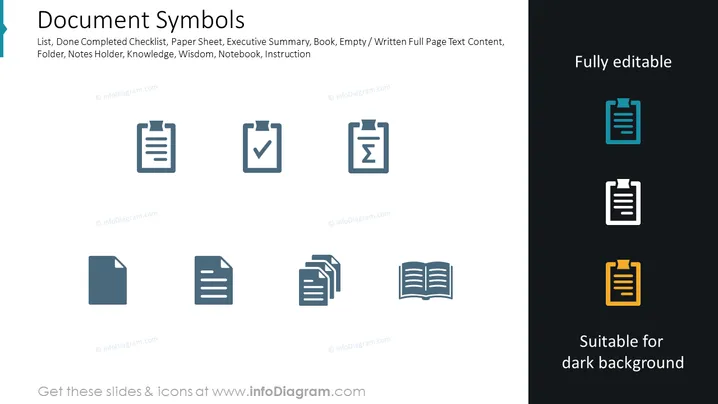
This PowerPoint slide, titled "Document Symbols," presents a series of icons representing different document types and concepts. Each icon is labeled with a term: "List" symbolizes itemized information; "Done Completed Checklist" shows tasks that have been finished; "Paper Sheet" refers to a blank document; "Executive Summary" suggests a condensed report; "Book" denotes extended written work; "Empty / Written Full Page Text Content" contrasts a blank page with one filled with text; "Folder" represents a file storage; "Notes Holder" signifies a place to keep brief entries; and "Notebook" depicts a personal journal. "Instruction" implies guidelines or procedural information.
Graphical Look
- The slide has a clean design with a white background and a dark blue sidebar on the left.
- There are eight graphic icons arranged in two rows of four each, uniformly spaced.
- Icons are stylized and minimalistic, with a flat design aesthetic and are shaded with a gradient of blue and grey colors.
- All icons relate visually to documents or information management and are paired with a corresponding text label beneath each.
- The text on the slide is in sans-serif font, providing a modern and legible appearance.
- The icons on the right side of the slide have a small color accent—light blue for the top icon and a mustard yellow for the bottom icon, indicating they are "Suitable for dark background."
- The words "Fully editable" are placed to the right of the slide, suggesting that the icons can be customized.
The overall look of the slide is professional and visually balanced, focusing on simplicity and clarity. The choice of color accents and placement of text labels creates a user-friendly interface that readily conveys the function of each symbol.
Use Cases
- To visually represent different document types in business process and workflow presentations.
- As part of user interface designs or software tutorials to simplify and communicate functionality.
- In organizational or academic handouts to categorize types of documentation or resources for easy reference.
- During training sessions, to symbolize various steps or checklists employees should follow or complete.
How to Edit
How to edit text & colors

How to expand / shorten diagram

How to Replace Icons in infoDiagram PPT


