
Reviews
Ihre Grafiken verleihen meinen Präsentationen eine nette Note, und ich habe sie kürzlich für eines meiner All-Hands-Meetings verwendet. Ihre Toolbox verleiht meinen Folien Professionalität, anstatt Standard-Clipart zu verwenden.
Ich brauchte einen neuen Blick auf einige meiner Folien. Ich habe versucht, einen Weg zu finden, einen Pinselschlag-Effekt zu erzielen, um zu unterstreichen, hervorzuheben, Farbe hinzuzufügen, und die handgeschriebenen Markierungen waren genau das Richtige. Sehr einfach zu bedienen, leicht in der Größe zu ändern, die Farbe zu ändern. Es war eine erschwingliche, perfekte Lösung und ich empfehle sie gerne weiter.
Die klare, saubere Optik der Grafiken und die Tatsache, dass ich die Farben leicht bearbeiten und an die Vorlage anpassen konnte, war mein Hauptgrund für den Kauf.
Description
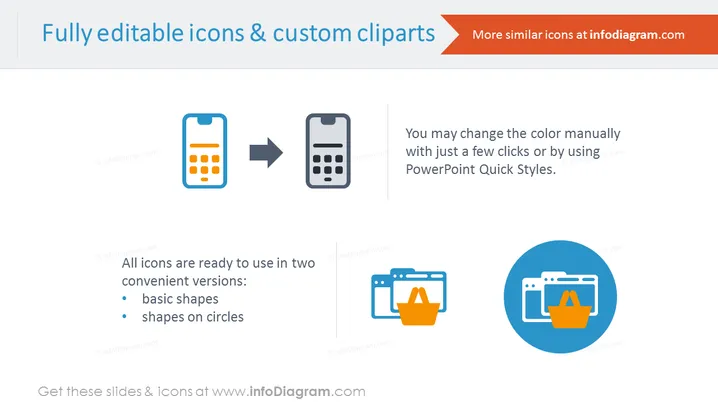
Fully editable icons & custom cliparts
Slide Content
The slide is advertising the flexibility of icon and clipart customization. It indicates that the icons are fully editable and can be used in two formats: basic shapes and shapes on circles. "Basic shapes" likely refers to standalone icons without additional framing or background elements, while "shapes on circles" suggests that the icons are superimposed on circular backgrounds to stand out more. Additionally, it mentions the ease of changing the icon colors either manually or by using PowerPoint Quick Styles, hinting at user-friendly customization features.
Graphical Look
- The slide background is plain white, creating a clean and uncluttered canvas for displaying content.
- The title is presented in large, bold, blue text at the top, immediately drawing attention.
- A red graphical arrow link to more resources sits beside the title, adding a visual cue for further action.
- Two pairs of icons are shown: a mobile phone icon transitioning to a stylized version, and a web browser with a shopping icon, each in a basic shape and on a blue circle.
- A large grey arrow illustrates the transformation or customization process between the two icon styles.
- A text box on the right side provides instructions on customizing the color of the icons, aiding the viewer's understanding.
- Two bullet points below the icons enumerate the two icon styles available, enhancing the instructional nature of the slide.
The slide has a professional and modern appearance, and its use of icons and text is well-balanced. The minimalistic design ensures that the information is easily digestible to viewers.
Use Cases
- Demonstrating icon customization options in a graphic design or marketing presentation.
- Educating employees during an internal workshop on how to use company-branded PowerPoint templates effectively.
- Showcasing the capabilities of a design tool or software in a sales pitch to potential clients.
- Including as part of a tutorial or instruction manual for users learning how to create presentations.
How to Edit
How to edit text & colors

How to expand / shorten diagram

How to Replace Icons in infoDiagram PPT


