

Your graphics add a nice touch to my presentations and I recently used them for one of my all-hands meetings. Your toolbox adds professionalism to my slides. Instead of using standard clipart.
Claude Jones, Director of Engineer, @Walmartlabs, USA

Your graphics add a nice touch to my presentations and I recently used them for one of my all-hands meetings. Your toolbox adds professionalism to my slides. Instead of using standard clipart.
Claude Jones, Director of Engineer, @Walmartlabs, USA
I needed a fresh look at some of my slides. I've tried to find a way to create a paintbrush effect, to underline, accentuate, add some color and the handwritten markers were just the things. Very easy to use, easy to size, change the color. It was an affordable, perfect solution and I'm happy to recommend it.
Anonymous, US
The crisp, clean look of the graphics, and the fact that it allowed me to easily edit and change the colors to match the template was my main reason for purchasing them.
Brandie Jenkins, E-learning Developer, USA
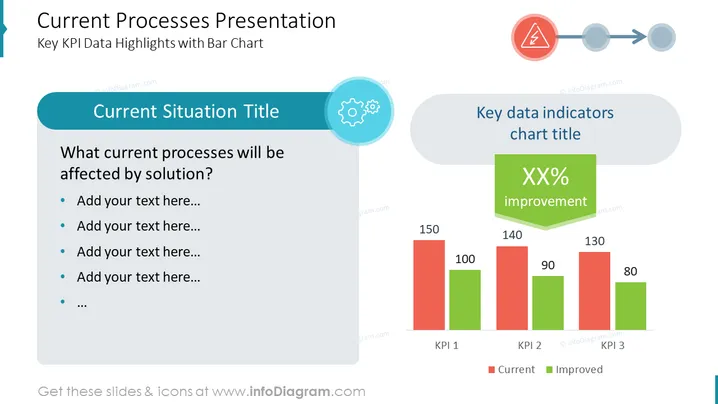
The slide titled "Current Processes Presentation" showcases "Key KPI Data Highlights with Bar Chart" on how certain processes will be impacted by a solution. The left side of the slide contains a section labeled "Current Situation Title" with bullet points where text can be added to describe the processes that will be subject to change. Adjacent to this, on the right side, is a bar chart showing three key performance indicators (KPIs), comparing "Current" and "Improved" values, emphasizing performance enhancements.
The use of bold contrasting colors and simplistic icons ensures focus on the key elements. The graphical elements come together to form a cohesive visual story linking text description and quantifiable data.



