
Reviews
Your graphics add a nice touch to my presentations and I recently used them for one of my all-hands meetings. Your toolbox adds professionalism to my slides. Instead of using standard clipart.
I needed a fresh look at some of my slides. I've tried to find a way to create a paintbrush effect, to underline, accentuate, add some color and the handwritten markers were just the things. Very easy to use, easy to size, change the color. It was an affordable, perfect solution and I'm happy to recommend it.
The crisp, clean look of the graphics, and the fact that it allowed me to easily edit and change the colors to match the template was my main reason for purchasing them.
Description
Business Transformation Status Tracking Dashboard
Slide Content
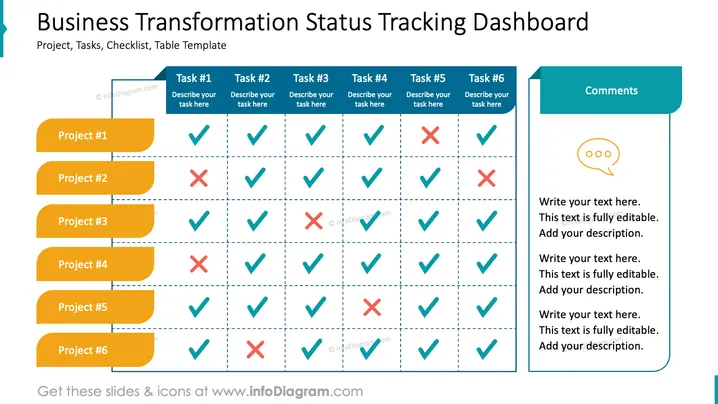
The slide is a business tracking dashboard template designed to monitor the status of various tasks across multiple projects. Each project is listed on the left, with tasks numbered from one to six across the top. A check mark represents completion, and an "X" denotes an incomplete task. The statuses of six projects are displayed with varying combinations of completed and pending tasks. To the right, there's a section titled "Comments" where additional information can be added. This slide layout helps in understanding the progress of multiple concurrent projects at a glance.
Graphical Look
- The slide has a bold title "Business Transformation Status Tracking Dashboard" with a subtitle in smaller text.
- A two-column format with the left side listing "Project #1" through "Project #6" in yellow, rounded-rectangle shapes.
- The right column structured as a grid with headers "Task #1" through "Task #6" and placeholders to describe each task.
- Check marks in teal circles indicate completed tasks, whereas red crosses within circles mark incomplete tasks.
- A prominent rectangular "Comments" box extends into the second column, visually balancing the slide.
- A speech bubble icon near the "Comments" box suggests the area for textual notes or observations.
- Light and dark shades of blue dominate the colour palette, with yellow for project labels and red and teal for task status symbols.
The slide has a clean, professional look with a distinct colour scheme that highlights key elements. Both text and graphical indicators are used to convey information quickly and effectively.
Use Cases
- Tracking project milestones and task completions during management meetings or progress reviews.
- Providing visual updates to stakeholders on the status of business transformation initiatives.
- Utilized in workshops or team meetings to assign tasks and note special comments or observations.
- Serves as an interactive tool during presentations to update project statuses in real-time.
How to Edit
How to edit text & colors

How to expand / shorten diagram

How to Replace Icons in infoDiagram PPT


