
Reviews
Your graphics add a nice touch to my presentations and I recently used them for one of my all-hands meetings. Your toolbox adds professionalism to my slides. Instead of using standard clipart.
I needed a fresh look at some of my slides. I've tried to find a way to create a paintbrush effect, to underline, accentuate, add some color and the handwritten markers were just the things. Very easy to use, easy to size, change the color. It was an affordable, perfect solution and I'm happy to recommend it.
The crisp, clean look of the graphics, and the fact that it allowed me to easily edit and change the colors to match the template was my main reason for purchasing them.
Description
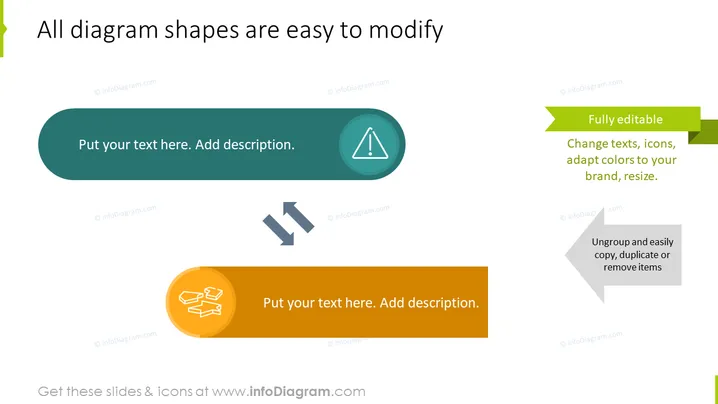
All diagram shapes are easy to modify
Slide Content
The PowerPoint slide presents features of diagram shapes that are designed to be user-friendly and adaptable. Two rounded rectangular callouts encourage viewers to add text and descriptions, each paired with an icon to denote customization: one for alerting and the other suggesting flow or connections. Adjacent to these, two ribbon banners highlight key attributes of the diagrams – 'Fully editable,' meaning users can change text, icons, and colors to suit their branding or preference, and the capability to 'Ungroup and easily copy, duplicate or remove items,' emphasizing the diagrams' flexibility.
Graphical Look
- The slide uses a clean and modern design with a white background.
- At the top, there's a text in dark font that acts as the title of the slide.
- Two rounded rectangular callouts with drop shadows feature placeholders for additional text and are accompanied by circular icons.
- The first callout is a teal color with a warning triangle icon.
- The second callout is orange with a group of arrows pointing in different directions, representing connectivity or flow.
- Two gray-colored arrows point from each callout to the corresponding ribbon banners.
- The ribbon banners are in a contrasting color (green and gray), making them stand out and drawing attention to the editable features.
- The text inside the banners is in white, enhancing readability against the darker backgrounds.
The overall look of the slide is professional with a hint of vibrancy provided by the use of bold colors. The graphic elements are symmetrically arranged, offering a balanced visual flow that guides the viewer's eye across the slide's key points.
Use Cases
- Explaining the customizable features of a software or digital product during a sales presentation to potential clients.
- Demonstrating the ease of use and adaptability of digital templates in a training session for new employees.
- Showcasing the flexibility of a content management system in a web design company's service portfolio presentation.
- Presenting the benefits of using a particular set of diagram templates in an educational workshop for design students, highlighting user-friendly features for easy modification.
How to Edit
How to edit text & colors

How to expand / shorten diagram

How to Replace Icons in infoDiagram PPT


