
Reviews
Your graphics add a nice touch to my presentations and I recently used them for one of my all-hands meetings. Your toolbox adds professionalism to my slides. Instead of using standard clipart.
I needed a fresh look at some of my slides. I've tried to find a way to create a paintbrush effect, to underline, accentuate, add some color and the handwritten markers were just the things. Very easy to use, easy to size, change the color. It was an affordable, perfect solution and I'm happy to recommend it.
The crisp, clean look of the graphics, and the fact that it allowed me to easily edit and change the colors to match the template was my main reason for purchasing them.
Description
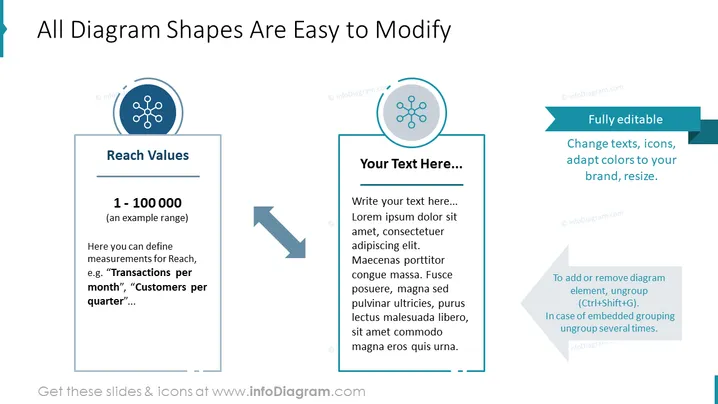
All Diagram Shapes Are Easy to Modify
Slide Content
The slide presents information about the ease of modification of diagram shapes in a presentation. It features two text boxes and a corresponding icon for each. The first text box, labeled "Reach Values," provides an example range of "1 - 100000" and suggests defining measurements such as "Transactions per month" or "Customers per quarter." The second text box encourages the user to add their text and demonstrates how customizable the content is; the box includes placeholder text with "Lorem Ipsum" filler content. Additionally, a small text box with the label "Fully editable" details that you can change texts, icons, adapt colors to your brand, and resize elements. It also gives instructions on how to edit the diagram elements by ungrouping them.
Graphical Look
- Two main content boxes with rounded corners are centrally aligned, each framed by a thin border.
- Each content box is paired with a circular icon above it with a network-like symbol, bounded by a larger circle.
- A large, bold title at the top of the slide in dark blue font.
- There are two smaller, aqua-colored text boxes, one with a right arrow next to the second main content box, and another at the bottom of the slide.
- A dark blue arrow points from the left content box to the right content box, signaling a workflow or process.
- The slide background is clean and white, which provides high contrast for the content.
- The visual style is professional, with a minimalist aesthetic and a restrained color scheme of blue and aqua.
The slide employs a clean and professional look with a straightforward layout that emphasizes ease of customization through minimal design elements. The use of iconic symbols paired with associated text content provides a visual anchor for the viewer.
Use Cases
- During software or tool training sessions to demonstrate how users can modify templates or elements within a program.
- In a sales presentation to highlight the customization features of a service or product being offered.
- As part of a marketing webinar to showcase brand adaptation possibilities within marketing materials.
- In an instructional design context, guiding users on how to personalize and adjust content for educational purposes.
How to Edit
How to edit text & colors

How to expand / shorten diagram

How to Replace Icons in infoDiagram PPT


