
Reviews
Your graphics add a nice touch to my presentations and I recently used them for one of my all-hands meetings. Your toolbox adds professionalism to my slides. Instead of using standard clipart.
I needed a fresh look at some of my slides. I've tried to find a way to create a paintbrush effect, to underline, accentuate, add some color and the handwritten markers were just the things. Very easy to use, easy to size, change the color. It was an affordable, perfect solution and I'm happy to recommend it.
The crisp, clean look of the graphics, and the fact that it allowed me to easily edit and change the colors to match the template was my main reason for purchasing them.
Description
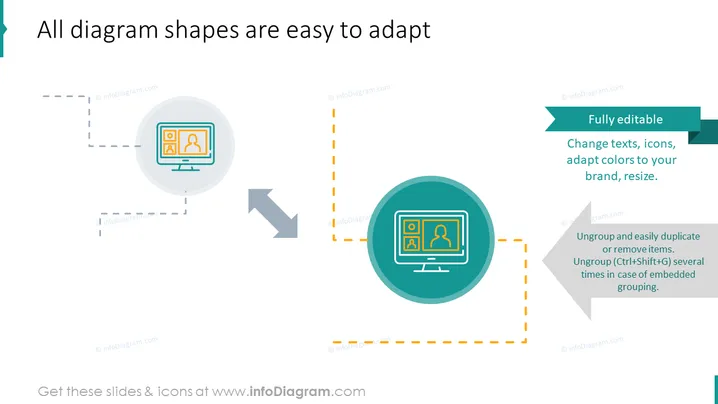
All diagram shapes are easy to adapt
Slide Content
The PowerPoint slide is designed to communicate the adaptability of diagram shapes. The "Fully editable" label explains that you can change texts, icons, adapt colors to match your brand, and resize shapes to fit your needs. An additional point states you can "Ungroup and easily duplicate or remove items," with further instructions to ungroup several times in case of embedded grouping, which is helpful for customizing complex diagrams.
Graphical Look
- Two circular shapes, one slightly larger than the other, each containing an image of a computer monitor with human silhouettes.
- A gray dashed line connects the smaller circle to the larger circle, indicating a relationship or a process from one to the other.
- A curved gray arrow points from the smaller circle to the larger circle, reinforcing the direction of the workflow or adaptation process.
- A solid teal banner with white text is aligned with the right edge of the slide, parallel to the larger circle.
- Two sets of text descriptions, one beside each circle, with bullet points, explaining the editability and ungrouping features, colored in orange and gray to match the corresponding dashed lines and arrow.
- A subtle drop shadow appears below the circular shapes, adding depth to the design.
The slide has a clean and modern look, using a teal, orange, and gray color scheme. The graphics are simple and easily understandable, highlighting the customizability of the slide elements.
Use Cases
- Demonstrating the flexibility of presentation templates during a product pitch or sales presentation.
- Training employees or clients on how to customize company-branded presentations.
- Offering a tutorial or workshop on effective PowerPoint design and manipulation techniques.
- Showcasing software features that allow for detailed editing and customization of diagrams in a business software or tool demonstration.
How to Edit
How to edit text & colors

How to expand / shorten diagram

How to Replace Icons in infoDiagram PPT


