
Reviews
Your graphics add a nice touch to my presentations and I recently used them for one of my all-hands meetings. Your toolbox adds professionalism to my slides. Instead of using standard clipart.
I needed a fresh look at some of my slides. I've tried to find a way to create a paintbrush effect, to underline, accentuate, add some color and the handwritten markers were just the things. Very easy to use, easy to size, change the color. It was an affordable, perfect solution and I'm happy to recommend it.
The crisp, clean look of the graphics, and the fact that it allowed me to easily edit and change the colors to match the template was my main reason for purchasing them.
Description
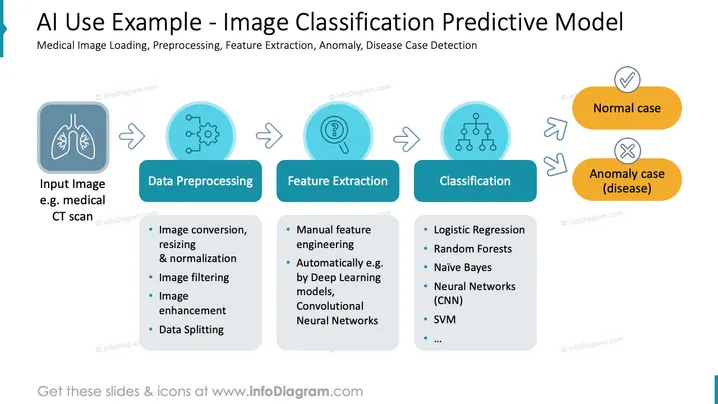
AI Use Example - Image Classification Predictive Model
Slide Content
This PowerPoint slide presents an overview of an AI Use Example, specifically for an Image Classification Predictive Model used in medical image analysis, including loading, preprocessing, feature extraction, and classification to distinguish between normal and anomaly cases, such as diseases. The process starts with an 'Input Image' like a medical CT scan, followed by 'Data Preprocessing', which involves image conversion, resizing, normalization, filtering, enhancement, and data splitting. 'Feature Extraction' includes manual feature engineering or automatic methods like deep learning models, and 'Classification' techniques mentioned are logistic regression, random forests, Naïve Bayes, neural networks (CNN), SVM, etc., leading to the identification of either a 'Normal case' or an 'Anomaly case (disease)'.
Graphical Look
- The slide background is white with a dark blue header containing the title.
- The title uses a large, bold font in dark blue color.
- A subtitle in a smaller font lies below the title, giving context to the title.
- There are two main rows of content; the top row comprising four process step blocks and the bottom row listing details for three of these steps.
- Each process step in the top row is represented by a rounded rectangle with an icon and text below it, denoting the step's name.
- The icons are stylized and colored mainly in shades of dark and light blue.
- Arrows connect these steps, indicating a sequence from left to right.
- The bottom row has bullet points expanding on the 'Data Preprocessing', 'Feature Extraction', and 'Classification' steps.
- The 'Normal case' and 'Anomaly case (disease)' outcomes are illustrated with a checkmark and cross icons respectively, placed within pill-shaped colored backgrounds.
The slide has a clean and professional design, using a consistent color scheme to convey a technological and medical theme. The use of icons and colored shapes helps to ### Use Cases
- Presenting the workflow of a medical image analysis AI system to healthcare professionals or stakeholders.
- Providing an educational overview of image classification techniques to students or trainees in the fields of computer science or biomedical engineering.
- Illustrating the steps of a predictive model in a technical or scientific conference presentation.
- Offering an insight into the practical applications of machine learning in a pitch to investors interested in healthcare technology.
How to Edit
How to edit text & colors

How to expand / shorten diagram

How to Replace Icons in infoDiagram PPT


