
Reviews
Your graphics add a nice touch to my presentations and I recently used them for one of my all-hands meetings. Your toolbox adds professionalism to my slides. Instead of using standard clipart.
I needed a fresh look at some of my slides. I've tried to find a way to create a paintbrush effect, to underline, accentuate, add some color and the handwritten markers were just the things. Very easy to use, easy to size, change the color. It was an affordable, perfect solution and I'm happy to recommend it.
The crisp, clean look of the graphics, and the fact that it allowed me to easily edit and change the colors to match the template was my main reason for purchasing them.
Description
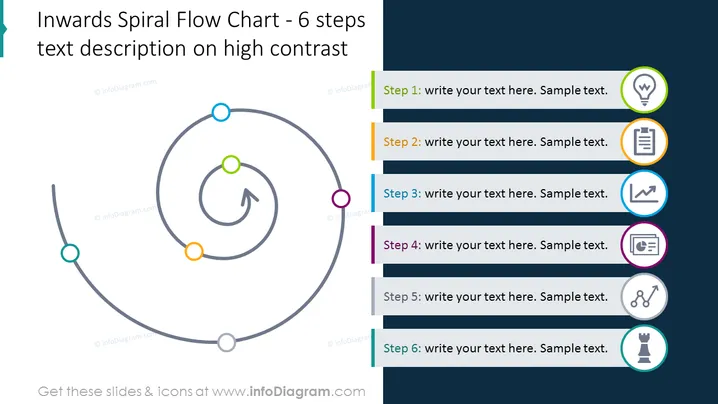
Inwards Spiral Flow Chart - 6 steps text description on high contrast
Slide Content
The slide presents an "Inwards Spiral Flow Chart" with six steps, designed to illustrate a process or workflow in a cyclical manner, emphasizing a progression towards a central point. Each step is represented by a distinct colored node on the spiral trajectory and a corresponding text box with placeholder text, paired with unique icons that suggest the nature of each step: the creativity of an idea, documentation, analysis, reporting, connectivity, and strategy.
Graphical Look
- A large, grey spiral arrow dominates the left side of the slide, representing a process flow.
- Six circular nodes of different colors are aligned along the spiral, each linked to a textual component.
- The right side of the slide contains six rectangular text boxes with directional cues pointing towards the corresponding nodes on the spiral.
- Each text box has a colored left border that matches a node on the spiral, aiding visual correlation.
- Icons next to text boxes, within colored circles, symbolize each step, including a lightbulb, clipboard, graph, document, links, and chess piece.
- The overall color scheme is made up of muted blues, greens, oranges, and purples, providing high contrast and visual segmentation.
The slide has a clean, professional design with a good balance between visual elements and text. The chosen colors and icons effectively differentiate each step and facilitate engagement and understanding.
Use Cases
- Outlining steps in a business or marketing strategy to illustrate how each phase feeds into the next.
- Depicting a product development lifecycle, from ideation to execution.
- Communicating company processes or workflows to new employees during orientation or training.
- Presenting stages in problem-solving or continuous improvement initiatives, emphasizing iterative development.
How to Edit
How to edit text & colors

How to expand / shorten diagram

How to Replace Icons in infoDiagram PPT


