
Reviews
Your graphics add a nice touch to my presentations and I recently used them for one of my all-hands meetings. Your toolbox adds professionalism to my slides. Instead of using standard clipart.
I needed a fresh look at some of my slides. I've tried to find a way to create a paintbrush effect, to underline, accentuate, add some color and the handwritten markers were just the things. Very easy to use, easy to size, change the color. It was an affordable, perfect solution and I'm happy to recommend it.
The crisp, clean look of the graphics, and the fact that it allowed me to easily edit and change the colors to match the template was my main reason for purchasing them.
Description
Comparison Table for Text Content
Slide Content
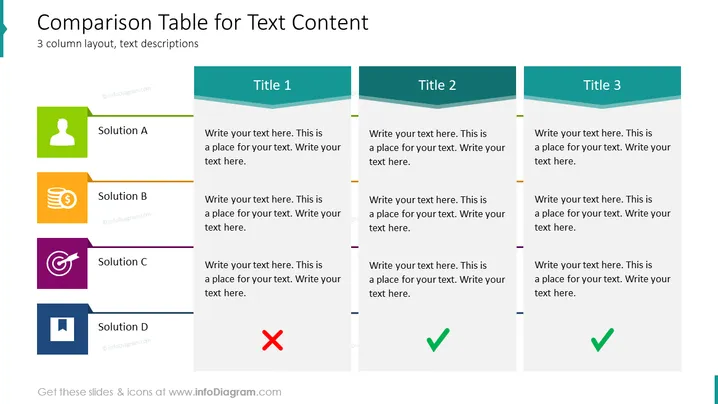
The slide "Comparison Table for Text Content" presents a three-column layout for comparing different text descriptions. Each column represents a unique solution or category—A, B, and D—along with placeholders for additional text. Solution A seems to be the standard or starting point; Solution B might refer to a financially focused option, given the coin stack icon; Solution C uses a target to possibly signify a goal-oriented solution; and Solution D, marked with a cross, suggests it might be a rejected or less favorable option.
Graphical Look
- The slide has a clean, flat design with a white background and a three-column layout.
- Each column is topped with a teal ribbon holding the title for that column.
- Four icon boxes are aligned vertically on the left side, each with a distinct color and icon, representing different solutions or options.
- The icons include a person silhouette, a stack of coins, a target symbol, and a document icon.
- Each solution box is paired with a horizontal colored bar matching the icon's background, extending into the respective column.
- The rightmost boxes in each column contain a red cross or green check mark, representing negative or positive outcomes.
- Text placeholders with a light grey font color are present in each column for additional descriptions.
The overall design is modern and minimalist, with the use of simple shapes and contrasting colors to direct the viewer's attention to the comparison of solutions. The icons are distinctive yet simple, facilitating quick comprehension.
Use Cases
- To compare features or benefits of different products or versions during a sales pitch.
- To evaluate competing proposals or solutions in a business strategy meeting.
- To summarize the pros and cons of various options in a decision-making process.
- To present an overview of alternative strategies or investments to stakeholders or team members.
How to Edit
How to edit text & colors

How to expand / shorten diagram

How to Replace Icons in infoDiagram PPT


