
Your graphics add a nice touch to my presentations and I recently used them for one of my all-hands meetings. Your toolbox adds professionalism to my slides. Instead of using standard clipart.
Claude Jones, Director of Engineer, @Walmartlabs, USA
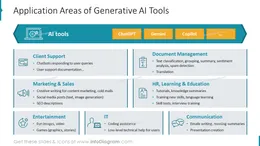
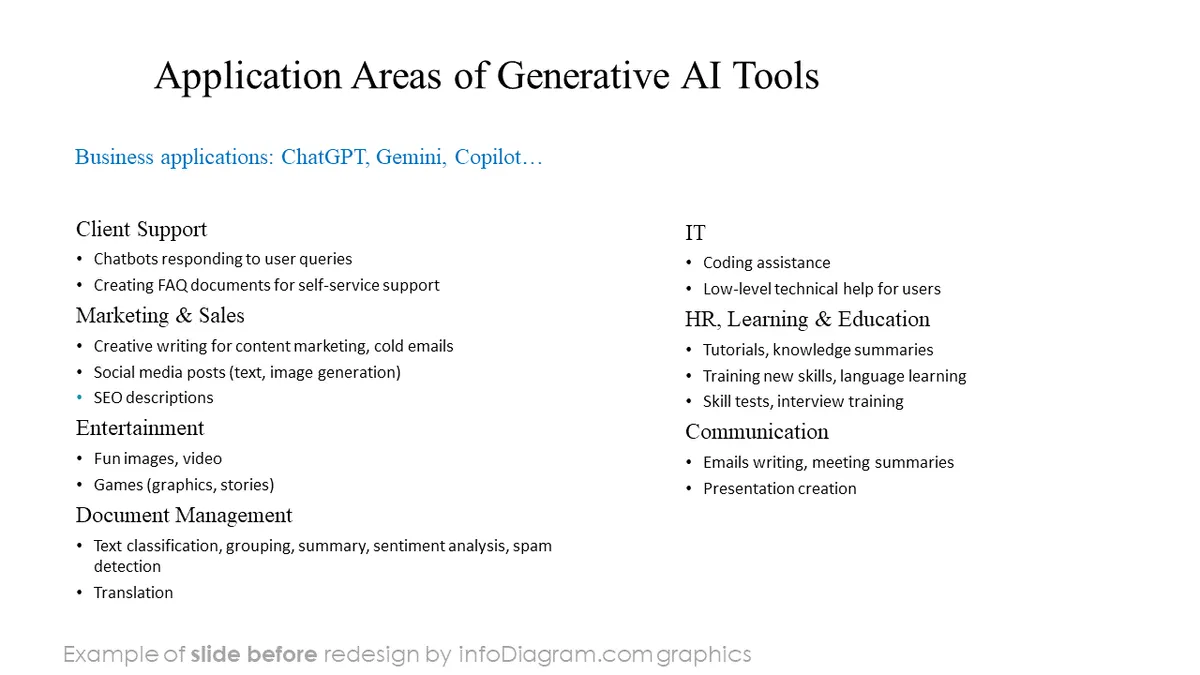
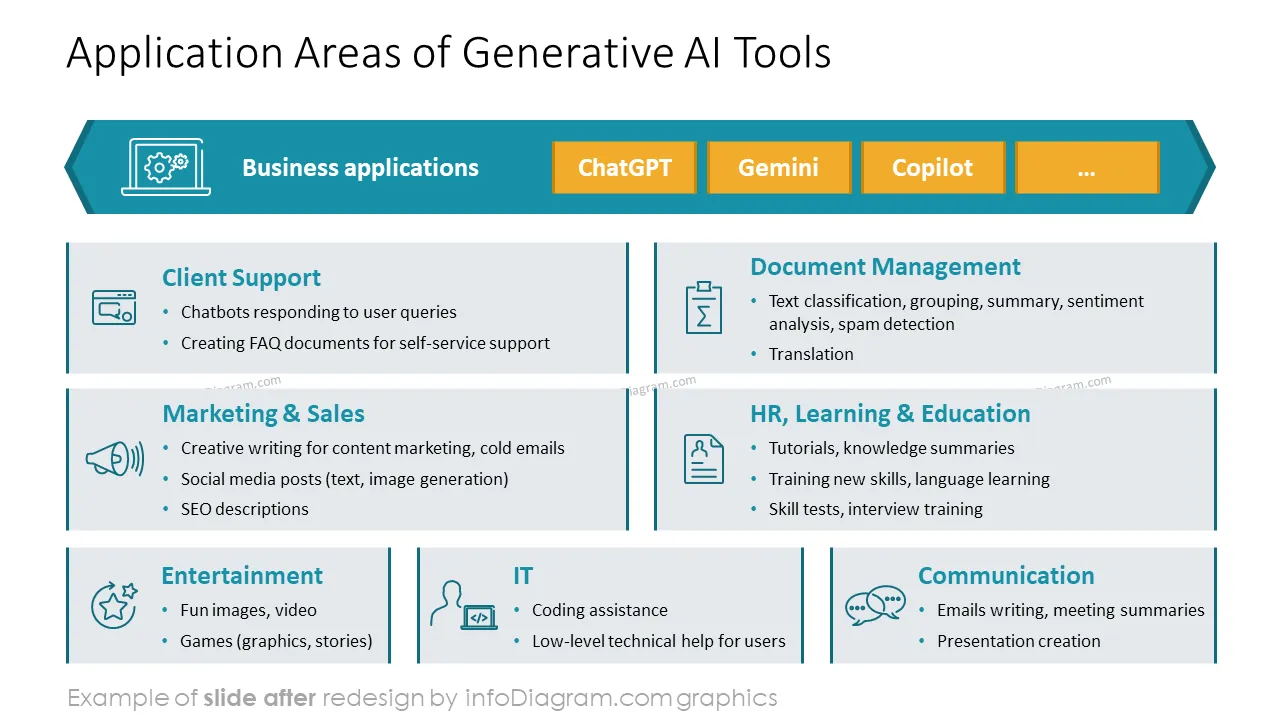
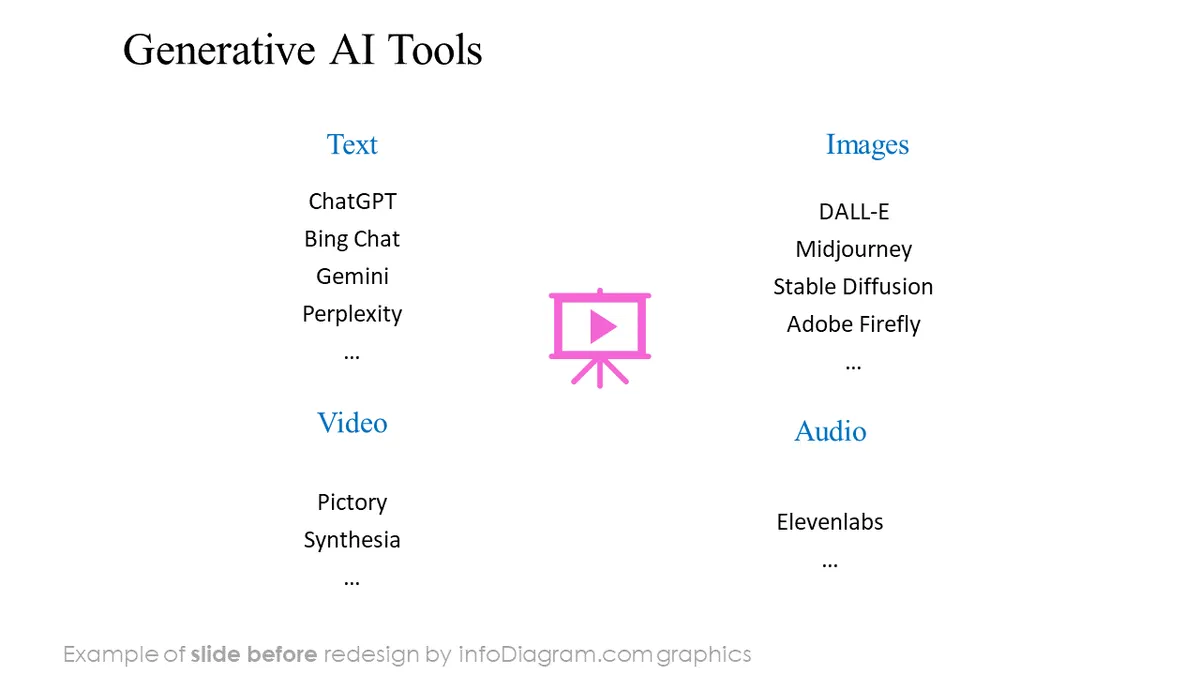
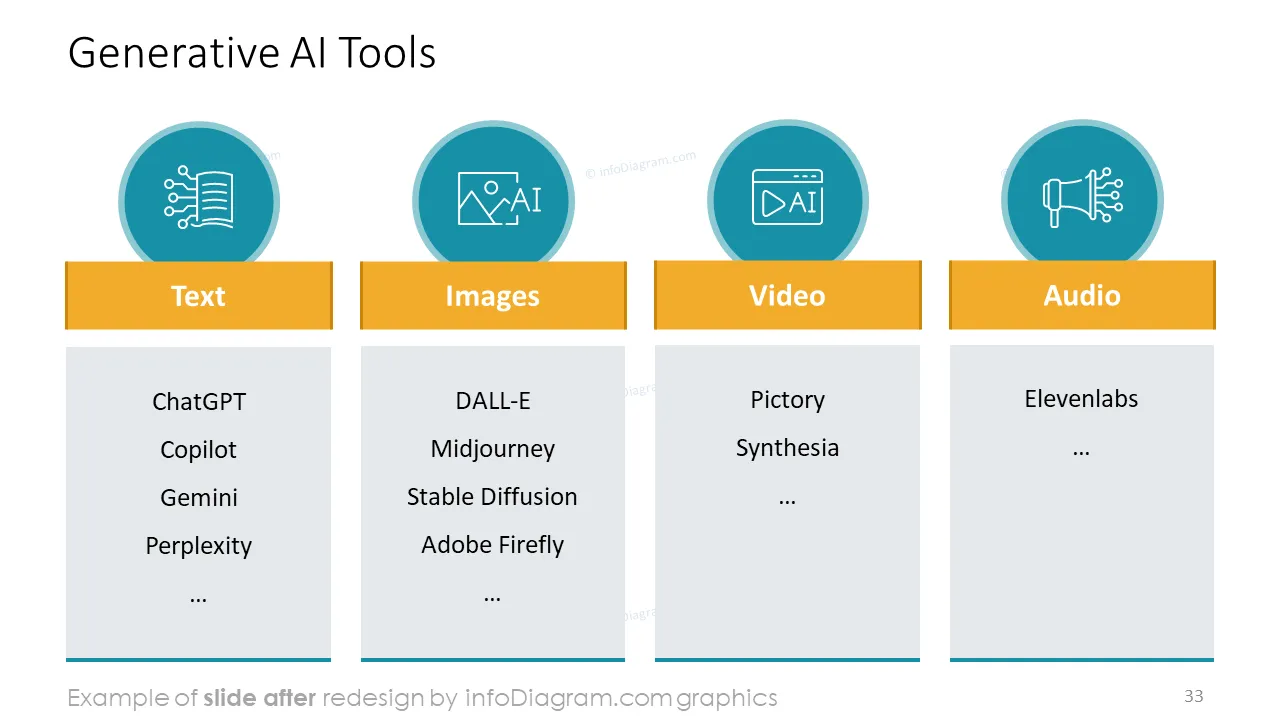
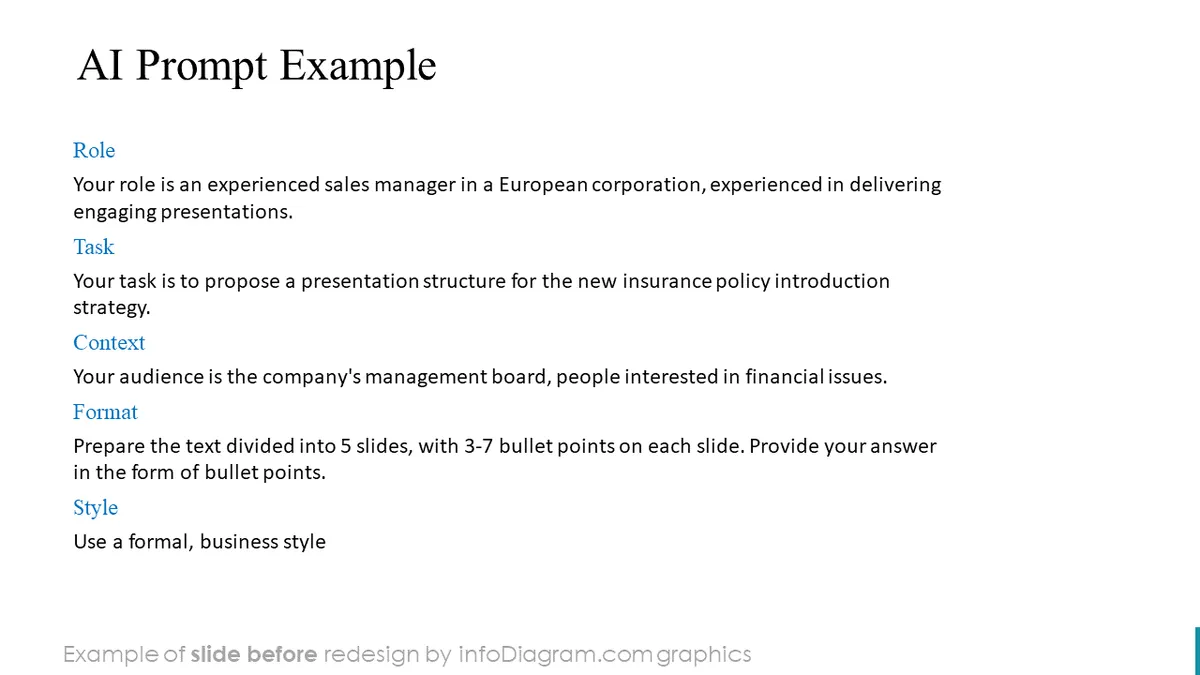
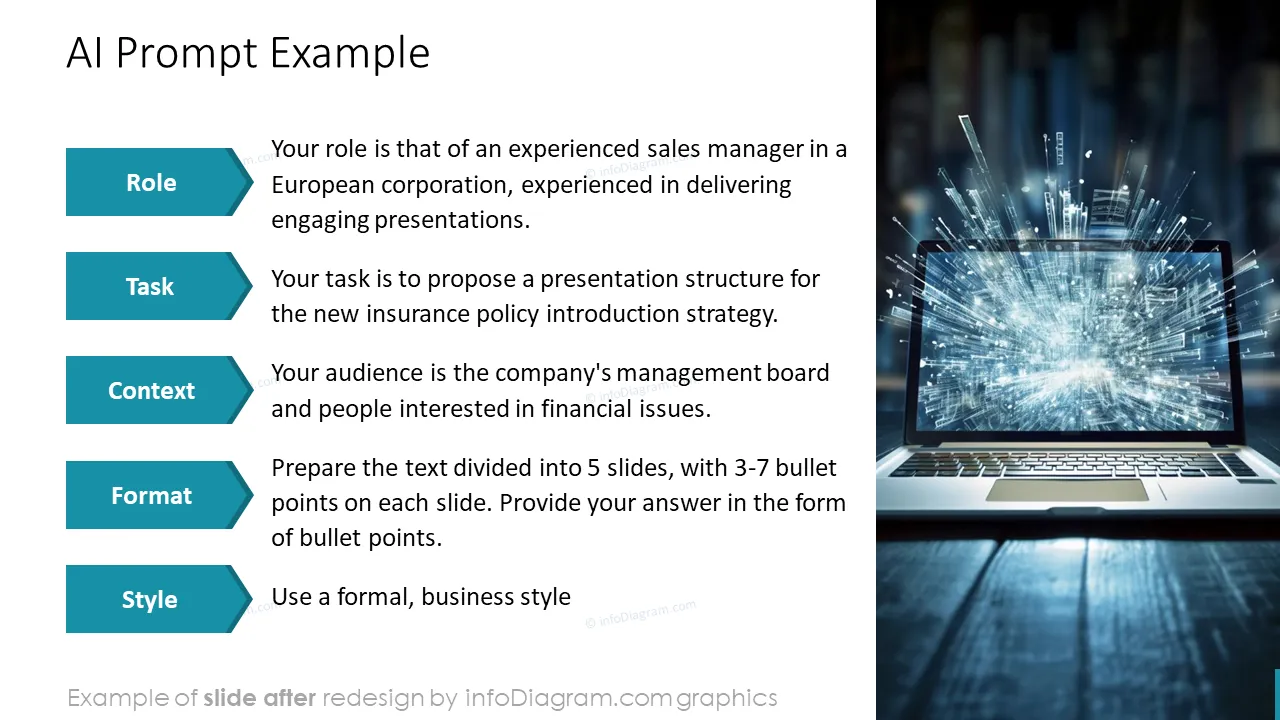
Before and after
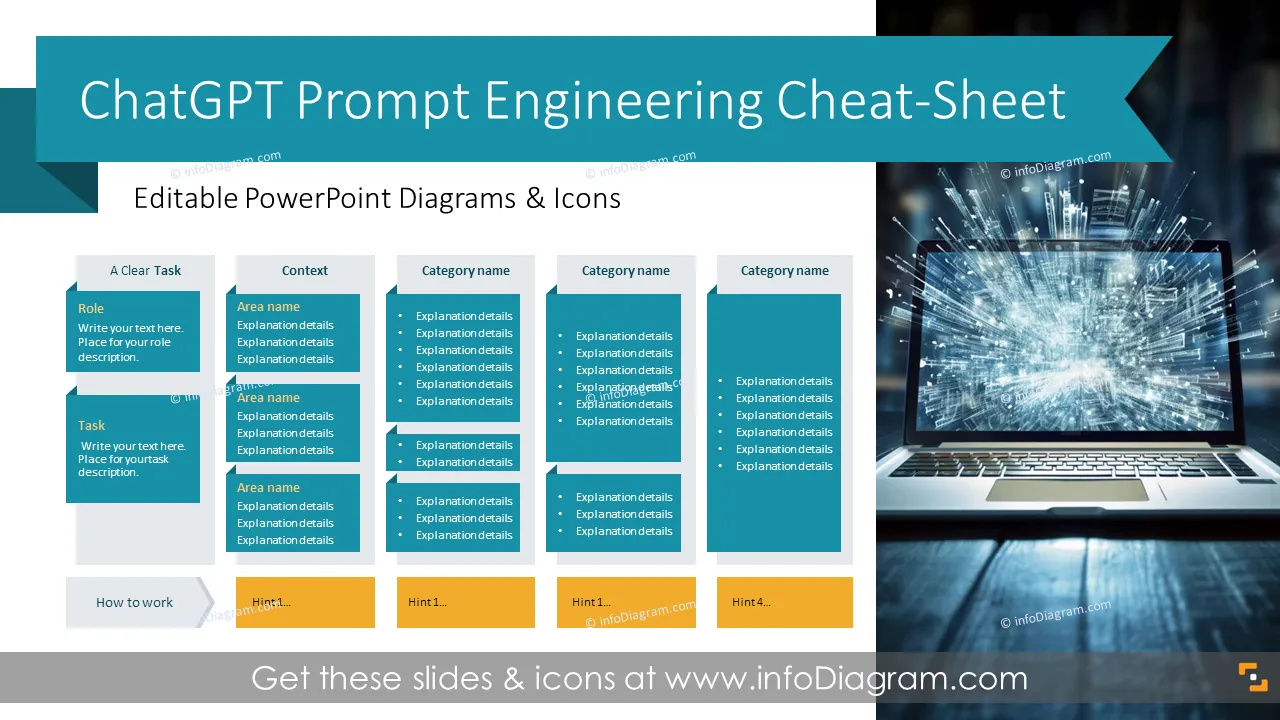
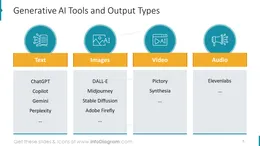
Want to create a ChatGPT using a cheat sheet to share? For a prompt engineering course, tutorial, or other educational material, teaching how to use generative Artificial Intelligence tools (e.g., ChatGPT, Gemini, Copilot, Claude).
Try using PowerPoint for such training material. This MS Office application is familiar and simple to use. It allows you to modify the content or add screenshots, for example.
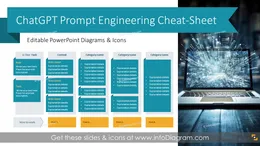
We have designed the PowerPoint template for creating AI prompting cheat sheets and for explaining the basics of generative AI tools.
Prompt Engineering is a way to interact with generative AI tools such as ChatGPT. The purpose is to get optimal results from ChatGPT by properly defining a task and its context.
There are several areas that ChatGPT should cover, e.g. task and context definition. Proper prompt depends on area where you want to use it – it may differ if you use it for business situations, or educational ones, whether you want AI to write you a sales text or help with market research.
When teaching AI prompt engineering, using PowerPoint has several benefits. People are familiar with using MS Office tools.
Having a PowerPoint template gives you structure and flexibility in adapting it to your needs. For example, you can copy it to your branded MS Office template and use your company’s visual identity.
The PowerPoint template can serve also as a good note-taking app for prompts, as it is easy to copy the text or screenshot of ChatGPT output. You can also organize slides into sections or add comments.
A cheat sheet is a popular form of concise presentation of complex information such as prompt engineering tips. You can create educational or marketing materials for:
Your graphics add a nice touch to my presentations and I recently used them for one of my all-hands meetings. Your toolbox adds professionalism to my slides. Instead of using standard clipart.
Claude Jones, Director of Engineer, @Walmartlabs, USA
I needed a fresh look at some of my slides. I've tried to find a way to create a paintbrush effect, to underline, accentuate, add some color and the handwritten markers were just the things. Very easy to use, easy to size, change the color. It was an affordable, perfect solution and I'm happy to recommend it.
Anonymous, US
The crisp, clean look of the graphics, and the fact that it allowed me to easily edit and change the colors to match the template was my main reason for purchasing them.
Brandie Jenkins, E-learning Developer, USA


You may also need