FINANCIAL REPORTS
PPT visuals to present your key numbers
Present Your Topic Visually:
Reviews
Your graphics add a nice touch to my presentations and I recently used them for one of my all-hands meetings. Your toolbox adds professionalism to my slides. Instead of using standard clipart.
I needed a fresh look at some of my slides. I've tried to find a way to create a paintbrush effect, to underline, accentuate, add some color and the handwritten markers were just the things. Very easy to use, easy to size, change the color. It was an affordable, perfect solution and I'm happy to recommend it.
The crisp, clean look of the graphics, and the fact that it allowed me to easily edit and change the colors to match the template was my main reason for purchasing them.
Usage example
Description
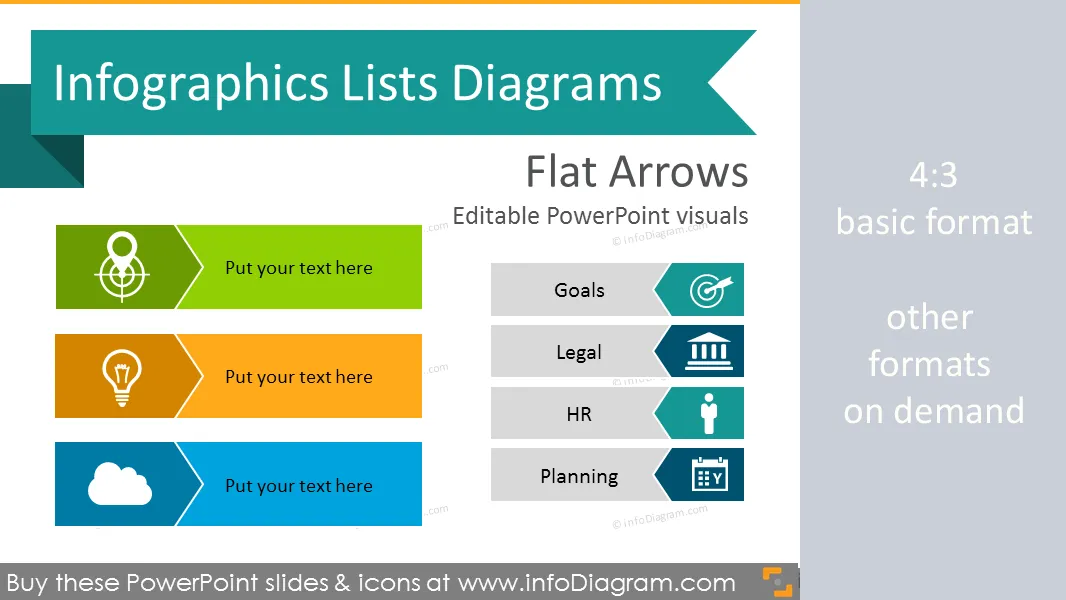
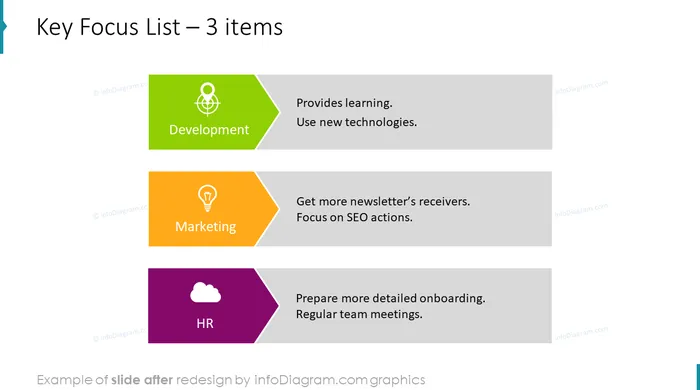
Set of arrow shape list diagrams for infographics made in Powerpoint
- 14 variations of flat lists diagrams
- text placeholders for item sets with list title, for comparisons or agendas
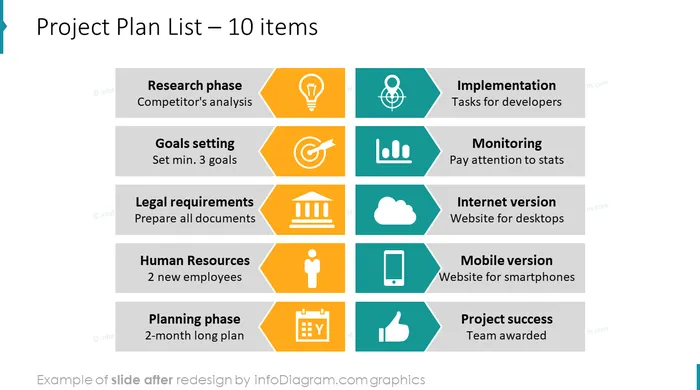
- 10 universal flat icon symbols for infographics: man, thumbs up, magnifier for analysis or search concept, bullseye for objectives and goals concept, calendar, institution, mobile telephone, data chart symbol
- fully editable style, size and colors
Content:
Diagram shapes for creating infographics lists in Powerpoint presentations.
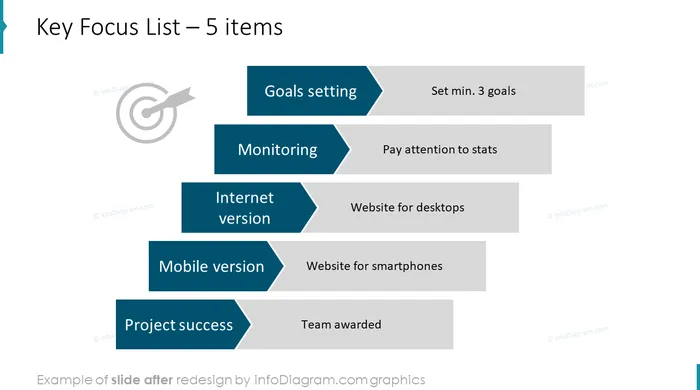
- Bulletpoint killers, placed in 1 and 2 columns, cascade view
- Flat Arrow Strip List – 3,4 and more items with text placeholders
- Diagram shapes for creating lists in Powerpoint
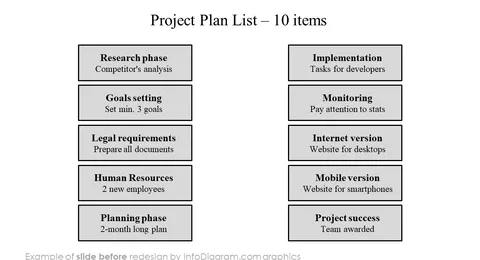
- Templates for project plan check-list example
- Arrow Diagram templates for different number of items
- List diagrams for comparisons or longer agendas in two columns
- Monocolor and multiple color lists
- Index of Flat Icons Applied (extendable)
All shapes can be edited using PowerPoint set of vector shapes fully editable by using built-in PPT tools, including
- changing color of the icon filling and its outline
- adding shadows
- changing shape and size, rotating, flipping the object
- putting shapes behind or on top of text
See editing demonstration in our HowTo Videos.
Authors
- Design:infoDiagram designers, Contact via infoDiagram.com
Slides included in this PowerPoint Presentation:
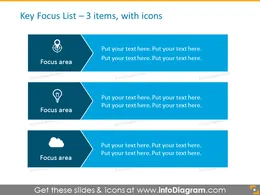
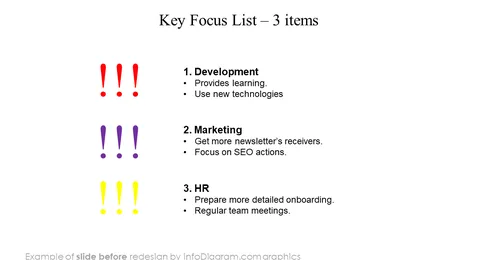
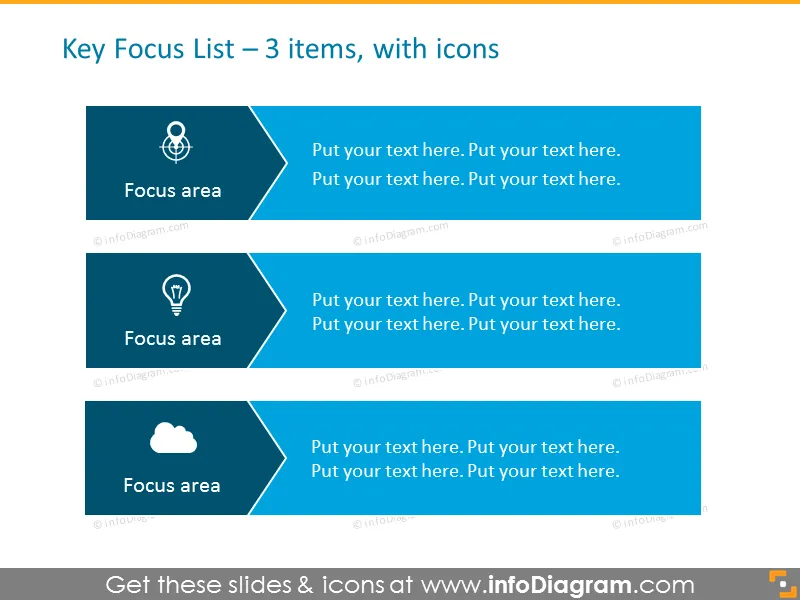
- Key Focus List - 3 Items PPT Template
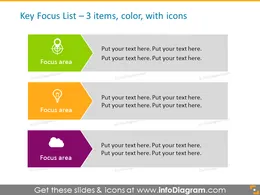
- Arrow Diagram Template in color for placing 3 items, with icons
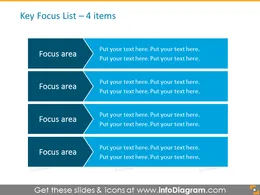
- Smartart Template List for placing 4 items
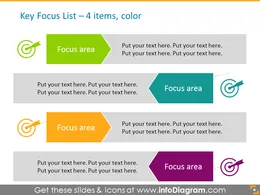
- Arrows Smart Art in Color - 4 Items Template
- Activity-on-arrow Diagram template for PowerPoint
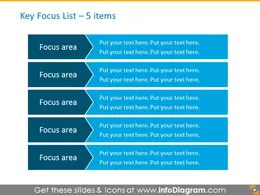
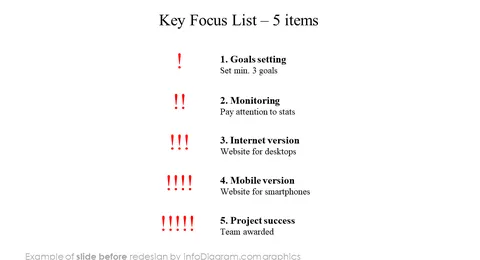
- Colorful Arrow Diagram Template - 5 Items
- List for placing Activities on Arrows on two sides
- Arrow Diagram Activity - Cascade Downward Slide
- Activity-on-arrow Diagram template for placing items cascade upwards
- List for placing Activities on Arrows for 10 items
- Arrows Diagram Template for 10 items in 2 columns in grey color with numbers for Powerpoint
- List for placing Activities on Arrows opposite each other Diagram Template
- Arrows List Template - 10 Items, 2 Rows, Joint Set
- Arrow Diagram Example for Project plan with icons - project phases in 2 columns
- Index of Flat Icons Applied (extendable)
- PowerPoint editable vector shapes, adaptable charts, example of editing
How to Edit
How to edit text & colors

How to expand / shorten diagram

How to Replace Icons in infoDiagram PPT